
MeshLab Download: Free Software to Repair and Clean STL Files for 3D Printing
Always the newest version, checked live against the official GitHub releases every time you visit
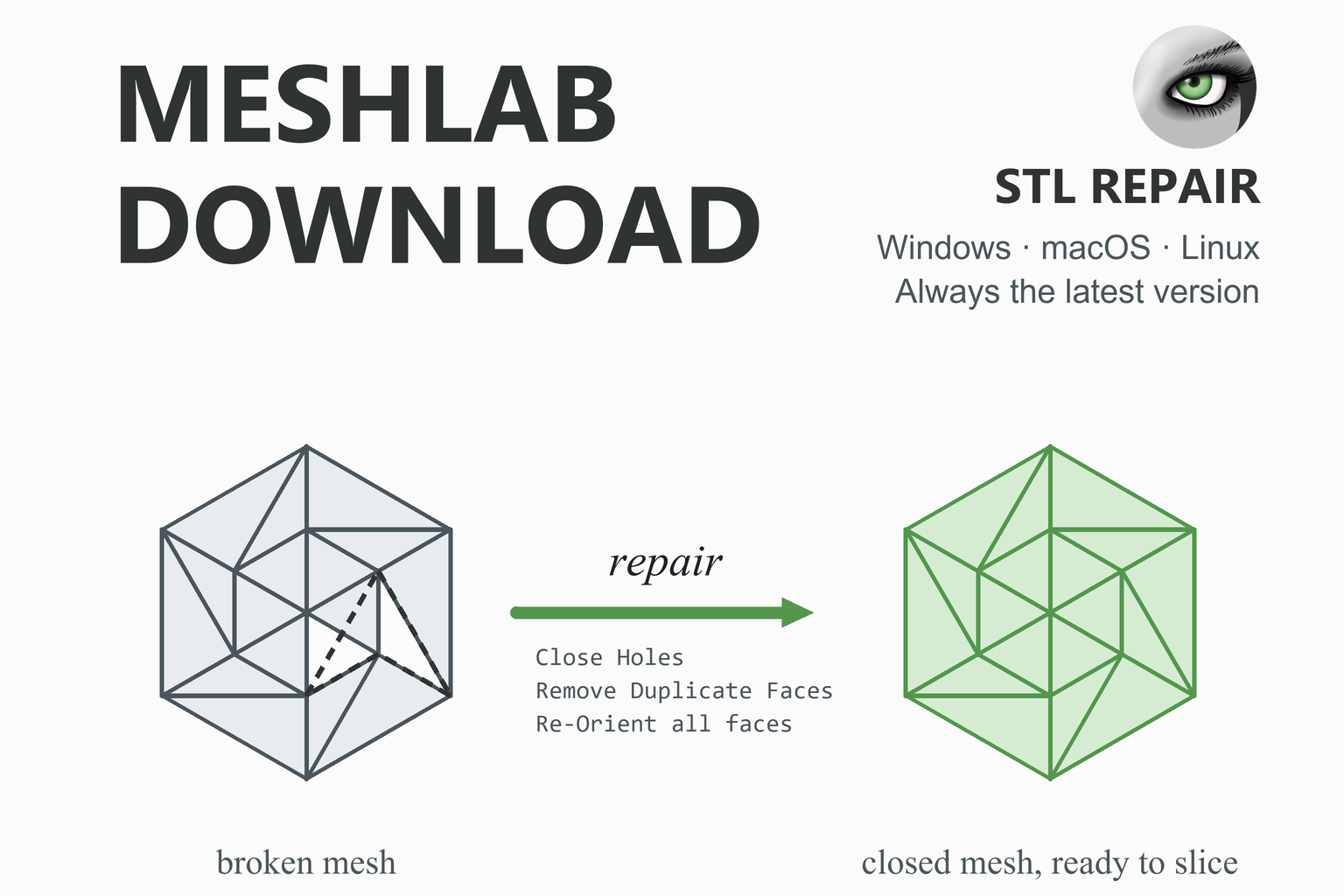
MeshLab is free, open-source software for processing and editing 3D triangle meshes, the kind of model that STL files contain. For 3D printing its most useful job is repairing broken models: closing holes, removing duplicate and degenerate faces, fixing non-manifold edges and flipped normals, and deleting stray pieces so that a slicer can print the model. This page checks GitHub when you open it and offers the newest stable build for Windows, macOS and Linux, with file sizes and SHA-256 checksums. Below you will find what the different files are, how to install it, a step-by-step STL repair walkthrough with the exact filter names, and answers to the common questions.
Download MeshLab
Or use the official page: MeshLab download page
Previous versions
Loading the release list…
How this download box works
- It is live. Each visit asks GitHub for the newest stable release of the official MeshLab project, so you are never sent to an outdated file. Your browser keeps the answer for ten minutes; the Refresh button asks again straight away.
- It shows the current version only. If one system has no file in the newest release, the box says so instead of quietly offering an older build.
- Every release has two sets of files. The standard builds and the “d” builds, which use double-precision numbers. Both are listed under each system; the big button picks the standard one. See standard or double precision.
- Every link goes to GitHub. The script only accepts download addresses on the official project’s release path. If GitHub cannot be reached, the box falls back to links that always point to the newest release.
- MeshLab also ships in other places. The official site lists a Microsoft Store version and a Linux Flatpak on Flathub; this box covers the files on GitHub.
Download Safety and How to Verify the File
Mesh tools open files from all over the internet and run with full access to your computer, so where the installer comes from matters. Download MeshLab from the official GitHub release page (the box above reads from it) or from the MeshLab download page. Be wary of mirror and “free download” sites: some show out-of-date version numbers or repackaged installers.
Check the SHA-256 checksum
A checksum is a fingerprint of the file. If the fingerprint of your download matches the one shown in the box above, the file is exactly what was published. Replace the file name with yours.
Windows (PowerShell)
Get-FileHash .\MeshLab2025.07-windows_x86_64.exe -Algorithm SHA256macOS (Terminal)
shasum -a 256 ~/Downloads/MeshLab2025.07-macos_arm64.dmgLinux (terminal)
sha256sum MeshLab2025.07-linux_x86_64.AppImageCompare the printed value, character by character, with the SHA-256 shown for that file. If they differ, delete the file and download it again from the official link.
What Is MeshLab?
The MeshLab website describes it as “the open source system for processing and editing 3D triangular meshes” and lists tools for editing, cleaning, healing, inspecting, rendering, texturing and converting meshes. It has been developed since 2005 by the Visual Computing Lab of ISTI-CNR, and its README says it is mostly based on the C++ library VCGlib from the same lab. The source code is released under the GNU General Public License v3 (GPL-3.0), and the program is available for Windows, macOS and Linux.
A mesh is a surface made of many small triangles. An STL file is exactly that: a list of triangles. MeshLab is not a slicer and not a CAD program; it works on the triangles themselves, which makes it good at the clean-up jobs that other tools handle poorly.
Cleaning
Remove duplicate and zero-area faces, merge duplicate vertices and delete stray pieces.
Healing
Close holes, repair non-manifold edges and vertices and put every face the right way round.
Inspecting
Show the problem areas, then measure the model: bounding box, surface area and, for a closed mesh, volume.
Simplifying
Reduce the number of triangles of a heavy model and resample or remesh it.
Reconstructing
Turn a point cloud into a surface, for example with the Screened Poisson filter the site lists.
Scripting
PyMeshLab, released alongside MeshLab, runs the same filters from Python for batch jobs.
What’s New in Recent Releases
MeshLab releases are now a year or more apart, so the newest version may be many months old. That is normal for this project: the site shows 2025.07 as the current release together with PyMeshLab 2025.7. The official site lists these highlights for 2025.07: ARM64 support on Linux and macOS, 3MF support and bug fixes.
| Version | Date | What the release files show |
|---|---|---|
| 2025.07 | 22 Jul 2025 | Separate macOS builds for Apple Silicon (arm64) and Intel (x86_64), Linux AppImage and archive builds for x86-64 and Arm64, a Windows installer and a portable zip, each in a standard and a double-precision version. Official highlights: ARM64 on Linux and macOS, 3MF support. |
| 2023.12 | 12 Dec 2023 | One macOS disk image, one Linux AppImage and archive, a Windows installer and zip, each in standard and double-precision versions. |
| 2022.02 | 2 Mar 2022 | The same layout as 2023.12, with an extra macOS archive. |
| 2021.10 | 29 Oct 2021 | The same layout, with a macOS archive. |
The box above shows the notes of the newest release live. For the older releases, use the Previous versions list in the box.
Standard or Double Precision (the “d” Builds)?
Every MeshLab release contains two versions of each file. The GitHub release notes explain the second one in a single line: the files with a d after the version number (for example MeshLab2025.07d) “are built with double precision floating point numbers”. The standard files use single precision.
| Standard build | Double-precision “d” build | |
|---|---|---|
| File name | MeshLab2025.07-… | MeshLab2025.07d-… |
| Numbers used for coordinates | Single precision | Double precision, as the release notes state |
| Who it is for | Most people and typical 3D printing models | Work that needs the extra numeric precision, such as data with very large coordinates |
Which File Should I Download?
| System | File | Best for |
|---|---|---|
| Windows | windows_x86_64 .exe | A normal installation with a Start menu entry. 64-bit Windows. |
| Windows | windows_x86_64 .zip | A portable copy you extract and run without installing. |
| macOS | macos_arm64 .dmg | Macs with Apple Silicon (M1 and newer). |
| macOS | macos_x86_64 .dmg | Older Macs with an Intel processor. |
| Linux | linux_x86_64 .AppImage | A single file that runs on most 64-bit Linux systems without installing. |
| Linux | linux_aarch64 .AppImage | Arm computers, such as a Raspberry Pi 4 or 5 running a 64-bit system. |
| Linux | .tar.gz archives | Extract and run from a folder. |
| Other | Microsoft Store, Flathub (Flatpak) | Listed on the official MeshLab download page for people who prefer an app store. |
System requirements. The MeshLab README and website do not publish a requirements list. The file names show that current builds are 64-bit for Windows and Linux, and that macOS and Linux have separate Apple Silicon/Intel and x86-64/Arm64 versions. Large models need plenty of memory, so close other heavy programs when you work on a model with millions of triangles.
Install MeshLab
Windows
- Download the .exe installer from the box above and run it, then follow the installer. Or download the .zip, extract it to a folder and start MeshLab from there.
- Start MeshLab from the Start menu (installer) or from the extracted folder (portable).
macOS
- Download the .dmg that matches your Mac: arm64 for Apple Silicon, x86_64 for Intel. (If you are unsure, Apple menu, About This Mac shows the chip.)
- Open the disk image and drag MeshLab to your Applications folder.
- If macOS refuses to open an app downloaded from the internet, look in System Settings, Privacy & Security. This is general macOS behaviour for downloaded apps, not a MeshLab-specific message.
Linux
- Download the AppImage for your processor (x86_64 or aarch64) and make it executable, then run it:
chmod +x MeshLab2025.07-linux_x86_64.AppImage ./MeshLab2025.07-linux_x86_64.AppImage - If the AppImage does not start, your system may be missing FUSE support, which AppImages normally need. Installing the FUSE package for your distribution is the usual fix, or you can use the .tar.gz archive or the Flatpak instead.
- On a system with Flatpak, the official site lists MeshLab on Flathub, which you can install with:
flatpak install flathub net.meshlab.MeshLab
Repair an STL for 3D Printing, Step by Step
Slicers need a closed, consistent surface: no holes, every edge shared by exactly two triangles, and every triangle facing outwards. Models downloaded from the internet, scanned, exported from sculpting programs or combined from several parts often break these rules. The steps below use the exact filter names from MeshLab’s own documentation, in a sensible order. Do them one at a time and look at the model after each.
Keep the original. Work on a copy and save under a new name. Repair filters change the model, and some of them (closing holes, deleting pieces, merging vertices) cannot be undone once you export and overwrite the original file.
Step 1: Open the model
Choose and select your STL. Rotate and zoom to look for obvious problems: holes, a model that looks dark or inside-out, loose floating pieces. In the menu you can switch on the display of boundary edges and non-manifold edges to make problem areas easier to see.
Step 2: Clean out duplicates and empty faces
Open and run these, one after another:
- Remove Duplicate Faces: deletes faces made from the same set of vertices.
- Remove Duplicate Vertices: merges vertices that sit at exactly the same coordinates into one.
- Remove Zero Area Faces: deletes faces whose area is zero.
- Merge Close Vertices: merges vertices that are very close but not identical. It works like removing duplicate vertices but with a tolerance. The documentation advises very small values; its default is 1/10,000 of the bounding box diagonal.
Step 3: Fix non-manifold edges and vertices
A non-manifold edge is one shared by more than two faces, and a non-manifold vertex joins parts of the surface in a way that cannot be a real solid. Slicers often fail on both.
- Run Select non Manifold Edges to see where they are. It selects the faces and vertices on non-manifold edges.
- Run Repair non Manifold Edges. It either removes faces (deleting the smallest-area face on each bad edge until it is manifold) or splits vertices, so each bad chain becomes a border.
- Run Select non Manifold Vertices and, if any are found, Repair non Manifold Vertices by splitting. This catches cases such as two cones touching at their tips.
Clear the selection afterwards (), otherwise later filters may act on the selection only.
Step 4: Remove floating pieces
Use Remove Isolated pieces (wrt Diameter) in the same menu to delete disconnected pieces smaller than a size you choose. Be careful: if your model really consists of several parts, check that you are not deleting a small part. The default threshold is 10% of the model, which is large.
Step 5: Close the holes
Open . It closes holes whose boundary has fewer edges than the limit. The default limit is 30 edges, so raise it for larger holes. By default the filter tries not to create faces that intersect their neighbours, and it leaves the new faces selected so you can see what it did.
A very large or complicated hole is better repaired in a CAD or sculpting program, where you can decide what shape the missing part should have.
Step 6: Make every face point outwards
Open . It makes the orientation of all faces consistent. The documentation notes that the result can end up exactly opposite to what you expect; if the model now looks inside-out, run Invert Faces Orientation from the same menu. It also cannot work on a surface that is non-manifold, so do step 3 first.
Step 7: Check that it is closed and the right size
Run Compute Geometric Measures (under ) and open the layer dialog to read the results. It reports the bounding box, the surface area and, only for a closed mesh, the volume. If no volume appears, the mesh still has holes or other problems. Compare the bounding box with the size you expect: an STL file does not store units, so a model can arrive 25.4 times too large or small.
To rescale, use the Transform: Scale, Normalize filter, which can scale the mesh or fit it to a unit box.
If you want to find places where faces cross each other, Select Self Intersecting Faces selects them. Self-intersections often need manual editing.
Step 8: Export and check in your slicer
Choose , pick STL as the file type, and save under a new name. Open the result in your slicer, such as Orca Slicer, PrusaSlicer or Creality Print, and look at the layer preview before you print: the first layers and any thin walls are where leftover problems show up.
Other Useful MeshLab Tools for 3D Printing
| Job | Filter or tool | Notes |
|---|---|---|
| Make a heavy model lighter | Simplification: Quadric Edge Collapse Decimation | Reduces the triangle count. Repair the mesh first; decimation can fail on a mesh with holes and non-manifold parts. |
| Rebuild a surface from a scan | Surface Reconstruction: Screened Poisson | Creates a surface from a point cloud. The MeshLab site lists it among its reconstruction tools. |
| Compare two meshes | Hausdorff Distance | Measures the distance between two layers, useful to see how much a repair or simplification changed the shape. |
| Find cracks and overlaps | Select Self Intersecting Faces | Selects faces that cross each other. |
| Batch jobs | PyMeshLab | The same filters from Python, released alongside MeshLab. |
MeshLab or Your Slicer’s Own Repair?
Some slicers repair simple faults automatically when you import a model and tell you that they did. That is the quickest fix and often enough. Reach for MeshLab when the slicer reports errors it cannot fix, when the preview shows missing faces or strange fill, or when you want control over what is changed.
Use MeshLab when
- The slicer says the model has errors or is not manifold.
- You want to see and control every repair step.
- The model is heavy and needs simplifying first.
- You need measurements or a comparison with the original.
Use something else when
- The model is parametric: fix it at the source in your CAD program, such as FreeCAD.
- A large, complex region is missing and needs to be redesigned, not patched.
- The walls are too thin to print. That is a design problem, not a mesh error.
Troubleshooting
| Problem | What to try |
|---|---|
| Close Holes leaves some holes open | The hole has more edges than the limit. Raise the maximum hole size and run it again, or fix that area in a modelling program. |
| Re-Orient all faces coherently does nothing useful | It cannot work on a non-manifold surface. Repair non-manifold edges and vertices first. If the result is inside-out, run Invert Faces Orientation. |
| No volume appears in Compute Geometric Measures | Volume is reported only for a closed mesh, so holes or non-manifold parts remain. |
| The filters seem to affect only part of the model | A selection is active. Choose Select, None and run the filter again. |
| A repair step removed a small part of the model | Undo it, and for floating pieces use a lower threshold. Keep a copy of the original so you can start again. |
| The model is 25.4 times too big or small | The units are guessed differently: STL stores no units. Rescale with Transform: Scale, Normalize, or scale it in your slicer. |
| The AppImage will not start on Linux | Make it executable with chmod +x, and install FUSE support for your distribution, or use the tar.gz archive or the Flatpak. |
| The installer or app is blocked on your system | Check the SHA-256 against the value in the download box. If it matches, the file is the official one, and the block comes from your system’s security settings. |
| MeshLab is slow on a huge model | Simplify it first, and close other heavy programs. Very dense scans can have millions of triangles. |
Frequently Asked Questions
Is MeshLab free?
Yes. MeshLab is free and open source. Its source code is released under the GNU General Public License v3 (GPL-3.0), and it is developed by the Visual Computing Lab of ISTI-CNR.
Is MeshLab safe to download?
The download box on this page links only to files on the official MeshLab project on GitHub, and the MeshLab website’s own download page points to the same releases. To confirm your copy is unaltered, compare its SHA-256 checksum with the one shown beside the file. Avoid mirror and “free download” sites, some of which show out-of-date versions or repackaged installers.
What is MeshLab used for?
MeshLab processes and edits 3D triangle meshes. Its website lists editing, cleaning, healing, inspecting, rendering, texturing and converting meshes. For 3D printing it is mainly used to repair STL files, for example by removing duplicate faces, repairing non-manifold edges, closing holes and fixing the orientation of faces, and to simplify heavy models or measure them.
How do I fix an STL file for 3D printing in MeshLab?
Import the file, then under Filters, Cleaning and Repairing run Remove Duplicate Faces, Remove Duplicate Vertices and Remove Zero Area Faces, and repair non-manifold edges and vertices. Remove floating pieces, close holes with Close Holes, and make the faces consistent with Re-Orient all faces coherently. Check with Compute Geometric Measures that the mesh is closed (a volume is reported only for a closed mesh) and export as STL. The walkthrough above has every step.
What is the “d” version of MeshLab?
Every release contains standard files and files with a d after the version number, such as MeshLab2025.07d. The release notes say the d releases are built with double-precision floating-point numbers. For repairing models for 3D printing the standard build is the normal choice.
Does MeshLab run on Apple Silicon Macs and Arm computers?
Yes, in current releases. The MeshLab website lists ARM64 support on Linux and macOS as a highlight of version 2025.07, and the release has separate macOS disk images for Apple Silicon (arm64) and Intel (x86_64) and Linux AppImages for x86-64 and Arm64.
Can MeshLab open 3MF files?
Version 2025.07 added 3MF support, according to the highlights on the MeshLab website. If you use an older version, update to the newest release.
Can MeshLab slice a model for my 3D printer?
No. MeshLab works on the mesh itself and does not produce G-code. Repair or simplify the model in MeshLab, export it as STL and then slice it in a slicer such as Orca Slicer, PrusaSlicer or Creality Print.
Why does Compute Geometric Measures show no volume?
The filter reports volume only for a closed mesh. If no volume appears, the mesh still has holes or other problems such as non-manifold edges. Repair those and run the filter again.
What is PyMeshLab?
PyMeshLab is a Python library from the MeshLab team that exposes MeshLab’s filters, so you can run the same repair steps from a script. The MeshLab website lists PyMeshLab 2025.7 alongside MeshLab 2025.07. It is useful for repairing many files in one go.
More guides: Orca Slicer · PrusaSlicer · Creality Print · ElegooSlicer · QIDI Studio · Snapmaker Orca · Cura · FreeCAD · OctoPrint · Klipper · Engineering calculators