
Fluidd Download and Install Guide: The Klipper Web Interface, Explained
Where to get it safely, how it talks to your printer, and how to edit printer.cfg without breaking anything
Fluidd is a free, open-source web interface for 3D printers that run Klipper. Open it in a browser on a computer, tablet or phone to watch temperatures, send G-code, run macros, view the webcam and the bed mesh, and edit the printer’s configuration.
This Fluidd download guide checks GitHub for the newest release each time you visit, then explains how Fluidd, Moonraker and Klipper fit together, how to install and update Fluidd, how to edit printer.cfg safely, and how Fluidd compares with Mainsail.
Fluidd Download: the Newest Release
Release notes and checksum: newest Fluidd release on GitHub
Previous versions
Loading the release list…
Which file, and do you need it?
Fluidd is a web app, not a desktop program, so there is no Windows or Mac installer. Each release has one file, fluidd.zip (about 4 MB), which is unpacked on the computer that runs Klipper, usually a Raspberry Pi, where a web server hands it to your browser. Most people never download it by hand:
| Way to get Fluidd | What you download |
|---|---|
| KIAUH (recommended by the Fluidd docs) | Nothing by hand: KIAUH installs Klipper, Moonraker and Fluidd |
| Docker | The official image ghcr.io/fluidd-core/fluidd |
| Manual | fluidd.zip from the box above, served by NGINX or another web server |
| Hosted app | Nothing: app.fluidd.xyz loads into your browser |
How this download box works
- It is live. Each visit asks GitHub for the recent releases of the official
fluidd-core/fluiddproject and shows the newest stable one. Your browser keeps the answer for ten minutes. - Only official links. Every link goes to the project’s GitHub releases. If the version check fails, the button falls back to an address that always serves the newest
fluidd.zip. Test builds are skipped. - Checked for this guide: on 1 November 2026 the newest stable release was Fluidd 1.37.7, published on 16 October 2026; its
fluidd.zipwas 4.2 MB.
Download Safety and How to Verify the File
Fluidd controls your printer, so get it only from the project’s own channels: its GitHub releases, which the README names as the download location, the official Docker images under ghcr.io/fluidd-core, or KIAUH and Moonraker’s update manager. Skip mirror sites.
Check the SHA-256 checksum
A checksum is a fingerprint of the file. GitHub shows a SHA-256 value next to fluidd.zip on every release page since 1.34.3 (June 2025). Compute yours with the line for your system and compare the two, character by character:
# Linux or Raspberry Pi
sha256sum fluidd.zip
# Windows PowerShell (prints the same value in capital letters)
Get-FileHash .\fluidd.zip -Algorithm SHA256
# macOS
shasum -a 256 fluidd.zip
The release workflow behind version 1.37.7 also records a signed build-provenance attestation for the zip, which ties it to the project’s own build on GitHub. With the GitHub command-line tool you can check it: gh attestation verify fluidd.zip --repo fluidd-core/fluidd. If anything does not match, download the file again from the official release page.
What Is Fluidd?
Fluidd’s documentation calls it a lightweight and responsive user interface for Klipper, and Klipper’s installation guide names Fluidd and Mainsail as the two main front ends built on the Moonraker web API. Volunteers develop it under the fluidd-core organisation on GitHub, where the repository dates from September 2020. It is free, licensed under the GNU General Public License v3, and built with Vue and Vuetify 2.
Dashboard
Cards for status, temperatures, toolhead, macros, console and camera, rearranged with Adjust Layout, in light or dark themes.
Console
G-code with history, Tab completion and clickable command names; help lists every command and macro.
Configuration editor
The Monaco editor behind VS Code, with Klipper highlighting and a documentation link above each section.
Bed mesh and G-code viewer
A colour height map of the probed bed, and a layer view of the print that can exclude a failed object.
How Fluidd, Moonraker and Klipper Fit Together
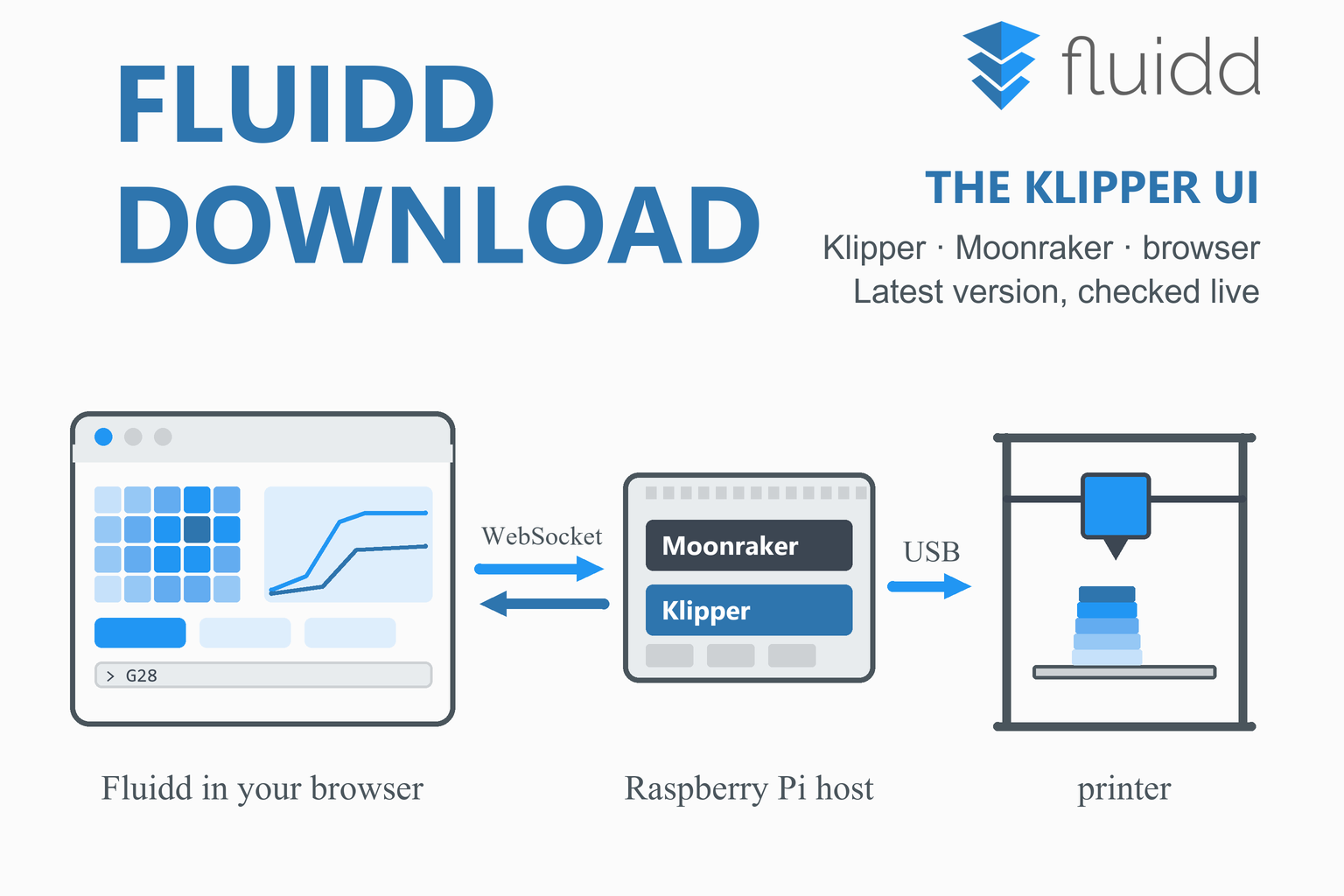
A Klipper printer is really two computers. According to the Klipper documentation, the host, a Linux computer such as a Raspberry Pi, works out when each stepper motor must step and sends those events to the microcontroller on the control board, which carries out each one at the requested time with a precision of 25 microseconds or better. All settings live in a text file on the host, printer.cfg, so changing one means editing the file and restarting Klipper, with no reflashing. Fluidd is a third layer that never touches the printer directly.
Swipe sideways to see the whole diagram.
A web server on the host sends the Fluidd app to your browser once. From then on the browser talks to Moonraker, which passes commands to Klipper over a local Unix socket; Klipper drives the control board.
Moonraker is the bridge. Klipper offers its API on a Unix domain socket, which only programs on the same computer can open. Moonraker, a Python web server, makes it available on the network as an HTTP API and a JSON-RPC 2.0 API over a WebSocket, and adds file management, a database, user logins and the update manager.
Why a WebSocket? Plain HTTP is question and answer: the browser asks, and the server can never speak first. A WebSocket stays open in both directions, so Moonraker can push a change the moment it happens. Fluidd subscribes to the printer objects it displays with printer.objects.subscribe, and Moonraker then sends only the values that changed, in notify_status_update messages; console output arrives as notify_gcode_response. File uploads use ordinary HTTP. Pressing Home sends a message like this one:
{"jsonrpc": "2.0", "method": "printer.gcode.script", "params": {"script": "G28"}, "id": 7466}The emergency stop takes a short cut. Moonraker’s API reference warns that an M112 sent as a G-code script waits behind earlier commands, so front ends should call printer.emergency_stop, which halts the printer at once. Fluidd’s emergency stop button does exactly that.
Safety does not depend on the browser. A print started from Fluidd runs inside Klipper, which reads the G-code from the host’s own storage through its virtual SD card, so closing the tab does not stop it. And the Klipper FAQ explains that the host must confirm every enabled heater every 3 seconds, or the microcontroller switches heaters and motors off. Our Klipper install guide covers Klipper itself and flashing the board.
What’s New in Fluidd 1.37
The 1.37 series brought eight releases between May and October 2026. Highlights from the official release notes, newest first; the box above always names the very newest version.
| Version | Date | Highlights |
|---|---|---|
| 1.37.7 | 16 Oct 2026 | Print history exports to CSV; macro prompts can group buttons in a row; the build configuration of each Klipper or Kalico microcontroller; Brazilian Portuguese; lazy-loaded thumbnails. |
| 1.37.5 | 9 Sep 2026 | A Docker health check and slimmer images, and faster loading of the print history. |
| 1.37.1 | 1 Jun 2026 | A console toolbar and highlighting, breadcrumbs in the file manager, basic axis twist compensation and better arcs in the G-code preview. |
System Requirements
| Part | What the official documentation says |
|---|---|
| Printer host | A Linux computer running Klipper and Moonraker. Klipper’s guide recommends a small board computer such as a Raspberry Pi, or a Debian-based device, and advises against desktop editions. |
| Viewing device | A computer, tablet or phone with a web browser on the same network. HLS camera streams need a browser with Media Source Extensions. |
| Download | fluidd.zip, about 4.2 MB (version 1.37.7). |
| Docker | Any system with Docker. The image holds Fluidd on an NGINX base, not Klipper or Moonraker. |
| Building from source | Git and Node.js 22.13 or newer. Not supported on a Raspberry Pi: build on a PC and copy the dist folder across. |
How to Install Fluidd
Option 1: KIAUH (recommended)
KIAUH, the Klipper Installation And Update Helper, is the route the Fluidd documentation recommends.
- Prepare the host. Write Raspberry Pi OS Lite to the SD card with Raspberry Pi Imager and use Imager’s settings to enable SSH and Wi-Fi, as the KIAUH README advises. Other boards need a Debian-based image of their own.
- Connect over SSH, install git and start KIAUH:
sudo apt-get update && sudo apt-get install git -y cd ~ && git clone https://github.com/dw-0/kiauh.git ./kiauh/kiauh.sh - Install Klipper, Moonraker and Fluidd from the menu by typing an action’s number. Add fluidd-config too, the Fluidd team’s base macros and settings: the docs say that once
printer.cfgcontains[include fluidd.cfg], no further configuration is needed. - Open Fluidd at the host’s address, for example
http://192.168.1.50(KIAUH asks which port to serve Fluidd on; if you chose one other than 80, add it to the address). Until Klipper has a workingprinter.cfgand a flashed board, Fluidd reports it as disconnected or in error; our Klipper install guide covers that part.
Option 2: Docker
The official images serve only the web app, on port 80 (8080 for the unprivileged image); the tag latest is the newest release. They suit one Fluidd that manages several printers. The docs’ example changes the port with PORT:
docker run -e PORT=8081 -p 8081:8081 ghcr.io/fluidd-core/fluiddThen add each printer’s Moonraker address in Fluidd, and list Fluidd’s address under cors_domains in each printer’s moonraker.conf.
Option 3: Manual install with fluidd.zip
On a host that already runs Klipper and Moonraker, install a web server (Moonraker’s docs suggest NGINX: sudo apt install nginx), then unpack the release where the docs’ update steps expect it:
mkdir -p ~/fluidd && cd ~/fluidd
wget -q -O fluidd.zip https://github.com/fluidd-core/fluidd/releases/latest/download/fluidd.zip
unzip fluidd.zip && rm fluidd.zip
Point the web server at ~/fluidd, and either let it forward Moonraker’s API and WebSocket or add the printer in Fluidd with its Moonraker port, such as http://192.168.1.50:7125. The docs include no web-server configuration, so if NGINX is new to you, use KIAUH.
Option 4: The hosted app
If Klipper and Moonraker already run, you can use app.fluidd.xyz: the docs say Fluidd is downloaded to your browser and then talks directly to your printer on your local network. Add *://app.fluidd.xyz to cors_domains first.
What about FluiddPI?
FluiddPI, a ready-made Raspberry Pi image, is marked as not recommended in the docs because it is not under active maintenance, and its GitHub repository was archived in December 2024. Use KIAUH; if you prefer an image to flash, MainsailOS comes from the Mainsail team.
Set Up printer.cfg and moonraker.conf for Fluidd
Fluidd warns at startup when required pieces are missing. With fluidd-config, [include fluidd.cfg] covers the Klipper side, including PAUSE, RESUME and CANCEL_PRINT macros with parking. Without it, printer.cfg needs these sections; the docs’ own PAUSE, RESUME and CANCEL_PRINT macros are optional extras, although Fluidd warns if it finds no CANCEL_PRINT macro:
[virtual_sdcard]
path: ~/printer_data/gcodes

[display_status]

[pause_resume]
virtual_sdcard lets Klipper print files stored on the host, pause_resume enables the Pause, Resume and Cancel buttons, and display_status supplies progress and M117 messages. In moonraker.conf (usually in ~/printer_data/config/), the example in the docs includes:
[server]
host: 0.0.0.0
port: 7125

[authorization]
force_logins: false
cors_domains:
  *.local
  *.lan
  *://localhost
  *://app.fluidd.xyz
trusted_clients:
  10.0.0.0/8
  127.0.0.0/8
  169.254.0.0/16
  172.16.0.0/12
  192.168.0.0/16
  FE80::/10
  ::1/128

[history]

[octoprint_compat]- trusted_clients may use the API without logging in. The ranges are in CIDR notation:
192.168.0.0/16fixes the first 16 bits, so it covers 192.168.0.0 to 192.168.255.255. The docs say this list suits most home networks. - cors_domains lists the sites whose pages may call Moonraker from a browser. Browsers block such cross-site requests unless the server allows them, so the hosted app, or a Docker copy on another machine, must be listed.
- [octoprint_compat] lets slicers upload G-code as if Moonraker were OctoPrint: in Orca Slicer, PrusaSlicer or SuperSlicer, pick the OctoPrint host type and any non-empty API key; Cura needs its OctoPrint Connection plugin.
- Worth knowing:
temperature_store_sizein[data_store]is how many one-second temperature samples Moonraker keeps in memory (1200 by default, about 20 minutes of chart).enable_object_processing: Truein[file_manager], with[exclude_object]inprinter.cfg, lets you cancel single objects, but Moonraker advises against it on low-power boards such as a Pi Zero.
A Tour of Fluidd: Dashboard, Console, Macros and Webcams
Home is the dashboard, and Adjust Layout in the side menu moves, hides or resets its cards. The menu also leads to the Console, Jobs and History (with CSV export), Tune (the bed mesh), Configuration (the config files and logs), System (services and database backups) and Settings (themes, cameras, presets and user accounts).
Macros and Spoolman
Every [gcode_macro] becomes a button that you can sort into coloured categories; names that start with an underscore, such as _MY_MACRO, stay hidden. Fluidd also turns LOAD_FILAMENT, UNLOAD_FILAMENT, CLEAN_NOZZLE and PARK_TOOLHEAD into buttons in the toolhead card’s Tools menu, and with [respond] in printer.cfg a macro can open a dialog with buttons. With Spoolman connected, Fluidd asks which spool you are using when a print starts; for live spool-weight updates, Spoolman 0.26 and newer also need Fluidd’s address in SPOOLMAN_CORS_ORIGIN.
Webcams
Fluidd only displays video; a streamer such as Crowsnest, which the docs recommend, captures it. Add a camera under Settings, Cameras. The stream type is a bandwidth trade-off. MJPEG works almost everywhere but sends every frame as a complete JPEG picture, so the docs warn it needs substantial bandwidth and can saturate Wi-Fi. WebRTC with camera-streamer is the most bandwidth-efficient, because it uses the Raspberry Pi’s hardware video encoder; go2rtc and MediaMTX bring WebRTC to other hardware. HLS gives high resolution with a few seconds of delay.
First Real Task: Edit printer.cfg Safely and Save a Bed Mesh
Most Klipper set-up happens in printer.cfg, which changes in two ways: your own edits, and calibration results that Klipper writes itself. Keeping them apart keeps the file readable and recoverable.
How printer.cfg is organised
Klipper reads the file, and anything it includes, only when it starts or restarts. The upper part is yours. Calibration commands such as PID tuning or a bed mesh hold their results as pending changes until you run SAVE_CONFIG, which, as Klipper’s source code shows:
- writes the results into a block at the very end of the file, under this header:
#*# <---------------------- SAVE_CONFIG ----------------------> #*# DO NOT EDIT THIS BLOCK OR BELOW. The contents are auto-generated. - comments out any setting in the upper part that the block now defines, and keeps the old file as
printer-YYYYMMDD_HHMMSS.cfgbefore restarting Klipper.
If the block has been edited by hand, Klipper ignores the saved values and SAVE_CONFIG refuses to run until the block is repaired.
Step by step
- Open the file from Configuration Files on the Configuration page. The editor highlights sections and keys, jumps to any section with Ctrl+Shift+O, and links each
[section]to its documentation. - Change one thing in the upper part, so that if Klipper complains you know which line caused it. Leave the
#*#block alone. - Press Save & Restart (Ctrl+Alt+S). By default Fluidd then sends
FIRMWARE_RESTART, which reloads the configuration and clears any error state in the microcontroller. The editor hides Save & Restart while a print is running. - Read the result. A configuration error appears in the console: fix the line and save again. The full
klippy.logis under Other Files, logs. - Calibrate a bed mesh. With
[bed_mesh]set up and the probe’s Z offset calibrated, home the printer and press Calibrate on the Tune page. Fluidd sendsBED_MESH_CALIBRATE; Klipper probes the grid set bymesh_min,mesh_maxandprobe_count(at least 3 points per axis) and keeps it as the profiledefault. - Read the map. Probed matrix shows the heights the probe measured; Mesh matrix shows the interpolated surface Klipper follows, with two extra points between each pair of probed points by default (
mesh_pps: 2, 2). A mesh evens out the first layers on an uneven bed, but the Klipper docs stress it cannot fix mechanical faults such as a skewed axis. - Save it. Save As stores the mesh under a name of your own (
BED_MESH_PROFILE SAVE). Either way the profile lasts only for this session untilSAVE_CONFIG, so the top bar now shows Save config & restart; by default Fluidd first lists the Pending Configuration Changes for you to check. Klipper no longer loadsdefaultat start-up by itself, so the docs suggestBED_MESH_PROFILE LOAD=defaultin your start macro, unless it probes a fresh mesh anyway.
Updating Fluidd, Moonraker and Klipper
Fluidd’s update panel is driven by Moonraker’s update manager, with one button per component. For Fluidd, moonraker.conf needs:
[update_manager]

[update_manager fluidd]
type: web
repo: fluidd-core/fluidd
path: ~/fluidd- How it works: the
webtype installs the zip attached to each GitHub release, and therelease_info.jsonfile it contains tells Moonraker which project and version are installed. - Order: the docs recommend Klipper first, then Moonraker, then Fluidd. Updates are blocked during a print.
- The control board: Fluidd’s update guide does not cover microcontroller firmware. If Klipper reports after an update that the microcontroller needs new firmware, rebuild and flash it, and read Klipper’s Config Changes page before updating, as Klipper’s FAQ advises.
- If an update fails and shows INVALID, press Recovery. KIAUH’s update menu, or the docs’ manual commands, are the fallback (run them only inside the Fluidd folder):
cd ~/fluidd && rm -R ./*
rm .version
wget -q -O fluidd.zip https://github.com/fluidd-core/fluidd/releases/latest/download/fluidd.zip
unzip fluidd.zip
rm fluidd.zip
sudo systemctl restart nginx
Fluidd vs Mainsail
Fluidd and Mainsail do the same job on the same foundation: both talk to Klipper through Moonraker, KIAUH installs either, and fluidd-config even shares its README and client.cfg with Mainsail’s mainsail-config, by agreement between the two teams. The table lists documented facts, not test results.
| Fluidd | Mainsail | |
|---|---|---|
| Licence and framework | GPL-3.0; Vue and Vuetify 2 | GPL-3.0; Vue.js and Vuetify |
| Install route its docs recommend | KIAUH | The ready-made MainsailOS image (KIAUH and manual installs also covered) |
| Ready-made SD-card image | FluiddPI, no longer maintained and archived | MainsailOS, from the Mainsail team |
| Official Docker image | Port 80, unprivileged image on 8080 | Port 80, unprivileged image on 8080 |
| Hosted copy | app.fluidd.xyz, presented as a way to use Fluidd without installing it | my.mainsail.xyz, which its docs call a live demo not meant for productive use |
| Release file and updates | fluidd.zip; Moonraker update manager, type web | mainsail.zip; Moonraker update manager, type web |
Our suggestion: if you want an image you simply flash and boot, Mainsail with MainsailOS is the shorter road; if you are happy to run KIAUH or Docker, either works, so pick the layout you prefer. For a printer running Marlin, see our OctoPrint guide instead.
Pros and Cons
Strengths
- Free and open source (GPL-3.0), with frequent releases and public notes.
- Runs in a web browser on a computer, tablet or phone.
- Updates Klipper, Moonraker and itself, with recovery for failed updates.
- A capable editor, and a review step before
SAVE_CONFIG. - Docker images and a hosted copy for several printers.
Limits
- Only for Klipper printers running Moonraker.
- No maintained SD-card image; setup goes through KIAUH or manual steps.
- No login by default: trusted local addresses get full control.
- Webcams, exclude object, the job queue and slicer uploads need extra setup.
Troubleshooting
| Problem | What to try |
|---|---|
| No Moonraker connection | Open http://your-printer/server/info (or add port 7125). If it fails, Moonraker is down or unreachable; if it loads, check cors_domains, trusted_clients and any firewall or VPN. |
| “Blocked by CORS policy” | Add the address you open Fluidd from to cors_domains and restart Moonraker. |
| The WebSocket fails although the server answers | As Fluidd’s own message says, a reverse proxy must upgrade and forward WebSocket connections. |
| The printer shows as disconnected | Read the console message, check printer.cfg, then try FIRMWARE_RESTART or restart Klipper on the System page. |
| The editor says read only | Check enable_config_write_access: True (the default) and the folder permissions. |
SAVE_CONFIG reports corrupted autosave data | The #*# block was edited by hand: copy it back from the newest printer-YYYYMMDD_HHMMSS.cfg backup. |
| An update shows INVALID | Press Recovery; otherwise update with KIAUH or the manual commands. |
| The camera lags | Try a WebRTC type, a lower resolution or frame rate, wired Ethernet, and on a Pi 4 a USB 3.0 port. |
Frequently Asked Questions
Is Fluidd free?
Yes. Fluidd is free and open source under the GNU General Public License v3. Volunteers develop it, and the project accepts sponsorship through GitHub Sponsors.
Does Fluidd work without Klipper?
No. The documentation says Fluidd needs Klipper, the printer firmware, and Moonraker, the API server that connects Klipper to web interfaces. A printer running Marlin can be run from a browser with OctoPrint instead.
Which file do I download for Fluidd?
Only fluidd.zip, the built web app attached to every GitHub release. It is not a Windows or Mac installer: it goes on the Linux computer that runs Klipper. With KIAUH, Docker or Moonraker’s update manager you never download it by hand.
How do I install Fluidd on a Raspberry Pi?
With KIAUH, as the documentation recommends: write Raspberry Pi OS Lite with SSH enabled, clone KIAUH with git, run ./kiauh/kiauh.sh and install Klipper, Moonraker, Fluidd and fluidd-config from its menu. Then open the Pi’s address in a browser.
How do I update Fluidd?
From Fluidd’s update panel, once moonraker.conf has an [update_manager fluidd] section of type web. The docs recommend Klipper first, then Moonraker, then Fluidd; updates are blocked during a print.
Is FluiddPI still a good way to install Fluidd?
No. The documentation says FluiddPI is not under active maintenance and recommends KIAUH instead, and its repository was archived in December 2024. For a ready-made image, MainsailOS comes from the Mainsail team.
What is the difference between Fluidd and Mainsail?
Both are free GPL-3.0 web interfaces for Klipper, built on Moonraker, Vue and Vuetify, and KIAUH installs either. The documented differences are mostly packaging: Mainsail recommends its MainsailOS image, while Fluidd recommends KIAUH because FluiddPI is no longer maintained.
How do I edit printer.cfg in Fluidd without breaking it?
Change one thing at a time in the upper part of the file and press Save & Restart. Never edit the block below the SAVE_CONFIG line: Klipper writes calibration results there, keeps a dated backup of the old file, and ignores the block if it was changed by hand.
Can one Fluidd control several printers?
Yes. Add each printer’s Moonraker address, such as http://192.168.1.50:7125, to the printer list in the side drawer. If Fluidd runs on another machine, as with Docker, add its address to each printer’s cors_domains.
Can I use Fluidd from outside my home network?
The example in the docs trusts only local addresses, and there is no login until you create users. The docs list remote-access services such as Obico and OctoEverywhere. If you open Moonraker up yourself, our suggestion is to create a user and set force_logins: true first.