
Klipper Install Guide: Klipper, KIAUH, Moonraker and Mainsail Explained
The free 3D printer firmware stack, from first idea to first print, with the newest version of every part checked live
Klipper is open-source 3D printer firmware that splits the work between a small computer, such as a Raspberry Pi, and the printer’s own control board. Around it grew a family of free tools: KIAUH installs and updates everything, Moonraker connects Klipper to the outside world, and Mainsail (or its alternative Fluidd) gives you a web interface to run the printer from a browser. This guide explains what each part does, how they fit together, what you need to buy, and how to install the whole stack step by step. The table below checks GitHub when you open the page, so you always see the current version of each part and a direct link to its files.
Latest Versions of Every Part
| Part | Latest version | Published | How you get it |
|---|---|---|---|
| KlipperThe firmware: a host program plus the microcontroller firmware | Check on GitHub | — | — |
| KIAUHInstaller and update helper (a shell script) | Check on GitHub | — | — |
| MoonrakerAPI server between Klipper and the web interfaces | Check on GitHub | — | — |
| MainsailWeb interface | Check on GitHub | — | — |
| FluiddAlternative web interface | Check on GitHub | — | — |
How this table works
- It is live. Each visit asks GitHub for the newest release of Mainsail and Fluidd, and for the highest version tag of Klipper, KIAUH and Moonraker, which publish version tags and no usable release feed. Your browser keeps the answer for ten minutes; the Refresh button asks again straight away.
- You normally do not download these by hand. KIAUH fetches and installs them for you (see the steps below). The table tells you what a fresh install should give you and links to the source.
- The zip files are for people who set things up manually. Mainsail and Fluidd are published as a single zip that a web server serves; the links only point to files on each project’s own GitHub release path.
- Klipper itself is a rolling project. Installations usually follow the main branch of its repository, and a version tag such as the one shown marks a release milestone. Klipper’s own release page lists tagged releases from 0.9.0 in October 2020 to 0.13.0 in April 2025.
What Is Klipper?
Every 3D printer has a control board with a small microcontroller. Traditionally the firmware on that board does everything: it reads G-code, plans the motion, times every motor step and watches the heaters. Klipper changes that division of labour. A host computer (a Raspberry Pi or a similar Linux machine) runs the demanding part, the G-code processing and motion planning, and sends scheduled commands to the printer’s microcontroller, which only has to carry them out on time. Klipper’s code overview describes the host program as written mainly in Python with some C helpers, and the microcontroller code as C.
Klipper is released under the GNU General Public License v3 (GPL-3.0), and the project is open on GitHub. According to its documentation it schedules each stepper event with a precision of 25 microseconds or better, supports printers with several microcontrollers, and is hardware agnostic: it runs on ARM, AVR, PRU and other microcontroller families.
Precise motion
The host solves the kinematics and calculates step times, then the microcontroller replays them, even on old 8-bit boards.
Input shaping
A built-in feature that reduces the effect of printer vibrations (ringing) on print quality.
Pressure advance
Klipper supports a smooth form of pressure advance, which compensates for the pressure that builds up in the nozzle.
Plain-text configuration
Everything lives in one config file that you edit and reload. There is no need to recompile firmware to change a setting.
Macros
New G-code commands can be defined in the printer config file without any code changes.
An API for everything
A JSON-based interface lets web interfaces, touchscreens and phone apps talk to the printer.
The Parts of the Stack
| Part | What it does | Where it runs | Licence |
|---|---|---|---|
| Klipper | The firmware. Its host program (Klippy) reads G-code and plans motion; the microcontroller firmware carries out the scheduled steps and runs the heaters. | Host computer and printer board | GPL-3.0 |
| KIAUH | Klipper Installation And Update Helper. A shell script with a menu that installs Klipper and related software, then helps keep it updated. A third-party tool that Klipper’s own installation guide mentions. | Host computer | GPL-3.0 |
| Moonraker | A Python 3 web server that exposes an API so that client programs can talk to Klipper. It talks to Klipper over a Unix socket. | Host computer | GPL-3.0 |
| Mainsail | A web interface for printers running Klipper: live temperatures and progress, macros, file management, bed mesh and G-code viewers, webcams and timelapses. | Served by the host, shown in your browser | GPL-3.0 |
| Fluidd | An alternative Klipper web interface, also built on Moonraker. | Served by the host, shown in your browser | GPL-3.0 |
| KlipperScreen | A touchscreen interface for Klipper, for a screen attached to the host. | Host computer | AGPL-3.0 |
| Crowsnest | A webcam service from the Mainsail team that handles one or more cameras. | Host computer | GPL-3.0 |
How the Pieces Fit Together
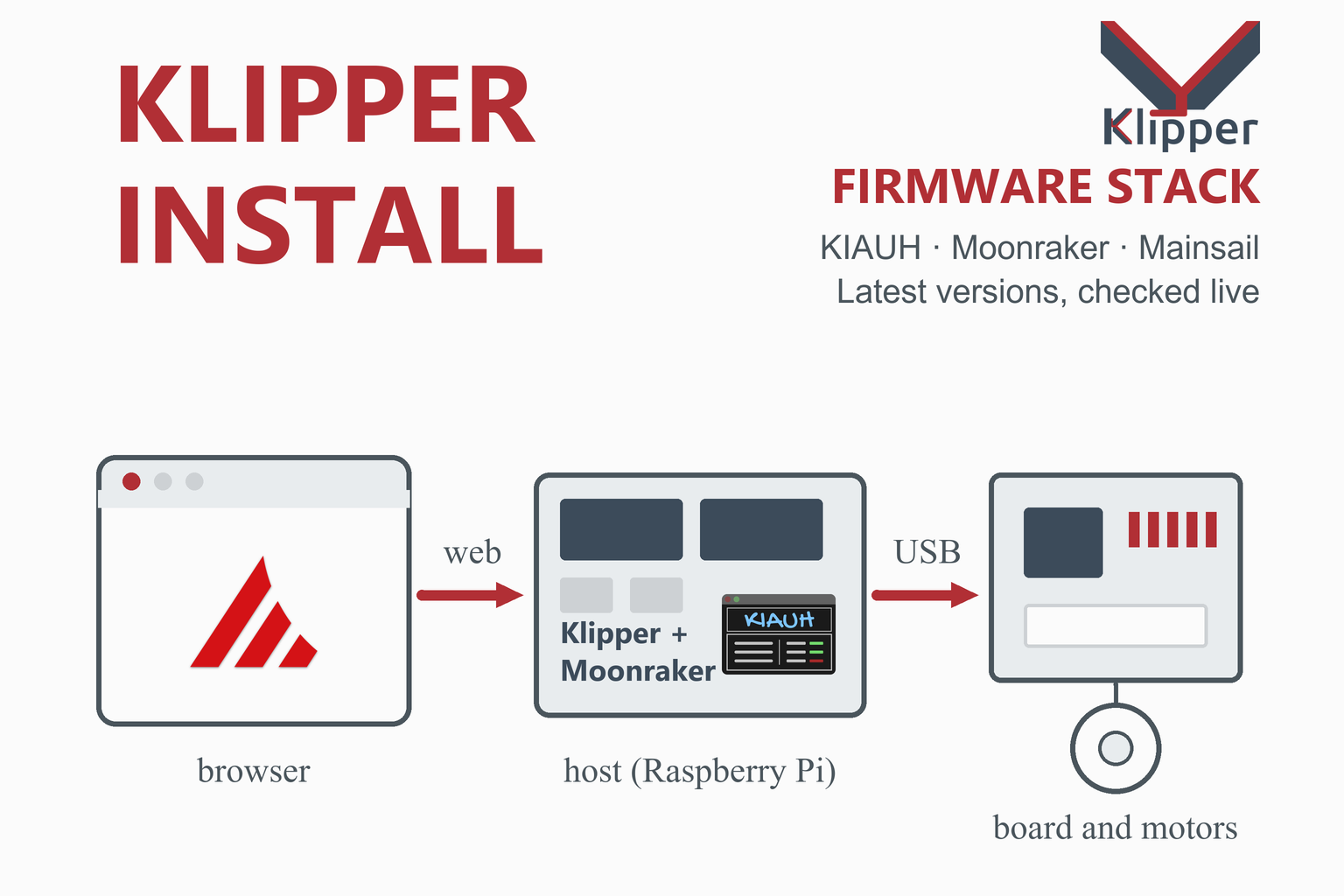
Your browser loads Mainsail (or Fluidd) from the host and sends commands to Moonraker. Moonraker passes them to Klipper over a Unix socket. Klipper calculates every move and sends scheduled commands to the control board over a USB or serial link.
The key idea is that the heavy thinking happens on the host. Klipper’s code overview explains that the host calculates the exact step times for each stepper, compresses them and sends them to the microcontroller, which queues the commands (typically at least 100 ms before the first step) and generates each pulse from a hardware timer interrupt at the scheduled moment. That is why a cheap 8-bit board can still move quickly, and why the host connection matters: if Klipper loses contact with the board mid-print, the print stops.
Moonraker is the translator in the middle. Klipper has its own command interface, but a web interface cannot speak it directly. Moonraker exposes Klipper through a standard web API, which is why Mainsail, Fluidd and many phone apps all work with it. KIAUH sits outside the diagram: it is the helper that installs and updates the pieces on the host.
What You Need
| Item | What the documentation says |
|---|---|
| Host computer | A Linux device. Klipper’s guide recommends a single-board computer such as a Raspberry Pi or another Debian-based device. Ubuntu Server on x86 hardware also works. |
| Operating system | A base image such as Raspberry Pi OS Lite (or Ubuntu Server on x86). Avoid the Desktop variants: the guide says some helper programs there can stop Klipper functions from working. KIAUH is mainly tested on Raspberry Pi OS Lite based on Debian 10 and 11, and other Debian-based systems such as Ubuntu 20 to 22 are likely to work. |
| Control board | The printer’s own board, which Klipper calls the “mcu”. Klipper is hardware agnostic, but you need a configuration for your board; check the printer and generic files in Klipper’s config directory. |
| Software prerequisites | git and sudo rights for the KIAUH route. Moonraker needs a Debian-based Linux and a recent Python (the minimum supported version is 3.10), and Klipper has to be installed before Moonraker. |
| Extras | A USB cable between host and board, a good SD card and power supply for the host, and network access (SSH is used for the first setup). Optional: a webcam, a touchscreen. |
A premade image skips most of this. The Mainsail team publishes MainsailOS, a ready-made image for Raspberry Pi and some Orange Pi boards. A dedicated MainsailOS guide is planned for this site. This page follows the more general KIAUH route because it works on any supported Debian-based host and shows you how every piece fits.
Install Klipper Step by Step
Before you start: switch the printer off and unplug it before you connect or disconnect anything, and keep your original firmware and printer configuration so you can go back. Klipper replaces the firmware on the control board. KIAUH’s own README says that using the script is at your own risk, and a wrong configuration can damage a printer, so work through the checks in Klipper’s documentation before you heat or move anything.
Step 1: Get a configuration file for your printer
Klipper is configured with a text file, printer.cfg. Look in the config/ directory of the Klipper repository for a file named printer- followed by your printer’s name. If there is none, check the printer manufacturer’s website. If you only know the board type, use a generic- file. Writing one from scratch is possible but needs a lot of technical knowledge.
Step 2: Prepare the host computer
- Write Raspberry Pi OS Lite to an SD card with the Raspberry Pi Imager (the KIAUH README recommends it). In the Imager’s advanced options, enable SSH and enter your Wi-Fi details.
- Boot the Raspberry Pi and log in over SSH from your computer.
Step 3: Install and start KIAUH
These are the commands from the KIAUH README. Install git, download KIAUH, and start it:
sudo apt-get update && sudo apt-get install git -y
cd ~ && git clone https://github.com/dw-0/kiauh.git
./kiauh/kiauh.sh
KIAUH shows a menu; type the number of the action you want at the prompt and press Enter. It asks for your sudo password when it needs it.
Step 4: Install Klipper, Moonraker and a web interface
- In KIAUH’s install menu, install Klipper first.
- Then install Moonraker. Its documentation says Klipper should be installed first.
- Then install a web interface: Mainsail or Fluidd (or OctoPrint, which Klipper’s guide also lists as an option). If you want a touchscreen, KIAUH can add KlipperScreen later.
Step 5: Build and flash the control-board firmware
The printer’s microcontroller needs Klipper’s own firmware. From Klipper’s installation guide:
cd ~/klipper/
make menuconfig
make
In make menuconfig, apply the settings listed in the comments at the top of your printer configuration file, press Q to leave and Y to save. Then find the board’s serial port and flash it. The method depends on the board:
| Board type | How it is flashed |
|---|---|
| STM32, LPC and similar | Usually an initial flash from an SD card. Unplug the board’s USB from the host first, and check whether your board needs a new file name for each flash. |
| Atmega (for example 2560) | Stop the Klipper service, run make flash FLASH_DEVICE= with your board’s serial port, then start the service again. |
| RP2040 | Stop the service, run make flash FLASH_DEVICE=first, start the service. The board may need to be put into boot mode first. |
The commands used for the Atmega case look like this (put your own port in place of the example):
ls /dev/serial/by-id/*
sudo service klipper stop
make flash FLASH_DEVICE=/dev/serial/by-id/usb-1a86_USB2.0-Serial-if00-port0
sudo service klipper start
Step 6: Copy your configuration and set the serial port
- Copy your configuration file to the printer configuration folder of the host. The built-in editors in Mainsail and Fluidd work, as do SCP or SFTP tools and SSH. As a basic example, Klipper’s guide copies an example file and opens it in an editor:
cp ~/klipper/config/example-cartesian.cfg ~/printer.cfg nano ~/printer.cfg - Run
ls /dev/serial/by-id/*again, because the name can change after flashing, and put the result in the[mcu]section:[mcu] serial: /dev/serial/by-id/usb-1a86_USB2.0-Serial-if00-port0
Step 7: Restart, check the status and read the log
Open your web interface in a browser at the host’s address, send the restart command and then check status. Fix every error the status message reports, restart again and repeat until the printer says it is ready. The log, which explains most problems, is usually at ~/printer_data/logs/klippy.log. Then work through the “config check” steps in Klipper’s documentation before you home the printer or heat anything.
First Checks and Tuning
A new Klipper printer should be checked step by step, never started with a full print. The usual order, which Klipper’s configuration-check guide follows, is to confirm the printer reports sensible temperatures, that the heaters respond and stop, that each motor and endstop works in the right direction, and only then to try homing and a first small print. These are general good-practice steps, not a replacement for that guide.
- Temperatures. Read the nozzle and bed temperature at room temperature. Implausible readings mean a wiring or sensor-type setting is wrong.
- Heaters. Watch the first heat-up closely and make sure the readings rise when the heater is on.
- Motion and endstops. Test endstops by hand, and check motor directions with small moves before homing.
- Tuning. After the basics work, Klipper’s pressure advance and input shaping are the features most people turn on. Input shaping is normally tuned with measurements from an accelerometer, which is a small extra purchase.
Slicing is separate. Any slicer that produces G-code for your printer works; slicers such as Orca Slicer and Creality Print can also send jobs straight to a Moonraker-based interface. Mainsail’s documentation lists slicer integration among its features.
Mainsail vs Fluidd vs OctoPrint
You need one web interface. Klipper’s guide lists Mainsail, Fluidd (both built on Moonraker) and OctoPrint as the choices.
| Mainsail | Fluidd | OctoPrint | |
|---|---|---|---|
| Built on | Moonraker | Moonraker | Its own server, with a Klipper plug-in route |
| Described as | A powerful, user-friendly web interface for Klipper printers | The Klipper UI | A long-established general web interface for 3D printers |
| Files and config | Upload, organise and edit G-code and config files in the browser | Likewise (file and config editing) | File upload; configuration editing depends on plug-ins |
| Other features | Macros, bed mesh and G-code viewers, history, webcams and timelapses, multi-printer, themes | Macros, webcam, print history, themes | A large plug-in ecosystem |
| Install route | MainsailOS image, KIAUH, Docker, manual | KIAUH or manual | KIAUH (it lists OctoPrint among its extras) or OctoPrint’s own image |
The Mainsail and Fluidd rows summarise their documentation and descriptions; OctoPrint has its own guide planned on this site.
Klipper vs Marlin: Is It Right for You?
| Klipper | Marlin | |
|---|---|---|
| Where the motion planning runs | On a host computer; the board carries out scheduled steps | On the board’s microcontroller |
| Extra hardware | A host computer, such as a Raspberry Pi, as well as the board | None |
| Changing a setting | Edit the text config file and restart | Usually change the source configuration, rebuild and flash |
| Advanced features | Input shaping, pressure advance, macros, multi-MCU printers | Comparable features exist in recent versions, such as Linear Advance |
| Web interface | Mainsail, Fluidd, OctoPrint and others, built in through Moonraker | Typically OctoPrint or a display on the board |
| After updates | Some updates need changes to your config file | A rebuild and reflash |
Reasons to use Klipper
- Changing settings takes a text edit and a restart.
- High-precision motion and tuning features such as input shaping.
- A browser interface you can use from any device on your network.
- Active community and free, open-source code.
Reasons to wait
- You need to buy and maintain a host computer.
- There is a learning curve: config files, serial ports, flashing.
- If the host crashes or loses the link mid-print, the print stops.
- Updates can require config changes, so read the notes before updating.
Updating Klipper and Its Parts
KIAUH is also the update tool: its menus include options to update the software it installed, and its changelog mentions backups before updates and the ability to roll back (including Moonraker). Before you update, read Klipper’s “Config Changes” document, which lists recent software changes that may require edits to your printer configuration file.
- Update when the printer is idle, and not before an important print.
- After updating Klipper, reflash the control-board firmware if the guide for that release says it is needed, since the host and board software must stay compatible.
- Keep a copy of your configuration outside the printer.
Troubleshooting
| Problem | What to try |
|---|---|
| Klipper cannot find the control board | Run ls /dev/serial/by-id/* again. The name can change after flashing, so update the serial: line in the [mcu] section. |
| The printer is not ready or reports a config error | Send restart, then status, fix the error shown and repeat. Read the log, usually at ~/printer_data/logs/klippy.log. |
| Flashing an Atmega board fails | Stop the Klipper service before flashing and start it afterwards: sudo service klipper stop and sudo service klipper start. |
| An RP2040 board will not flash | Put the board into boot mode first, then run the flash command. |
| An STM32 or LPC board does not accept the flash | These usually need an initial flash from an SD card. Unplug the board’s USB cable from the host first, and check whether the board expects a new file name for each flash. |
| The web interface loads but cannot reach Klipper | Restart Moonraker with sudo systemctl restart moonraker and check that Klipper is running. |
| Moonraker fails to install | It needs a Debian-based Linux and Python 3.10 or newer, and Klipper must already be installed. |
| Strange behaviour on a desktop image | Klipper’s guide advises against Desktop variants of the operating system because some helper programs can stop Klipper functions. Use a Lite or Server image. |
| KIAUH will not run on your system | It is mainly tested on Raspberry Pi OS Lite based on Debian 10 and 11. Other Debian-based systems such as Ubuntu 20 to 22 likely work; anything else may not. |
Frequently Asked Questions
What is Klipper 3D printer firmware?
Klipper is free, open-source firmware that splits the work between a host computer, such as a Raspberry Pi, and the printer’s control board. The host calculates the motion and sends scheduled commands, and the board carries them out. Its documentation lists high-precision stepper timing, input shaping, pressure advance, macros and support for printers with several microcontrollers.
Is Klipper free?
Yes. Klipper is open source under the GNU General Public License v3, and so are KIAUH, Moonraker, Mainsail and Fluidd (KlipperScreen uses the AGPL-3.0). You only pay for the hardware, mainly a host computer.
What do I need to run Klipper?
A host computer running Linux (Klipper’s guide recommends a single-board computer such as a Raspberry Pi, or Ubuntu Server on x86), a printer control board that Klipper supports, a USB cable between them, and a printer configuration file. You also need a web interface, such as Mainsail or Fluidd, to run the printer.
What is KIAUH, and is it official?
KIAUH stands for Klipper Installation And Update Helper. It is a shell script by a community developer, not part of Klipper itself, although Klipper’s installation guide mentions it as a way to install Klipper and related programs on Debian-based systems. Its README states that you use it at your own risk, so read what it does and keep a backup.
What is Moonraker, and do I need it?
Moonraker is a Python 3 web server that exposes an API so that other programs can talk to Klipper. If you use Mainsail or Fluidd, you need it, because both are built on it. Klipper has to be installed before Moonraker.
Should I choose Mainsail or Fluidd?
Both are free web interfaces built on Moonraker, and your printer configuration is the same for either. Mainsail’s documentation lists real-time control, macros, file management and editing, bed mesh and G-code viewers, webcams and timelapses. Fluidd is the other popular choice. You can try one and switch later.
Do I need a Raspberry Pi to use Klipper?
You need a host computer, but it does not have to be a Raspberry Pi. Klipper’s guide mentions other Debian-based single-board computers and Ubuntu Server on ordinary x86 hardware. A Raspberry Pi is the most common choice and the one the KIAUH instructions are written around.
Is Klipper better than Marlin?
It depends on what you want. Klipper offers a text-file configuration without reflashing, a browser interface and features such as input shaping and pressure advance, but it needs an extra computer and some learning. Marlin runs entirely on the control board and has comparable features in recent versions. If your printer already prints well and you do not want extra hardware, there is no need to switch.
How do I update Klipper, and what can go wrong?
KIAUH includes update options, and its changelog mentions backups before updates and rollbacks. Before updating, read Klipper’s Config Changes document, which lists recent changes that may need edits to your printer configuration, and reflash the control-board firmware when the release notes ask for it so the host and board stay compatible.
Which slicer should I use with Klipper?
Any slicer that outputs G-code for your printer works. Programs such as Orca Slicer and Creality Print can also send a job directly to a Moonraker-based interface. Mainsail lists slicer integration among its features.
More guides: Orca Slicer · Creality Print · ElegooSlicer · QIDI Studio · Snapmaker Orca · PrusaSlicer · Cura · FreeCAD · Engineering calculators