
OctoPrint and OctoPi Download: The Free Print Server for Your 3D Printer
Control, watch and manage your printer from any browser, with the newest versions checked live
OctoPrint is a free, open-source web interface for 3D printers. You connect the printer by USB to a small computer (usually a Raspberry Pi), and from then on you can upload files, start and pause prints, watch a webcam and record timelapses from any phone or computer on your network. OctoPi is a ready-made Raspberry Pi system with OctoPrint already installed, and Raspberry Pi Imager is the free tool that writes it to the SD card. The box below checks GitHub when you open the page and shows the current stable version of all three, with direct download links. The rest of this guide takes you from an empty SD card to a connected printer.
Latest Versions and Downloads
| Part | Latest stable | Published | How you get it |
|---|---|---|---|
| OctoPrintThe print server itself (a Python program) | Check on GitHub | — | — |
| OctoPi imageRaspberry Pi system with OctoPrint already installed (the build Raspberry Pi Imager offers) | Check on GitHub | — | — |
| Raspberry Pi ImagerThe tool that writes OctoPi to the SD card | Check on the Raspberry Pi site | — | — |
How this box works
- It is live. Each visit asks GitHub for the newest stable release of OctoPrint, of the OctoPi image and of Raspberry Pi Imager. Your browser keeps the answer for ten minutes; the Refresh button asks again straight away.
- You usually do not download the OctoPi image by hand. Raspberry Pi Imager offers it in its own menu and downloads it for you (see the steps below). The file is listed here for people who prefer to write it manually, with its SHA-256 checksum so you can check the download.
- OctoPrint is installed with pip, not downloaded as a program. The wheel file is the package that pip installs. On a Raspberry Pi with OctoPi you update it from inside OctoPrint instead.
- Test builds are shown separately. OctoPrint publishes release candidates ahead of a new major version. They are for testers and never replace the stable version in the table. See OctoPrint 2.0 release candidates.
- Only files from each project’s own GitHub release path are linked. If GitHub cannot be reached, the table falls back to plain links.
What Is OctoPrint?
The OctoPrint website describes it as “the snappy web interface for your 3D printer”: you control and monitor the printer from a browser instead of from the printer’s own screen or an SD card. It runs on a small computer that is connected to the printer, and it is released as free and open-source software under the GNU Affero General Public License (AGPL). Out of the box it works with most consumer 3D printers, according to the project, and plugins add support for particular printers and many extra features.
Remote control
Start, pause and cancel prints, move the axes and change temperatures from a browser on any device on your network.
Webcam and timelapse
An embedded webcam feed to watch a print, and timelapse recordings of finished prints.
G-code viewer
An integrated G-code visualiser, and slicing of STL files inside OctoPrint, as listed on the official site.
Plugins
A plugin system with an official plugin repository built into OctoPrint, for extra features and printer support.
Access control
User accounts and groups with permissions, so only people you allow can start or change anything.
Events and commands
System commands and event hooks that run an action when something happens, such as a print finishing.
OctoPrint, OctoPi and Raspberry Pi Imager: What Is What?
The three names cause most of the confusion, so here they are side by side.
| Name | What it is | Where it runs |
|---|---|---|
| OctoPrint | The print server and web interface. Written mainly in Python and installed as a Python package. | Any computer that can run Python: a Raspberry Pi, a PC, a Mac, a Docker container. |
| OctoPi | A Raspberry Pi system image (Raspberry Pi OS based) with OctoPrint, a webcam service and the settings it needs already in place. The OctoPrint download page lists it first for installing on a Raspberry Pi. | A Raspberry Pi, booted from an SD card. |
| OctoPi-UpToDate | The build the Imager menu offers: the latest OctoPi with the latest OctoPrint already updated, and a fresh kernel and bootloader. Its file names carry both versions, for example OctoPi 1.1.0 with OctoPrint 1.11.8. | A Raspberry Pi, booted from an SD card. |
| Raspberry Pi Imager | The official Raspberry Pi tool for writing an operating system to an SD card. It has OctoPi in its menu. | Your Windows, macOS or Linux computer, only while you prepare the card. |
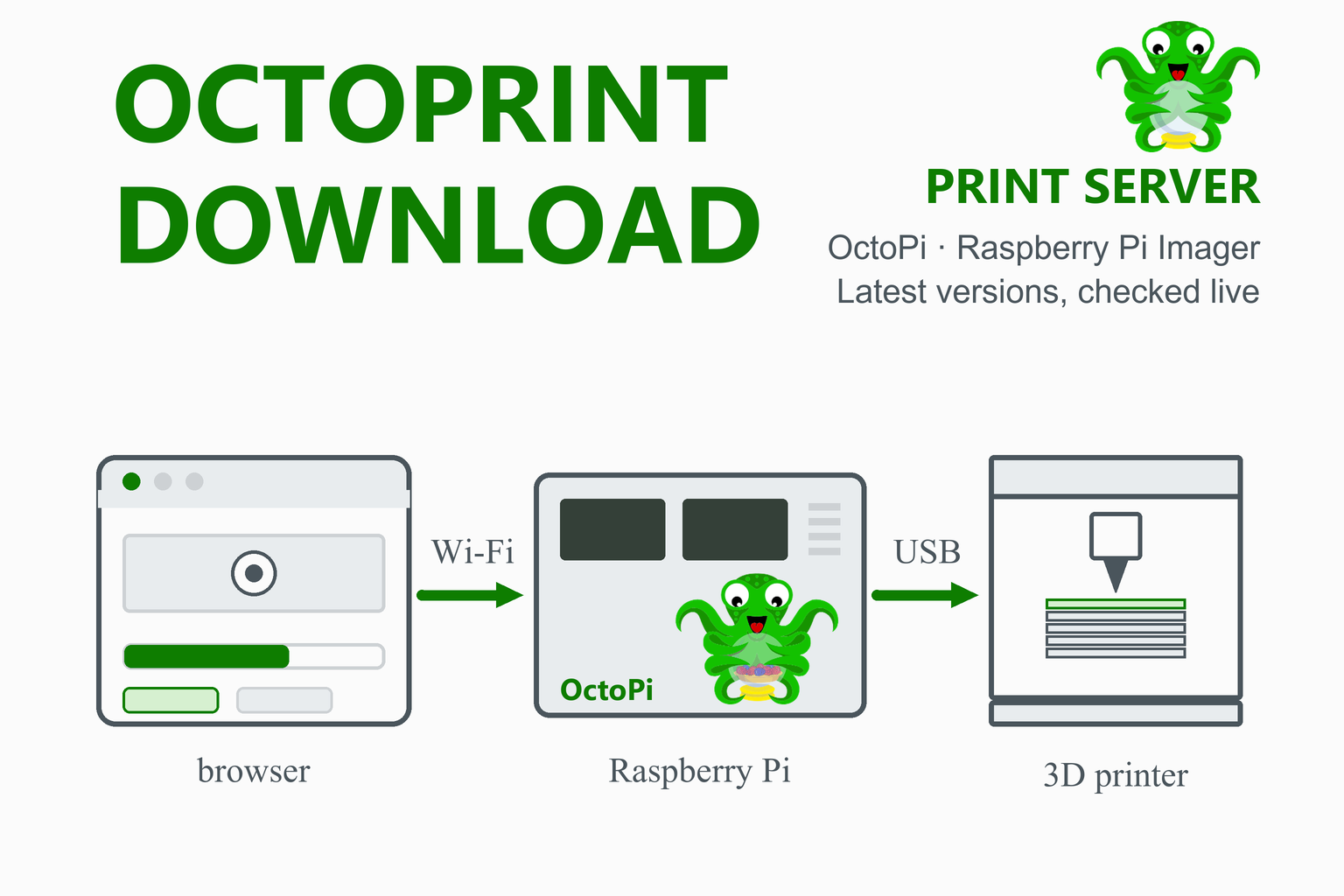
Your browser talks to OctoPrint over the network. OctoPrint on the Raspberry Pi talks to the printer’s control board over a USB cable and, if you add a camera, streams the picture to your browser as well.
What You Need
| Item | What to know |
|---|---|
| Raspberry Pi | The OctoPrint download page recommends the Raspberry Pi 3B, 3B+, 4B or Zero 2. It does not recommend the Zero and Zero W because of Wi-Fi performance problems, and other models are not officially supported. The OctoPi image listed in Raspberry Pi Imager is a 32-bit image that Imager offers for the Pi 1, 2, 3, 4 and 5 families. |
| SD card | The OctoPi image is about 1.4 GB to download and about 3.7 GB once written, so use at least an 8 GB card, which is Raspberry Pi’s own minimum for a “Lite” system. A good-quality card from a known brand is a sensible choice because a failing card is the most common cause of mysterious problems. |
| Power supply | The official power supply for your Raspberry Pi model. Under-voltage causes random crashes. |
| USB cable | A USB cable from the Raspberry Pi to the printer’s control board (the cable you would normally plug into a computer). |
| Network | Wi-Fi details, or an Ethernet cable. The Raspberry Pi and your computer need to be on the same network. |
| Your computer | Windows, macOS or Linux, with an SD card reader, to run Raspberry Pi Imager. |
| Optional | A USB webcam or a Raspberry Pi camera for monitoring and timelapse. |
Install OctoPi Step by Step
This is the route the OctoPrint site recommends for a Raspberry Pi. Menu names are those used in Raspberry Pi Imager 2.x; older versions word a few steps differently.
Step 1: Install Raspberry Pi Imager on your computer
Use the Imager row in the table above, which highlights the file for your system, or the Raspberry Pi site. On Windows and macOS you run the installer; on Linux you can use the AppImage, and on Raspberry Pi OS the command is:
sudo apt install rpi-imagerStep 2: Choose the device and OctoPi
- Open Raspberry Pi Imager, select your Raspberry Pi model under Device and choose Next.
- Under Choose OS, open Other specific-purpose OS, then 3D printing, then OctoPi, and pick OctoPi (stable).
- The same menu has OctoPi (new experimental camera stack), for Raspberry Pi cameras that the stable image does not support well (see camera and timelapse), and an OctoPi-Klipper entry under OctoKlipperPi (see OctoPrint and Klipper).
Step 3: Choose the SD card and set up the Pi
- Select the SD card under Storage. Keep Exclude system drives ticked, as Raspberry Pi recommends, so you cannot pick your computer’s own disk by mistake.
- In the customisation step, set a hostname (or keep octopi), a user name and password, your Wi-Fi name and password with the correct country, and turn on SSH if you may want to log in later. Raspberry Pi strongly recommends doing this now; if you skip it, the system asks for the same details at first boot.
- Write the card. Imager downloads the OctoPi image and writes it to the card. The OctoPrint site adds an important detail: do not format the card if your computer offers to when it finishes.
Writing a card erases it. Everything on the SD card you select is overwritten. Double-check the storage choice before you confirm.
Step 4: Boot the Pi and open OctoPrint
- Put the card in the Raspberry Pi, connect the power and wait a few minutes. The first start takes longer than later ones.
- On a computer or phone on the same network, open
http://octopi.localin a browser. If you chose another hostname, usehttp://followed by that name and.local, or usehttp://followed by the Pi’s IP address, which you can read from your router’s device list. - The setup wizard appears the first time (next section).
First-Run Setup and Access Control
OctoPrint’s documentation says a configuration wizard appears on the first start and lets you create the first administrator account. Work through every page of it and read each choice, because the wizard also covers options such as how OctoPrint checks that the internet is reachable and which optional features to enable.
| Concept | What it means |
|---|---|
| Administrator | The account you create in the wizard. Admins have full control, so keep that group small. |
| Guests | Anyone who has not logged in. By default, no permissions are granted to guests: they cannot see or do anything. |
| Groups | Three groups are predefined: Read-only Access (viewing only), Operator (the default for new users, covers normal printer operation) and Admins. |
| Where to manage | After setup, add users and groups under Settings, Access Control. |
The webcam is not covered by access control. OctoPrint only embeds the webcam picture and cannot restrict it. The documentation warns that if an anonymous person correctly guesses the webcam address, they can see it. That is another reason to keep OctoPrint inside your home network (see security).
Connect Your Printer
- With the printer switched off, connect the USB cable between the Raspberry Pi and the printer’s control board, then switch the printer on.
- In OctoPrint’s Connection panel choose the serial port and baud rate that your printer uses, then press Connect. Many printers work with the automatic setting; if yours does not, look up the baud rate in the printer’s documentation or firmware settings.
- When the state shows the printer as operational, check that the temperatures read sensibly, then try a small move before you start a print.
- Upload a G-code file from your slicer, such as Orca Slicer or Creality Print, and press Print.
Camera and Timelapse
The OctoPi project says that if a USB webcam or the Raspberry Pi camera is detected, a webcam server (MJPG-streamer) starts automatically, and OctoPrint embeds the picture. OctoPrint can also record timelapse videos of your prints.
- Raspberry Pi camera module v2: the OctoPi 1.1.0 release notes say it does not work with the stable image but works with the OctoPi (new experimental camera stack) entry in Raspberry Pi Imager. Pick that entry if you use that camera.
- USB webcams are the simplest choice and work with the stable image.
- Privacy: as noted above, the webcam picture is not protected by OctoPrint’s user accounts.
Install OctoPrint on Other Systems
You do not need OctoPi to run OctoPrint. The OctoPrint download page gives these generic steps for a system that has Python 3 and pip:
python -m venv OctoPrint
OctoPrint/bin/pip install OctoPrint
./OctoPrint/bin/octoprint serve
The first command creates an isolated Python environment in a folder called OctoPrint, the second installs OctoPrint into it, and the third starts the server. By default OctoPrint then listens on port 5000, so open http://localhost:5000 on the same computer. The paths above are for Linux and macOS; Windows uses a Scripts folder instead of bin.
Python versions
- OctoPrint 1.11.x still supports Python 3.7 and 3.8, according to the 2.0 release-candidate announcement.
- OctoPrint 2.0 requires Python 3.9 or newer, and supports Python 3.14.
Other routes the OctoPrint site lists
- An official Docker image for people who run containers.
- octoprint_deploy (a script for Linux) and the OctoPrint-WindowsInstaller (for Windows).
- Octo4a, which runs OctoPrint on an Android phone.
- Platform guides for Linux, Windows and macOS on the OctoPrint community forum.
OctoPrint 2.0 Release Candidates
OctoPrint 2.0 has been in release-candidate testing since April 2026, and the stable version in the table above is still the 1.11 line. The announcement of the first release candidate lists what changes, and it is worth reading before you try one:
- Python 3.9 or newer is required. Python 3.7 and 3.8 are dropped.
- Plugins may break. Most long-deprecated programming interfaces were removed, so plugins that ignored deprecation warnings will probably need updates.
- Remote-user trust changed. The old trusted remote user setting was replaced by a list of trusted authentication proxies. If you run OctoPrint behind a reverse proxy, check that list before upgrading.
- The printer connection moved into a plugin. The old serial layer now lives in the bundled Serial Connector plugin, and other connectors, such as Moonraker and Bambu, are separate plugins that were still in progress at the time.
- A downgrade may be needed. It is a release candidate, so severe bugs are possible and the announcement links rollback guides.
Do not test on a printer you depend on. If a plugin breaks the interface, OctoPrint has a recovery page at /recovery/ on your OctoPrint address that restarts it in safe mode. To try a release candidate, switch the update channel to release candidates in the software update settings, as the announcement describes.
OctoPrint and Klipper
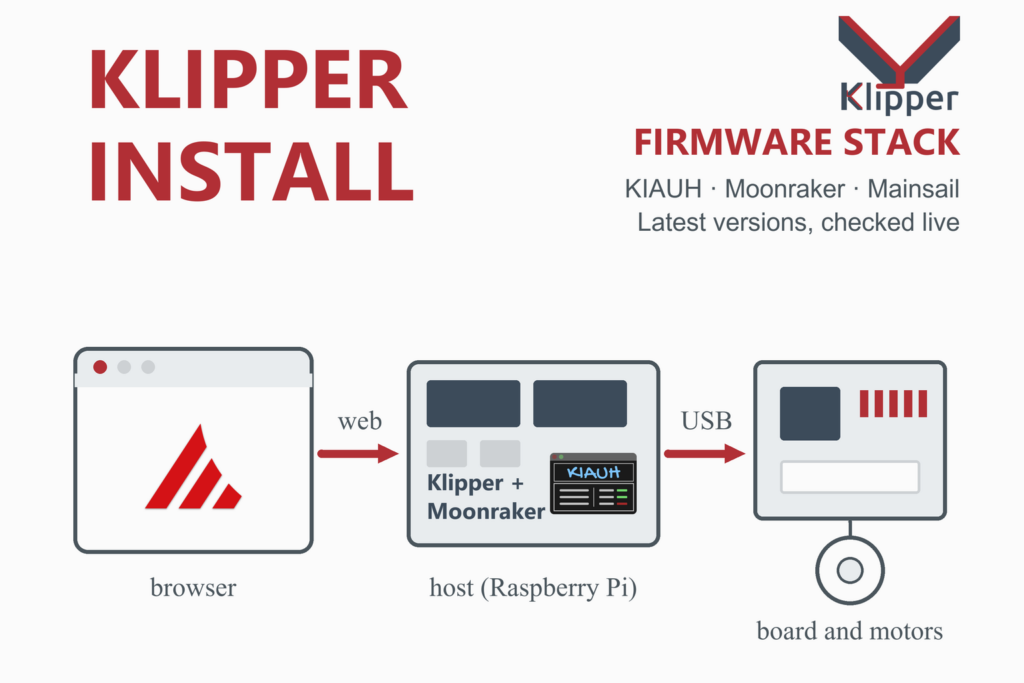
OctoPrint is a web interface and print server, while Klipper is printer firmware, so they are not rivals. Klipper’s installation guide lists OctoPrint as one of the web interfaces you can use with it, next to Mainsail and Fluidd, and Raspberry Pi Imager’s 3D printing menu has an OctoPi-Klipper entry (OctoPi with the latest Klipper) under OctoKlipperPi. In OctoPrint 2.0 other connectors, such as Moonraker and Bambu, are planned as separate plugins.
| OctoPrint on a Pi | Klipper with Mainsail or Fluidd | |
|---|---|---|
| What it is | A web interface that sends G-code to the printer’s own firmware | New firmware plus a web interface; the Pi does the motion planning |
| Changes to the printer | None: it works with the firmware the printer already has | The control board is flashed with Klipper’s firmware |
| Extras | A large plugin ecosystem | Input shaping, pressure advance, macros in the config file |
| Effort to start | Write an SD card, open a browser | More setup: configuration file, serial port, flashing |
If you only want to monitor and manage prints, OctoPrint on the printer’s existing firmware is the shorter road. If you also want Klipper’s motion features, read the Klipper install guide first.
Updating OctoPrint and Adding Plugins
- Software Update plugin. OctoPrint ships with a bundled Software Update plugin that checks for new versions of OctoPrint and of installed plugins. On OctoPi you normally update from inside OctoPrint, not by writing a new SD card.
- Plugin Manager. A bundled Plugin Manager lists plugins from the official plugin repository and installs them. Install only what you need, because every plugin is more code running next to your printer.
- Before a big update, do it when the printer is idle, read the release notes for heads-ups (the 1.11.8 notes link a collection of common update problems) and note the plugins you use.
- Reading about a problem. If an update fails, the OctoPrint community forum is the project’s own support channel.
Is It Safe to Put OctoPrint on the Internet?
Keep OctoPrint on your home network unless you know exactly what you are doing. A printer interface can start a heated nozzle and a motor, and the community’s advice on safe remote access strongly discourages forwarding a port from your router straight to OctoPi. Access control helps, but it does not cover the webcam picture, and a password sent over plain HTTP can be read by someone on the path.
- Use accounts. Keep access control on and give each person the lowest group that does the job.
- For remote access, prefer a VPN into your home network or one of the remote-access plugins and services the community describes, instead of opening a port.
- Never leave a printer unattended while heating. Remote control does not replace a smoke alarm and a safe place to print.
Troubleshooting
| Problem | What to try |
|---|---|
| octopi.local does not open | Wait a few minutes after the first boot, then try the hostname you chose in Imager followed by .local, or use the Pi’s IP address from your router’s device list. Make sure your computer is on the same network. |
| Computer asks to format the card after writing | Do not format it. The OctoPrint site warns about exactly this. |
| Wi-Fi is slow or drops (Pi Zero or Zero W) | The OctoPrint site does not recommend the Zero and Zero W because of Wi-Fi performance problems. Use a Pi 3B, 3B+, 4B or Zero 2, or a wired connection. |
| Raspberry Pi camera module v2 shows nothing | Write the OctoPi (new experimental camera stack) image from Imager’s menu instead of the stable one. |
| OctoPrint will not connect to the printer | Check the USB cable (use a data cable), the printer’s power, and the serial port and baud rate in the Connection panel. Try a different USB port on the Pi. |
| A plugin broke the interface | Open /recovery/ on your OctoPrint address to restart in safe mode, then remove or update the plugin. |
| Random restarts or freezes | Suspect the power supply or the SD card first: use the official power supply and a good card. |
| Update to a release candidate went wrong | Follow the rollback guides linked from the release-candidate announcement. |
Frequently Asked Questions
What is OctoPrint?
OctoPrint is a free, open-source web interface for 3D printers. It runs on a small computer that is connected to the printer, usually a Raspberry Pi, and lets you upload files, start and pause prints, watch a webcam and record timelapses from a browser. The OctoPrint site describes it as compatible with most consumer 3D printers out of the box, and plugins add more features and printer support.
Is OctoPrint free?
Yes. OctoPrint is released under the GNU Affero General Public License (AGPL-3.0), and OctoPi is released under the GPL-3.0. You only pay for the hardware, mainly a Raspberry Pi, an SD card and a power supply.
What is OctoPi, and is it the same as OctoPrint?
No. OctoPrint is the print server program. OctoPi is a Raspberry Pi system image that already contains OctoPrint, a webcam service and the settings they need, so you can write one SD card and start. Raspberry Pi Imager offers an up-to-date OctoPi build in its menu under Other specific-purpose OS, 3D printing, OctoPi.
Which Raspberry Pi do I need for OctoPrint?
The OctoPrint download page recommends the Raspberry Pi 3B, 3B+, 4B and Zero 2. It does not recommend the Zero and Zero W because of Wi-Fi performance problems, and it says other models are not officially supported. Use a good SD card (8 GB or more) and the official power supply.
How do I install OctoPi with Raspberry Pi Imager?
Install Raspberry Pi Imager, choose your Raspberry Pi model, then pick Other specific-purpose OS, 3D printing, OctoPi, and the stable version. Select the SD card, set a hostname, user name, password and Wi-Fi in the customisation step, and write the card. Do not format the card if your computer offers to, then boot the Pi and open http://octopi.local, or the hostname or IP address you chose.
Can I run OctoPrint without a Raspberry Pi?
Yes. OctoPrint is a Python program, so it can run on any system with Python 3 and pip: create a virtual environment with python -m venv OctoPrint, install it with OctoPrint/bin/pip install OctoPrint and start it with ./OctoPrint/bin/octoprint serve. The OctoPrint site also lists an official Docker image, a Windows installer, a Linux deployment script and an Android app, which are separate tools.
Should I install the OctoPrint 2.0 release candidate?
Only if you want to test it and can afford problems. OctoPrint 2.0 requires Python 3.9 or newer, removes many long-deprecated interfaces so some plugins may break, changes how trusted authentication proxies are configured and moves the printer connection into a bundled plugin. It is a release candidate, so a downgrade may be needed. For a printer you rely on, stay on the stable 1.11 release until 2.0 is final.
Is it safe to expose OctoPrint to the internet?
It is better not to. OctoPrint’s access control keeps anonymous visitors out by default, but the webcam picture is not protected by it, and the OctoPrint community’s advice on safe remote access strongly discourages forwarding a port from your router directly to OctoPrint. Keep it on your home network and use a VPN or a remote-access plugin or service if you need to reach it from outside.
Do I need OctoPrint if I use Klipper?
No. Klipper is printer firmware and OctoPrint is a web interface; Klipper’s installation guide lists OctoPrint as one of several interfaces you can use, next to Mainsail and Fluidd. Many Klipper users choose Mainsail or Fluidd, which are built on Moonraker. OctoPrint is a good fit if you want its plugin ecosystem or prefer to keep your printer’s existing firmware.
How do I update OctoPrint?
OctoPrint has a bundled Software Update plugin that checks for new versions of OctoPrint and of your plugins, and on OctoPi you normally update from inside OctoPrint instead of writing a new SD card. Update when the printer is idle and read the release notes first, because they list heads-ups and links to fixes for common update problems.
More guides: Klipper install guide · Orca Slicer · Creality Print · ElegooSlicer · QIDI Studio · Snapmaker Orca · PrusaSlicer · Cura · FreeCAD · Engineering calculators