
FreeCAD Download: Free Open-Source CAD for 3D Printing and Engineering
Always the newest version, checked live against the official GitHub releases every time you visit
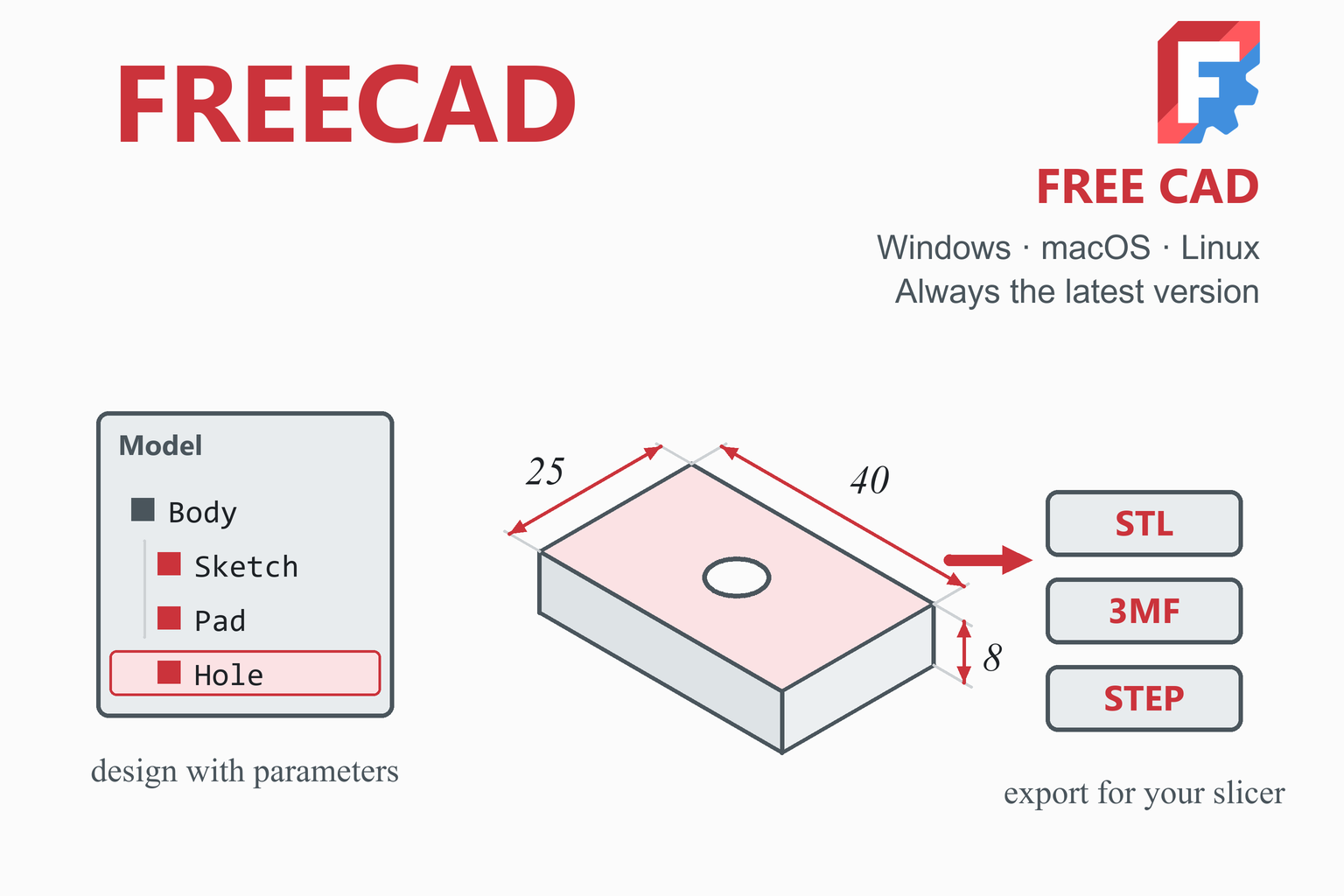
FreeCAD is a free, open-source parametric 3D CAD modeller. You draw a sketch, give it dimensions, build a solid from it, and later change any dimension to update the whole part. It covers the full path from design to print: modelling, assemblies, technical drawings, finite element analysis, CNC toolpaths, and export to STL, 3MF or STEP for your slicer. This page checks GitHub when you open it and offers the newest stable build for Windows, macOS and Linux, with file sizes and SHA-256 checksums. Below you will find what changed in version 1.1, the new calendar-style version numbers (26.3 is next), install steps, a first part designed for 3D printing, and an honest comparison with other CAD tools.
Download FreeCAD
Or use the official page: freecad.org downloads page
Previous versions
Loading the release list…
Update to 1.1.4 or newer, and be careful with files from strangers. The 1.1.4 release notes describe two security fixes for file-handling flaws that can be triggered by opening a maliciously crafted FreeCAD (.FCStd) file, and they state that all earlier releases are affected.
If you can’t update at once, don’t open FreeCAD files from unknown or untrusted sources.
How this download box works
- It is live. Each visit asks GitHub for the newest stable release of the official
FreeCAD/FreeCADproject, so you are never sent to an outdated file. Your browser keeps the answer for ten minutes; the Refresh button asks again straight away. - It ignores weekly builds. FreeCAD publishes a development build every week on the same GitHub page, and creates release candidates before each major release. Those are marked as pre-releases and the box skips them. FreeCAD’s own downloads page warns that weekly builds are not suitable for production work. When a release candidate exists, the box mentions it so you can try it if you want.
- It hides checksum and source files. Each FreeCAD download has a small checksum file beside it, and the source code is published too. The box lists only the programs you can run.
- Every link goes to GitHub. The script only accepts download addresses on the official project’s release path. If GitHub cannot be reached, the box falls back to links that always point to the newest release.
- The files are big. A FreeCAD download is roughly 400 to 800 MB depending on the platform, so allow some time on a slow connection.
Download Safety and How to Verify the File
CAD programs run with full access to your files, so the source of the installer matters. Download FreeCAD from the official GitHub release page (the box above reads from it) or from the project’s own website, freecad.org. According to the release notes, the Windows and macOS builds are signed by The FreeCAD project association AISBL, and each download has a SHA-256 checksum published beside it.
Check the SHA-256 checksum
A checksum is a fingerprint of the file. If the fingerprint of your download matches the one shown in the box above, the file is exactly what was published. Replace the file name with yours.
Windows (PowerShell)
Get-FileHash .\FreeCAD-installer.exe -Algorithm SHA256macOS (Terminal)
shasum -a 256 ~/Downloads/FreeCAD.dmgLinux (terminal)
sha256sum FreeCAD.AppImageCompare the printed value character by character with the SHA-256 shown for that file. If they differ, delete the file and download it again.
What Is FreeCAD?
CAD (computer-aided design) software lets you build an exact digital model of a part. FreeCAD is a parametric modeller: the model remembers how it was built, so changing a dimension in a sketch updates every feature that depends on it. That is the habit that makes parametric CAD so useful for engineering and for 3D printing, where you often print a part, measure it, adjust a dimension by half a millimetre and print again.
It is free and open source, released under the LGPL-2.1 licence, and it runs as a normal desktop program on Windows, macOS and Linux. There is no subscription and no account to create. The project is developed by a worldwide community and has a small number of major releases each year; version 1.0 arrived in November 2024, and the current series is described below.
FreeCAD is organised into workbenches: collections of tools for one job, such as sketching, solid modelling, drawings or analysis. You switch workbench from a drop-down list, and the toolbars change to match. It also has a built-in Python console, so repetitive tasks can be automated with scripts and macros.
FreeCAD Versions and the New Numbering
FreeCAD’s numbers recently changed, so it is worth a minute to understand them. The table lists the stable releases, from the project’s GitHub release page.
| Version | Date | Notes |
|---|---|---|
| 1.1.4 | 28 Sep 2026 | Described as the last planned maintenance release of the 1.1 series. Includes two security fixes for crafted-file vulnerabilities. |
| 1.1.3 | 25 Jul 2026 | Maintenance release. |
| 1.1.2 | 23 Jul 2026 | Maintenance release. |
| 1.1.1 | 14 Apr 2026 | Maintenance release. |
| 1.1.0 | 25 Mar 2026 | Quality-of-life improvements and new features across the workbenches (see below). |
| 1.0.2 | 6 Aug 2025 | Maintenance release of the 1.0 series. |
| 1.0.1 | 15 May 2025 | Maintenance release of the 1.0 series. |
| 1.0.0 | 19 Nov 2024 | Topological-naming mitigation, an integrated Assembly workbench, a new materials system and many interface improvements. |
The switch to calendar versions
In June 2026 the project announced that FreeCAD is moving to calendar versioning. The format is YY.N, where YY is the two-digit year and N is the number of the release in that year, with a third number for patch releases. Three major releases are planned each year: YY.1 is branched on 31 January and focuses on quality, and YY.2 (31 May) and YY.3 (30 September) bring a more typical mix of features and fixes.
The first release under the new scheme is 26.3. Its branch was created on 30 September 2026 and, per the project’s announcement, releases are expected within four to six weeks of branching, after two or three release candidates. So the next stable number you see in the download box may be 26.3 rather than 1.2, which is expected. A number such as 26.3 is higher than 1.1.4 and is the newer program.
Which one should I install? The latest stable version in the download box. Release candidates are for testing, and the weekly development builds are not suitable for production use, according to FreeCAD’s downloads page.
What’s New in FreeCAD 1.1
Version 1.1 (March 2026) is the series most people are running at the moment. These are the headline changes from the official release notes:
Part Design
Transparent feature previews and on-screen draggers for tools such as Fillet and Chamfer. A reworked Hole tool with taper and thread support, and a two-sided mode for Pad.
Sketcher
Support for projection, intersection and external geometry, and a better “master sketch” workflow with a make-internals option for closed contours.
Assembly
Easier part insertion, joint-motion simulation with animations, and a Bill of Materials for assemblies.
Interface
A rebuilt Transform tool, a “Clarify selection” tool that makes geometry transparent, three-point lighting, a Theme Editor, preference search and shortcut hints in the status bar.
FEM analysis
Animations of FEM results, electrostatic analyses and glyph filters for visualising results.
CAM
A new tool-library and editor, better multi-pass support and extra post-processors for CNC output.
TechDraw
Improvements to snapping, annotations and dimensioning for technical drawings.
Core
Continued work on topological-naming mitigation, faster start-up, lower memory use and better Wayland support on Linux.
The Workbenches You Will Actually Use
| Workbench | What it is for | When you use it |
|---|---|---|
| Sketcher | Constraint-based 2D sketches (lines, arcs, circles with dimensions and relations) | The start of almost every part |
| Part Design | Building a solid step by step from sketches: pad, pocket, hole, fillet, chamfer, pattern | Most single parts and printed brackets |
| Assembly | Fitting parts together with joints; built in since 1.0 | Checking that printed parts fit and move |
| TechDraw | Dimensioned technical drawings from your 3D model | Drawings for a workshop or a class |
| FEM | Finite element analysis of stress and deformation | Checking a part before you print or machine it |
| CAM | Toolpaths for CNC machines | If you also mill or route |
| Mesh Design | Working with triangle meshes such as STL files | Importing meshes or converting shapes to meshes |
| Draft and BIM | 2D drafting and building-information modelling | Plans and architectural work |
Parametric dimensions can also be driven from a spreadsheet or from named properties. 1.1 added improvements to the property and expression tools, so you can keep the key sizes of a design (wall thickness, hole diameter, clearance) in one place and change them for a new print without hunting through sketches.
System Requirements
| System | Requirement and files offered |
|---|---|
| Windows | Windows 10 or later. Installer (.exe) and portable (.7z) for x86_64. |
| macOS | macOS 12 Monterey or later. Separate builds for Apple Silicon and Intel Macs (.dmg). |
| Linux | AppImage for x86_64 and for aarch64. The page gives no minimum distribution version. |
| Hardware | FreeCAD does not publish minimum RAM, processor or graphics figures. Downloads are roughly 400 to 800 MB. |
Snap and Flatpak packages exist for Linux, but FreeCAD’s downloads page lists them only as development channels, so the AppImage is the official stable route there.
How to Install FreeCAD
Windows
- Download the installer from the box above and, if you like, check its SHA-256 checksum.
- Run the installer and follow the prompts. The release notes say the Windows builds are signed by The FreeCAD project association AISBL, so check the publisher name if Windows asks.
- Prefer not to install? Download the portable
.7zinstead, extract it with 7-Zip and run FreeCAD from the extracted folder. Nothing is installed system-wide, which suits a USB stick or a locked-down computer.
macOS
- Choose the right build. Open the Apple menu and choose About This Mac: a chip named “Apple M…” needs the Apple Silicon build; an “Intel” processor needs the Intel (x86_64) build.
- Open the
.dmgand drag FreeCAD into the Applications folder. The macOS builds are signed by the FreeCAD project association, so the first launch should open normally.
Linux
- Download the AppImage that matches your processor (x86_64 for most PCs).
- Make it executable and run it. Some distributions need FUSE support installed for AppImages to start.
chmod +x FreeCAD*.AppImage
./FreeCAD*.AppImage
First launch: FreeCAD opens on a start page. Choose Create new to open an empty document, then pick a workbench from the drop-down list in the toolbar. For solid parts, choose Part Design.
Your First 3D-Printable Part
This walk-through builds a small mounting plate with a bolt hole, the sort of part you will make again and again. Menu names can differ slightly between versions, but the steps are the same.
- Start a body. Create a new document, switch to the Part Design workbench and create a Body. A body holds one solid part and its features in order.
- Draw a sketch. Create a sketch on the XY plane and draw a rectangle. Add dimension constraints: 40 mm by 25 mm. When a sketch is fully constrained, FreeCAD shows its lines in green, which tells you the shape cannot move any more.
- Pad it into a solid. Close the sketch and use Pad with a length of 8 mm. You now have a plate.
- Add a hole. Use the Hole tool on the top face. For an M5 bolt, a hole of about 5.5 mm is a normal clearance size. Printed holes tend to come out slightly small, so many people add a tenth or two of a millimetre and test-print once.
- Round the corners. Select the four vertical edges and apply a Fillet of 3 mm. Rounded corners print more cleanly and are less likely to lift at the bed.
- Save and test the dimension. Save the file (
.FCStd). Then double-click the pad, change its length to 6 mm and see the model update. That is parametric design at work. - Export for printing. Select the Body, choose File, Export and pick STL Mesh (or 3MF, or STEP). Keep the units in millimetres.
- Slice. Open the file in your slicer, orient the plate flat and slice it. Several slicers accept STEP directly as well: Creality’s quick-start guide, for example, lists STL, OBJ, STEP and STP as supported formats in Creality Print.
Design for printing: rules of thumb
These are common FDM (filament) guidelines rather than FreeCAD features. Printers and materials differ, so treat them as a starting point and test.
| Topic | Guideline | Why |
|---|---|---|
| Wall thickness | At least two nozzle widths (about 0.8 mm for a 0.4 mm nozzle); thicker for load-bearing walls | Thinner walls may not print solidly |
| Fits and clearances | Leave roughly 0.2 to 0.4 mm between parts that must move or slide | Plastic expands slightly and edges bulge |
| Holes | Make them a little larger than the nominal size, or drill them out afterward | Printed holes tend to shrink |
| Overhangs | Keep steep overhangs under about 45 degrees from vertical, or accept supports | Unsupported plastic droops |
| Orientation | Make the main load run along the layers, not across them | Layer bonds are the weakest direction |
| Sharp internal corners | Add fillets | Reduces stress concentrations and cracking |
Once your part exists, you can check how stiff it is before you print. Our Beam Deflection Calculator handles a simple supported or cantilevered shape, using the material data from your filament maker.
FreeCAD vs Fusion, Onshape, SolidWorks for Makers, Tinkercad and OpenSCAD
The right choice depends on what you need to do, what you are allowed to use, and how you like to work.
| FreeCAD | Fusion (personal use) | Onshape Free | SOLIDWORKS for Makers | Tinkercad | OpenSCAD | |
|---|---|---|---|---|---|---|
| Cost | Free, open source (LGPL-2.1) | Free tier with restrictions; check Autodesk’s current terms | Free for non-commercial, open-source designs | US$48 a year or US$15 a month | Free | Free, open source |
| Use allowed | Any, including commercial | Non-commercial | Non-commercial; designs are shared publicly | Personal and non-commercial; sales capped at US$2,000 a year | See Autodesk’s terms | Any, under its open-source licence |
| Runs | Locally on your computer | Desktop app with cloud files | In the browser or an app | Cloud platform, with a Windows app and browser apps | In the browser | Locally |
| Style | Parametric, feature-based | Parametric | Parametric | Parametric | Simple building blocks | Code (script) driven |
| Best for | Engineers and makers who want a free, open, complete tool | All-round hobby design | Open-source projects and collaboration | Learning an industry tool at home | First steps and school use | Programmers and exact, repeatable parts |
Two points are worth knowing. First, Onshape’s free plan asks that designs be non-commercial and publicly shared, which suits open-source projects but not private product work. Second, files created with a SOLIDWORKS for Makers account are watermarked and can only be opened with a Makers licence; neutral formats such as STEP and IGES open anywhere. FreeCAD has neither restriction. It also reads and writes STEP, so you can move parts between FreeCAD and other programs.
Pros and Cons
Strengths
- Free and open source, with no subscription, account or usage cap.
- Parametric modelling, assemblies, drawings, FEM and CAM in one program.
- Runs locally on Windows, macOS and Linux.
- Open file formats and Python scripting.
- Windows and macOS builds are signed by the FreeCAD project association.
- Active development, with three major releases planned each year.
Limits
- A real learning curve; the interface conventions differ from commercial CAD.
- The topological naming problem is mitigated since 1.0, but the project describes it as an ongoing area of work.
- The Assembly workbench is newer (built in since 1.0) than the rest of the program.
- Large downloads, roughly 400 to 800 MB.
- Community support rather than a vendor help desk.
- It cannot directly open other vendors’ native files such as SolidWorks parts; exchange them through STEP.
Troubleshooting
| Problem | What to try |
|---|---|
| Features break after you edit an earlier step | This is the topological naming problem. Attach sketches to the origin planes or to stable faces, avoid depending on faces that change, and keep your version current, because 1.0 and later include mitigation. |
| The sketch will not turn green or reports a conflict | Look for redundant or conflicting constraints and delete the extra one. A fully constrained sketch shows green lines. |
| The exported STL looks faceted | The mesh is too coarse. Convert the shape to a mesh with a smaller maximum deviation before exporting, or export STEP if your slicer accepts it. |
| The slicer reports holes or non-manifold edges | Run the shape-checking tool in the Part workbench (Check geometry) and fix the reported problem before exporting. |
| The AppImage will not start (Linux) | Make it executable with chmod +x, and install FUSE support if your distribution lacks it. |
| macOS refuses to open the app | Make sure you installed the build that matches your chip. The builds are signed, so a normal launch should work. |
| The 3D view is slow, blank or glitchy | Update your graphics driver. On Linux, version 1.1 improved Wayland support, so a recent build may help. |
| FreeCAD crashes on a file | Update to 1.1.4 or newer, and only open files from sources you trust (see the security note above). |
Frequently Asked Questions
Is FreeCAD free?
Yes. FreeCAD is free and open source under the LGPL-2.1 licence. There is no subscription, no usage cap and no account to create, and the licence does not stop you using it for commercial work.
Is FreeCAD safe to download?
Download it from the official GitHub release page, which the box on this page reads from, or from freecad.org. According to the release notes, the Windows and macOS builds are signed by The FreeCAD project association AISBL, and each download has a SHA-256 checksum you can compare. Also update to 1.1.4 or newer: its notes describe two security fixes for crafted-file vulnerabilities that affect all earlier versions.
Which version of FreeCAD should I download?
The latest stable version shown in the download box. Release candidates are for testing, and FreeCAD’s downloads page says the weekly development builds are not suitable for production use.
Why will the next version be called 26.3 and not 1.2?
FreeCAD is switching to calendar versioning in the form YY.N, where YY is the year and N is the release number in that year. The first release under the new scheme is 26.3, and 26.3 is newer than 1.1.4. The project plans three major releases a year, branched at the end of January, May and September.
Can I use FreeCAD for 3D printing?
Yes. Model the part, then export it as STL, 3MF or STEP from the File menu and open it in your slicer. Many slicers read STL and 3MF, and some, such as Creality Print, also accept STEP files directly.
How does FreeCAD compare with Fusion?
Both are parametric CAD programs. FreeCAD is fully free and open source, runs locally and has no usage restrictions. Fusion has a free personal-use tier with restrictions, and files live with Autodesk’s cloud. Check Autodesk’s current terms for the personal tier before you rely on it.
Does FreeCAD need an internet connection or an account?
No. FreeCAD is a local desktop program and does not require an account. You only need the internet to download it and any updates.
Can FreeCAD open SolidWorks files?
Not the native SolidWorks part files. Export the part from SolidWorks as STEP or IGES and open that in FreeCAD, which can read and write STEP.
Is FreeCAD hard to learn?
It takes more effort than a block-based tool such as Tinkercad, because you learn the sketch, constraint and workbench ideas that parametric CAD uses. The first-part tutorial on this page is a good starting point: sketch a rectangle, constrain it, pad it into a solid and export it.
Which slicer should I use with FreeCAD?
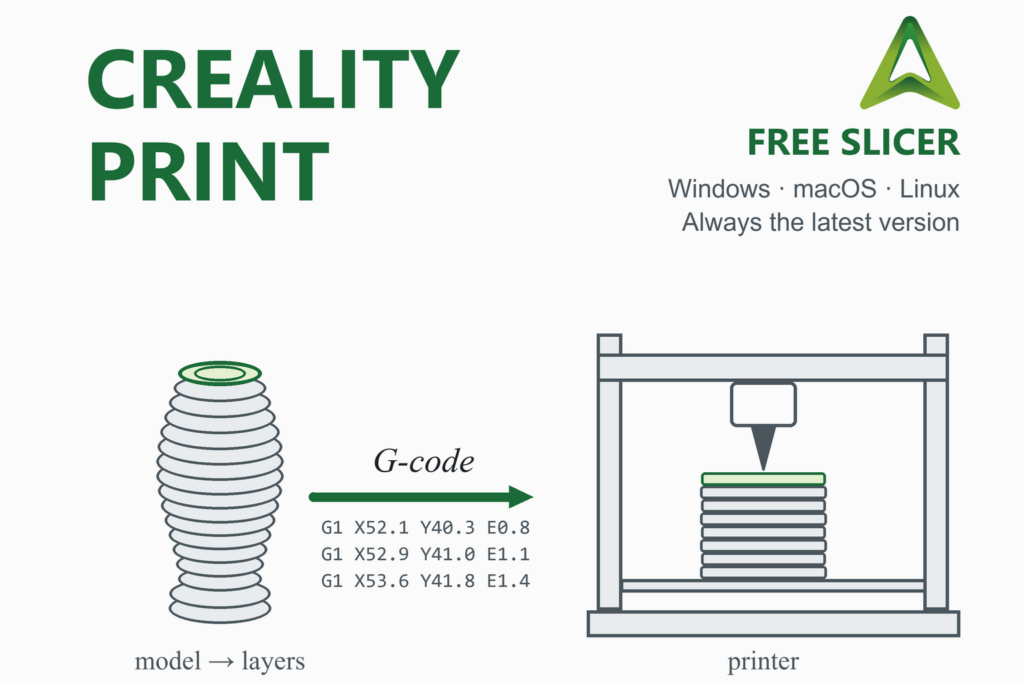
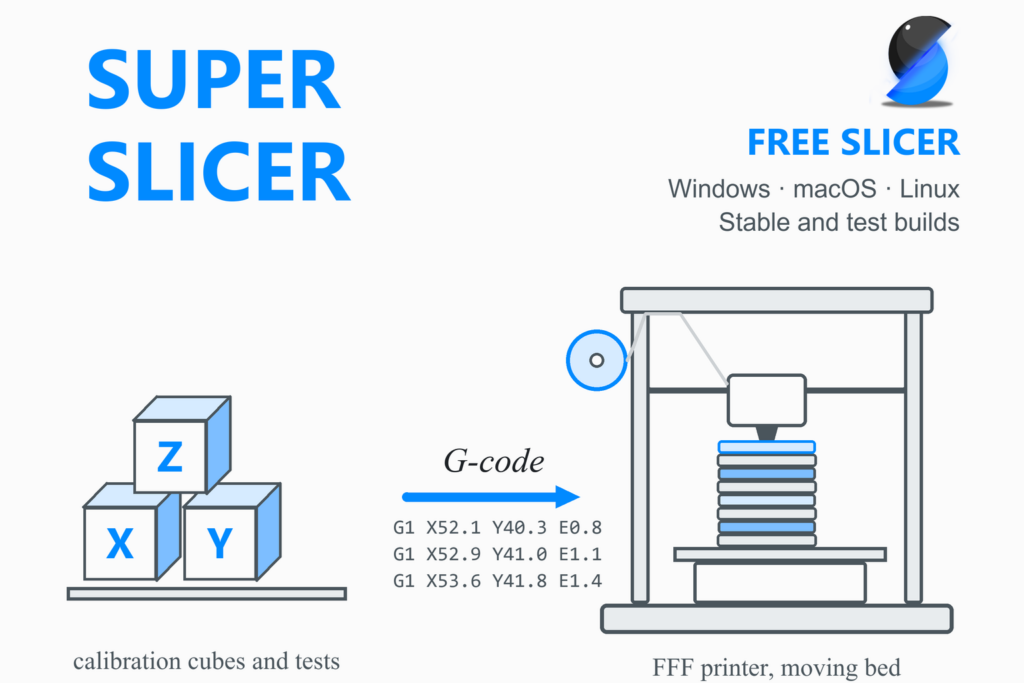
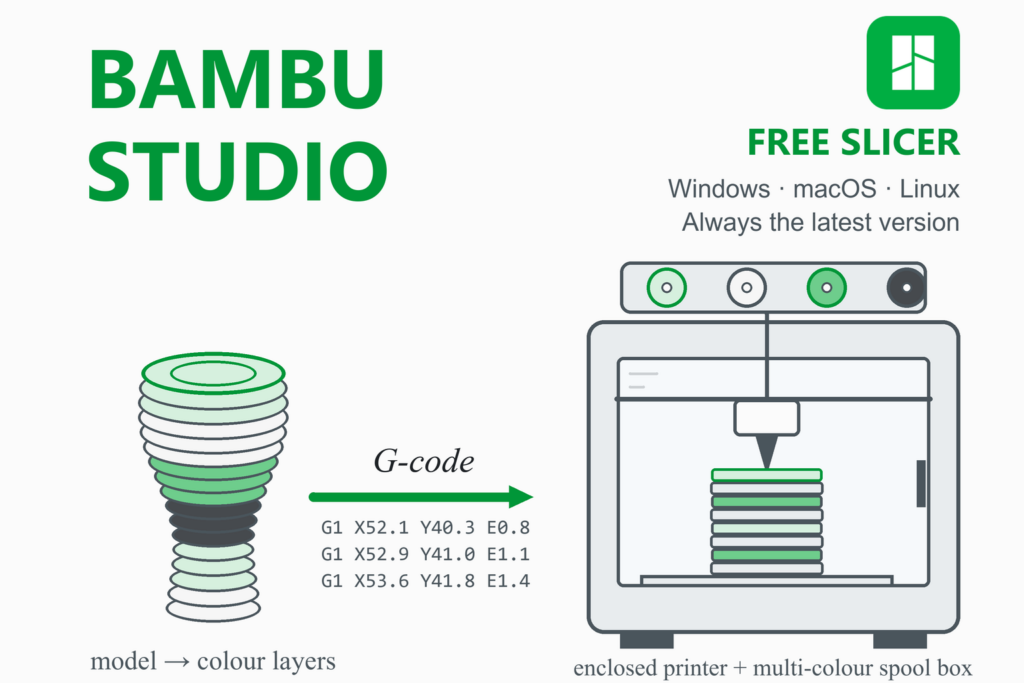
Any slicer that opens STL, 3MF or STEP will work. Our guides cover Creality Print, Orca Slicer, Cura, Bambu Studio, PrusaSlicer and SuperSlicer, so choose the one that matches your printer.
Slice what you design: Creality Print · Orca Slicer · Cura · Bambu Studio · PrusaSlicer · SuperSlicer · Engineering calculators