
Orca Slicer Download: The Free Slicer for Bambu Lab, Prusa, Creality, Voron and More
Always the newest version, checked live against the official GitHub releases every time you visit
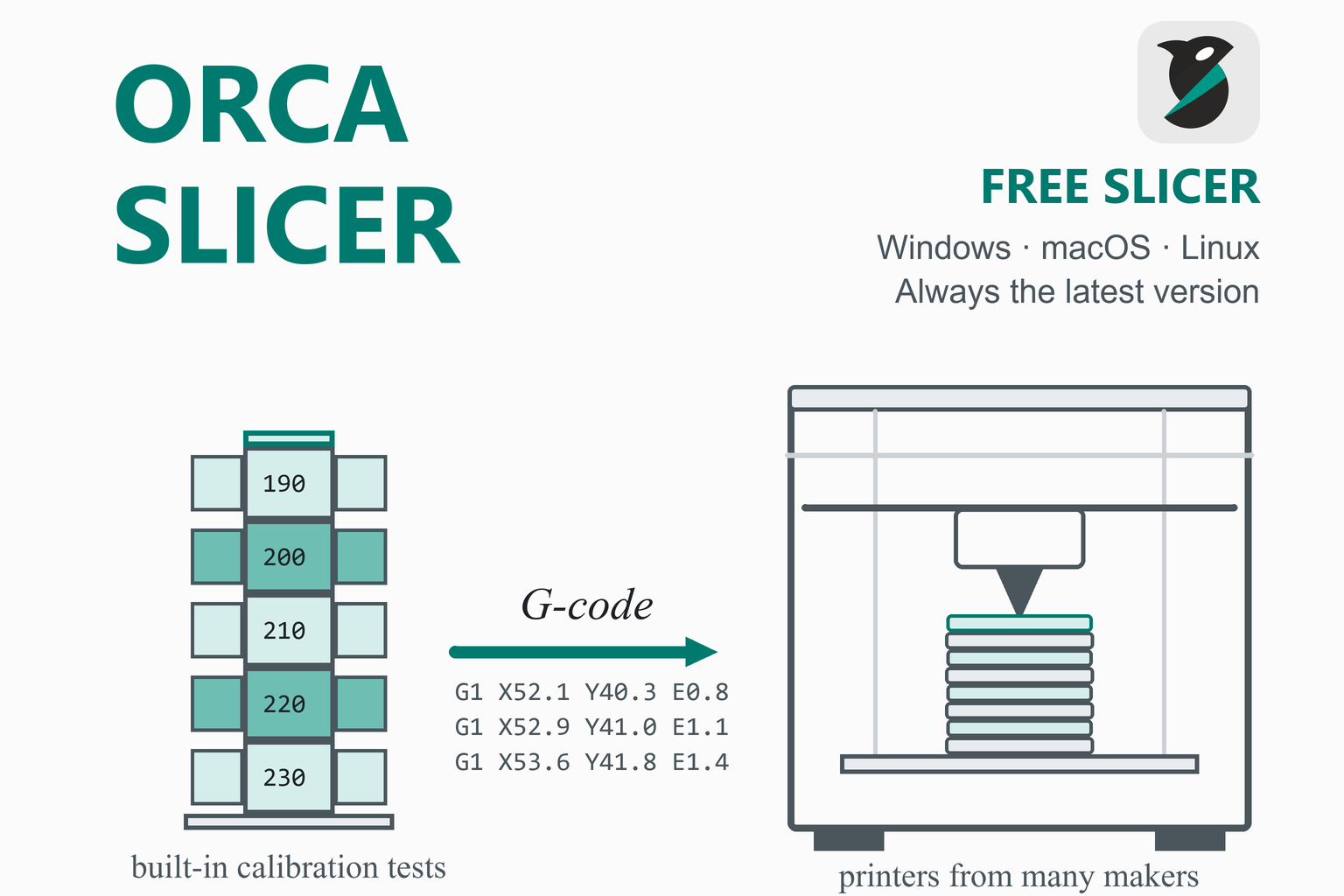
Orca Slicer is a free, open-source slicer for FDM (filament) 3D printers. It turns a model into the layer-by-layer G-code a printer follows, and it is best known for its built-in calibration tests, fine control over walls and seams, and bundled profiles for hundreds of printers. This page checks GitHub when you open it and offers the newest stable build for Windows (x64 and Arm64), macOS and Linux, with file sizes and SHA-256 checksums. Below you will find what changed in each recent release, the printers and network connections it supports, the system requirements, install steps for every official channel, a first-print walkthrough, the official calibration order, troubleshooting and an honest comparison with other slicers.
Download Orca Slicer
Or use the official page: Orca Slicer download page
Previous versions
Loading the release list…
How this download box works
- It is live. Each visit asks GitHub for the newest stable release of the official OrcaSlicer project, so you are never sent to an outdated file. Your browser keeps the answer for ten minutes; the Refresh button asks again straight away.
- It shows the current version only. If one system has no file in the newest release, the box says so instead of quietly offering an older build.
- Test builds are flagged, not offered. The project publishes alpha, beta and release-candidate builds before each stable release, and a rolling nightly build. They are marked as pre-releases, may be unstable and are left out of the download list; if a newer one exists, the box mentions it so you can try it if you want.
- Windows has two processor types. Since version 2.4.1 the installer and the portable zip exist for x64 (ordinary Intel and AMD PCs) and for Arm64 (for example Snapdragon laptops). Pick the one that matches your PC.
- Linux has two kinds of file. Current releases include an AppImage named for Ubuntu 24.04 and a Flatpak bundle, each for x86-64 and Arm64. The project’s README recommends Flathub for Linux (see the install section).
- Every link goes to GitHub. The script only accepts download addresses on the official project’s release path. The old
SoftFever/OrcaSliceraddress redirects to the currentOrcaSlicer/OrcaSlicerrepository. If GitHub cannot be reached, the box falls back to links that always point to the newest release.
Download Safety and How to Verify the File
Slicers run with full access to your files, so where the installer comes from matters. Orca Slicer’s official download page says its builds come from GitHub Releases, the Microsoft Store and Flathub, and “nowhere else”. The README adds winget and Homebrew commands that install the same official files, says the only official website is www.orcaslicer.com, and warns that several look-alike sites pretend to be the project and may redirect to dangerous downloads. The download box above reads from the official GitHub release page. Avoid any other mirror or “free download” site.
Check the SHA-256 checksum
A checksum is a fingerprint of the file. If the fingerprint of your download matches the one shown in the box above, the file is exactly what was published. Replace the file name with yours.
Windows (PowerShell)
Get-FileHash .\OrcaSlicer_Windows_Installer_*.exe -Algorithm SHA256macOS (Terminal)
shasum -a 256 ~/Downloads/OrcaSlicer_Mac_universal_*.dmgLinux (terminal)
sha256sum OrcaSlicer_Linux_AppImage_*.AppImageCompare the printed value, character by character, with the SHA-256 shown for that file. If they differ, delete the file and download it again from the official link. Checksums are published for 2.3.1 and later; older releases do not have them.
What Is Orca Slicer?
A slicer is the program between a 3D model and a printer. It cuts the model into thin layers, works out the path the nozzle should follow for each one and writes those instructions as G-code. Orca Slicer (also written OrcaSlicer) is a free, open-source slicer for FDM printers, created by SoftFever and maintained with the community. It is released under the GNU Affero General Public License v3. Its README describes it as a next-generation slicer for precise prints, with fast slicing, intelligent support generation and broad printer compatibility.
Where it comes from
Open-source slicing is a chain of projects. Slic3r came first, PrusaSlicer built on it, and Bambu Studio forked from PrusaSlicer. Older Orca READMEs said Orca was “originally forked from Bambu Studio”. Since version 2.3.2 the README instead says Orca began by drawing on Bambu Studio and PrusaSlicer, along with ideas from Cura and SuperSlicer, and “has since grown far beyond its origins”; the project’s About page calls it independent software. The family resemblance is real, though: if you have used Bambu Studio or PrusaSlicer, the layout will feel familiar.
The project lives on GitHub as OrcaSlicer/OrcaSlicer. Older guides and links still use SoftFever/OrcaSlicer, the name it had before the move; GitHub redirects that address to the new one. The project’s two official sites are www.orcaslicer.com and its optional sync service, cloud.orcaslicer.com.
Privacy and accounts
You do not need an account to slice. The project’s privacy policy says the app collects no telemetry. The program does check for updates and for new profiles at startup (both can be switched off in Preferences), and anything you enable yourself, such as a cloud print service, talks to that service. Orca Cloud, an optional profile-sync service added in 2.4.0, does need an account; the project says its core individual features will stay free.
What’s New in Recent Releases
The table summarises the stable releases from 2.0.0 onward, newest first, from the official release notes. A stable release includes everything from its alpha and beta builds, but its own notes list only what changed since the last stable release, so the rows below mention headline features from the earlier test builds too. The download box above shows the very newest release’s notes live, so it stays current even as this table ages.
| Version | Date | Main changes |
|---|---|---|
| 2.4.2 | 7 Jul 2026 | A maintenance update. Presets that were built on renamed or removed printer and filament profiles now load, so far fewer “missing preset” warnings. Cloud-sync fixes, a reliable Bambu network plug-in install and update on Windows, fixes for crashes (rotating the prime tower, the Measure tool, Pressure Advance calibration), and a new {first_object_name} filename placeholder. |
| 2.4.1 | 28 Jun 2026 | A native Windows Arm64 build (the x64 files gained an _x64 suffix), a minimal chamber-temperature field, a reworked skirt and brim generator, profile and AMS-matching fixes, a fix for blank web views on Linux Wayland, and Elegoo Centauri 2 and Snapmaker U1 nozzle profiles. |
| 2.4.0 | 20 Jun 2026 | The stable build of the 2.4 cycle: Orca Cloud (optional profile sync), an option to send sliced jobs as a packaged 3MF, a Microsoft Store channel, a skirt overhaul and faster slice-to-preview. Includes the alpha and beta features: ZAA contouring, machine input shaping, optimised gyroid infill, a redesigned printer selection dialog, Realistic View, a bridging overhaul, per-feature filament assignment, the Troubleshoot Center, native Moonraker and 3DPrinterOS hosts, and Creality K-series support. |
| 2.3.2 | 23 Mar 2026 | A security fix for 3MF import (a crafted file could write outside the project folder), a configurable wipe-tower type, the official Flathub version, Linux and Flatpak fixes and a CLI crash fix. From the betas: a big G-code viewer overhaul, Bambu H2D and H2S support, auto-slice, mesh subdivision and Draco (.drc) files. |
| 2.3.1 | 5 Oct 2025 | A bug-fix release with a revamped updater. From the alpha and beta builds: sparse-infill rotation templates, an infill line multiplier, input-shaping and junction-deviation calibration, fuzzy-skin painting and the “Aligned back” seam. |
| 2.3.0 | 20 Mar 2025 | User profiles are backed up when you upgrade, crosshatch becomes the default infill, brims can be generated for objects inside holes, and the new Orca Filament Library lets filament presets work across printers (old custom filaments may now show for all printers; set the filament’s dependency to restrict them). |
| 2.2.0 | 28 Oct 2024 | The pressure-advance pattern test prints the max flow and acceleration on the model, a fix for the nozzle hitting walls with the scarf seam, Creality Print support and air filtration for Bambu printers. From the beta: tool-changer and IDEX support, a one-pass flow calibration and adaptive pressure advance. |
| 2.1.0 | 21 Jun 2024 | Truly uniform fuzzy skin, a new web-link association setting and improved SimplyPrint integration. A hotfix, 2.1.1, followed on 26 June. |
| 2.0.0 | 30 Mar 2024 | An overhang threshold for the scarf-joint seam; the beta and release-candidate builds added the scarf-joint seam, Obico and SimplyPrint integrations and Flashforge 5M network support. |
The wiki and README are ahead of the stable release. The official wiki is built from the nightly branch, and it marks newer material with a banner reading “Available in: Nightly builds or Releases greater than 2.4.2”. At the time of writing that covers, among others, belt printing, IDEX/IQEX parallel printing, Python plugins and the Design tab, which come with the 2.5 series (a 2.5.0 alpha was published on 16 October 2026). If a menu in the wiki is missing from your copy, that is why.
Key Features
Calibration suite
Temperature, max volumetric speed, pressure advance, flow ratio, retraction, VFA, input shaping, cornering and tolerance tests generated inside the program (see the calibration section).
Walls and seams
Precise wall, sandwich (inner-outer-inner) wall order and polyholes for accurate holes, plus aligned, back, nearest and random seams, staggered inner seams, scarf seams and seam painting.
Supports
Normal and tree supports, auto or manual, with grid, snug, organic, slim, strong and hybrid styles, and paint-on support enforcers and blockers.
Paint-on tools
Paint supports, seams, fuzzy skin and multi-material colours directly on the model.
Many print hosts
Send to OctoPrint, Klipper/Moonraker, PrusaLink, Duet, Repetier and more, to cloud services such as SimplyPrint, Obico and Prusa Connect, and to Bambu printers.
Multi-material
Single-extruder systems with prime tower and ramming, tool changers and IDEX machines, AMS filament sync for Bambu printers, and per-feature filament assignment.
Orca Cloud (optional)
Optional profile sync with version history and shared bundles, available since 2.4.0. You can ignore it and keep everything on your computer.
Hundreds of profiles
Version 2.4.2 bundles profiles for 378 printer models from 62 makers, plus a global filament library shared between printers.
Mouse-ear brims and adaptive bed mesh
Small brim “ears” at corners, and bed-mesh probing limited to the area the print actually covers (Marlin, Klipper and RRF).
Many file formats
Import STL, 3MF, STEP, OBJ, AMF, SVG, ZIP and Draco files; export G-code, Gcode.3MF and more. Projects are saved as 3MF.
Troubleshoot Center
A Help-menu tool (since 2.4.0) that clears the profile cache and packs logs and your project into one file for a bug report.
Calibration Tests in the Official Order
Calibration is what many people install Orca Slicer for. The official calibration guide assumes the extruder’s E-steps or rotation distance are already calibrated in your printer’s firmware, and it repeats the filament calibrations for every filament you use, in this order. After each test, create a new project to leave calibration mode.
| Step | What it finds | How it works, according to the wiki |
|---|---|---|
| 1. Temperature | The nozzle temperature with the best quality for this filament | A tower of blocks printed at different temperatures. Pick the block with the best stringing, adhesion, overhangs and bridges; if a range looks good, use the middle, or the higher end for faster printing. “Auto-scale for nozzle” is on by default. |
| 2. Max volumetric speed | How much plastic per second the hot end can melt cleanly | Defaults start at 5 and end at 20 mm³/s in steps of 0.5. Measure the height where quality fails: limit = start + height × step (for example 5 + 19 × 0.5 = 14.5 mm³/s). Then set the profile value 10 to 20% lower. |
| 3. Pressure advance | The pressure-advance (or linear advance) value for corners and line ends | Three methods: Tower (value = start + step × height), Pattern (an adapted Andrew Ellis/Sineos pattern) and Line (quick). Each has direct-drive and Bowden versions. Marlin needs Linear Advance (M900) enabled. On Bambu printers do not tick “Flow calibration”. Save the result in the filament profile. |
| 4. Flow ratio | The extrusion multiplier for the filament | The “YOLO” test (recommended range −0.05 to +0.05 in steps of 0.01, eleven blocks) or the older two-pass test. Judge by the smoothest top surface, no gaps and little seam. The setting was called “flow rate” until 2.3.2. |
| 5. Retraction | The shortest retraction length that stops stringing | A tower with notches at different lengths: defaults 0 to 2 mm in 0.1 mm steps for direct drive, and a suggested 1 to 6 mm in 0.2 mm steps for Bowden. Read the length from the Calib_Retraction_tower G-code comment. If the tower is clean from the start, 0.2 to 0.4 mm is enough. |
The guide then lists optional advanced tests: cornering (finds the maximum cornering speed or junction deviation), input shaping (a manual ringing-tower method that needs high acceleration and speed, with an accelerometer as an alternative), VFA (a speed tower that finds speeds causing motor-resonance ripples, whose result goes into the Resonance Avoidance Speed Range), adaptive pressure advance (Klipper only, needing a recent Klipper) and the tolerance test (a handy model with hexagon holes at 0.0 to 0.4 mm clearance, for tuning X-Y hole and contour compensation). Some of these pages carry the nightly-build banner, so check that your version has the option.
Printers and Network Hosts
The README says Orca supports “a broad range of printers: Bambu Lab, Prusa, Creality, Voron, and more”, and the website says “hundreds of printers”. Counted from the profile files of version 2.4.2, there are 62 printer makers and 378 printer models (1,158 machine and nozzle presets), plus a handful of generic printers for Klipper, Marlin, RRF, Repetier and tool changers. Makers with the most models are Creality (41), Ratrig and Volumic (21 each), Anycubic (20), Snapmaker (19), Elegoo and Wanhao France (18 each), Geeetech (16), and Prusa and Sovol (13 each). Bambu Lab (12), Qidi (11) and Voron (8) are covered too, as are Anker, Artillery, Flashforge, UltiMaker and many more.
If your printer is missing, use one of the generic printer profiles as a starting point; 2.4.0’s printer dialog also has a “Create” button for adding a printer. The wiki has no step-by-step custom-printer page for users, so expect to adjust bed size, G-code and speeds yourself.
Sending prints to the printer
| Connection | What the project says |
|---|---|
| OctoPrint, Klipper/Moonraker, PrusaLink, Duet | Self-hosted print hosts. The README advertises integration with Klipper, PrusaLink and OctoPrint. Since 2.4.0 there is a native “Moonraker (Klipper)” host type next to the older Octo/Klipper entry. |
| Cloud print services | SimplyPrint, Obico and Prusa Connect (named in the privacy policy), and 3DPrinterOS (added in the 2.4.0 beta). |
| Bambu Lab printers | Through the optional Bambu network plug-in, which the README says is based on non-free libraries and provides extended functionality. The project does not say whether the plug-in is required for LAN or cloud printing, so follow the setup prompts in the program. |
| Vendor hosts | Creality Print hosts (2.2.0, with K-series discovery in the 2.4.0 beta), Elegoo Centauri Carbon 2 LAN upload, Flashforge 5M and Adventurer 5 network sending, and Repetier server. |
| Files | Export G-code or a Gcode.3MF and carry it to the printer on a card. An option added in 2.4.0, “Use 3MF instead of G-code”, sends a packaged 3MF to hosts that accept it. |
If you run Klipper, the README recommends adding two blocks to printer.cfg: [exclude_object] to allow object exclusion, and [gcode_arcs] with resolution: 0.1 to allow arc moves.
Who Should Use Orca Slicer?
- People with several printers from different makers, who want one slicer and one set of habits.
- Tuners and calibrators, who want pressure advance, flow, retraction and input-shaping tests built in.
- Klipper, OctoPrint and PrusaLink users, who send prints straight from the slicer.
- Bambu Lab owners who also use other brands, and who want Bambu support in a multi-brand program.
- Anyone who wants no account and no telemetry from their slicer.
If you only own a Bambu Lab printer, Bambu Studio is the maker’s own program. If you only own a Prusa printer, PrusaSlicer is the maker’s own. The comparison below explains the differences.
System Requirements
| System | What the project says |
|---|---|
| Windows | Windows 10 or later (64-bit), 4 GB of memory minimum (8 GB or more recommended), a graphics card that supports OpenGL 3.3, 500 MB of free disk space and an internet connection for updates. Native Arm64 builds exist since 2.4.1. If the program will not start, the README says you may need the Microsoft Edge WebView2 runtime and the Visual C++ 2019 x64 redistributable. |
| macOS | macOS 10.15 (Catalina) or later, 4 GB of memory minimum (8 GB or more recommended), Intel or Apple Silicon, and 500 MB of free disk space. One universal DMG serves both processor types. |
| Linux | “Ubuntu 20.04 or an equivalent distribution”, 4 GB of memory minimum (8 GB or more recommended), a graphics card that supports OpenGL 3.3 and 500 MB of free disk space. In practice every AppImage since 2.3.1 is built on Ubuntu 24.04, and the project does not state a minimum glibc, so on an older distribution the Flatpak or Flathub version is the safer route. |
| Download size | Roughly 131 MB for the Windows x64 installer, 163 MB for its portable zip, 235 MB for the macOS DMG and 131 MB for the Linux AppImage (version 2.4.2). |
How to Install Orca Slicer
Windows
- Installer: download the Windows installer from the box above (x64 for ordinary PCs, Arm64 for Windows on Arm), run it and follow the prompts. If you prefer no install, use the portable
.zip: extract it to any folder and run the program. - Microsoft Store: the official download page recommends the Store version because it updates itself. The 2.4.0 release notes say that on Windows 11 with Smart App Control, which can block the unsigned GitHub installer, the Store build is the workaround.
- winget:
winget install --id=SoftFever.OrcaSlicer -e - If the program will not start, install the Microsoft Edge WebView2 runtime and the Visual C++ 2019 x64 redistributable, the two runtimes the README names.
macOS
- Download the universal DMG, which runs on both Apple Silicon and Intel Macs, open it and drag OrcaSlicer.app to the Applications folder.
- Homebrew:
brew install --cask orcaslicer - The README lists three ways to open an app that macOS has quarantined, which it says apply to builds you take from a pull request: hold Command, right-click the app and choose Open; or remove the quarantine flag in Terminal; or open System Settings, Privacy & Security and click Open Anyway.
xattr -dr com.apple.quarantine /Applications/OrcaSlicer.app
Linux
- Flathub (recommended by the README):
It also appears in graphical software managers such as KDE Discover and GNOME Software when Flathub is enabled. The Flatpak is sandboxed; the download page suggests Flatseal if you need to grant access outside your home folder.flatpak install flathub com.orcaslicer.OrcaSlicer flatpak run com.orcaslicer.OrcaSlicer - AppImage: download the file for your CPU (x86-64, or the one with
aarch64in its name for Arm64), make it executable and run it. The download page says some systems need FUSE:libfuse2on Ubuntu and Debian,fuseon Fedora.chmod +x OrcaSlicer_Linux_AppImage_*.AppImage ./OrcaSlicer_Linux_AppImage_*.AppImage - Downloaded Flatpak bundle: install it with
flatpak install --user OrcaSlicer*.flatpak.
First-Time Setup and Your First Print
First launch
The first launch opens a configuration wizard where you pick your printer models and set initial preferences; you can skip it and configure later. Since 2.4.0 the printer and filament dialogs have a compact list view, a vendor sidebar, search and a “Create” button for adding printers. Your settings live in the configuration folder, which you can open from Help, Show Configuration Folder:
- Windows:
%APPDATA%\OrcaSlicer - macOS:
~/Library/Application Support/OrcaSlicer - Linux (AppImage or native):
~/.config/OrcaSlicer - Linux (Flatpak):
~/.var/app/com.orcaslicer.OrcaSlicer/config/OrcaSlicer
Uninstalling the program, even the Store version, does not delete this folder. Orca also backs up your user profiles when it upgrades (since 2.3.0), and you can export printer, filament and process presets as bundles from File, Export, Preset Bundle.
Slice and print a model
- Add a model. Drag a file into the window or use File, Import. Supported formats include STL, 3MF, STEP, OBJ and AMF. A 3MF project keeps your model and settings together.
- Check the three presets in the sidebar: printer, filament and process (quality). The program has option levels: Simple, Advanced and Expert (new in 2.4.0), plus a Developer level you switch on in Preferences. Start in Simple or Advanced and move up when you need more.
- Prepare the model. Place the flattest face on the bed where you can, then add supports, a brim or painted features if it needs them.
- Slice, then read the preview. The preview shows each feature, speeds and flow, and the estimated time and material.
- Send it. Press the print or upload button to send the job to your configured host, or export the G-code and carry it to the printer.
- Calibrate when you change filament. Run the tests in the order given in the calibration section above and save the results into the filament profile.
Settings Worth Knowing
Start with the profile Orca supplies and change one setting at a time. The entries below are statements from Orca Slicer’s wiki unless marked as general advice.
| Topic | Guideline |
|---|---|
| Seam position | The wiki says Aligned Back, Aligned or Back typically work best, especially with seam painting. Random seams spread the weak point out, which suits parts with pins. Staggered inner seams reduce stress. |
| Support threshold angle | The smaller the value, the steeper an overhang the slicer will print without support. Tree Hybrid builds normal-style support under large flat overhangs. A high branch density gives better overhangs but harder removal; the wiki suggests top support interfaces instead. |
| Arc fitting | Needs G2/G3 firmware support and is “not a feature to improve print quality”. On Klipper set [gcode_arcs] resolution; the default of 1.0 mm is rough. |
| Ironing | The wiki warns of heat creep and clogs because the filament moves very slowly while ironing. |
| Multi-material wipe tower | Bambu printers always use the Type 1 wipe tower. The 2.3.2 notes recommend Type 2 for MMU, filament-cutter and tool-changer setups. |
| Profiles look wrong after an update | Open Help, Troubleshoot Center and choose “Clean system profiles cache”, then restart. |
| Layer height (general advice) | 0.2 mm on a 0.4 mm nozzle is a common balance of quality and speed. Thinner layers look smoother but take much longer. |
| Abrasive filaments (general advice) | Check that your nozzle is hardened before printing carbon-fibre filaments; the fibres wear soft brass quickly. |
Orca Slicer vs Bambu Studio and PrusaSlicer
These programs are close relatives, so the right choice depends on your printers more than on any single feature.
| Orca Slicer | Bambu Studio | PrusaSlicer | |
|---|---|---|---|
| Made by | SoftFever and the community | Bambu Lab | Prusa Research |
| Lineage | Began by drawing on Bambu Studio, PrusaSlicer, Cura and SuperSlicer ideas | Based on PrusaSlicer | Originally based on Slic3r |
| Licence | AGPL-3.0 | AGPL-3.0 (network plug-in is not open) | AGPL-3.0 |
| Best for | Many brands, deep calibration and tuning | Bambu Lab printers and the AMS | Prusa printers and many others, FDM and mSLA |
| Network printing | OctoPrint, Moonraker, PrusaLink, Duet, cloud services, Bambu (plug-in) | Bambu cloud and LAN (plug-in) | Prusa Connect and other upload methods |
| Account | None needed; no telemetry | None needed to slice | None needed to slice |
If you print on several brands, Orca Slicer is the natural all-rounder. If you own only Bambu Lab printers, Bambu Studio is the maker’s own program; if you own only Prusa printers, PrusaSlicer is. Our guides to Cura and SuperSlicer cover two other well-known slicers, and several printer makers now ship their own versions of Orca, among them Creality Print, ElegooSlicer and Snapmaker Orca.
Pros and Cons
Strengths
- Free and open source (AGPL-3.0), with no account and no telemetry.
- A built-in calibration suite with a documented order.
- Profiles for 378 printer models from 62 makers, and a shared filament library.
- Many print hosts, from OctoPrint and Moonraker to cloud services.
- Official channels for every system: GitHub, Microsoft Store, Flathub, winget and Homebrew, with Arm64 builds for Windows and Linux.
- A detailed wiki and frequent releases with public notes.
Limits
- The wiki and README describe nightly features that are not in the stable release.
- Bambu printer networking depends on an optional, closed plug-in from Bambu Lab.
- No step-by-step guide for adding a custom printer or each print host.
- The big feature set can overwhelm new users (the Simple option level helps).
- Releases can come in quick succession (2.4.0, 2.4.1 and 2.4.2 appeared within about 17 days), so profiles and behaviour can change quickly.
- Larger downloads than older slicers (130 to 235 MB).
Troubleshooting
| Problem | What to try |
|---|---|
| The program will not start on Windows | Install the Microsoft Edge WebView2 runtime and the Visual C++ 2019 x64 redistributable (both named in the README), then try again. |
| Windows 11 blocks the installer | Smart App Control can block the GitHub installer. The project’s workaround is the Microsoft Store version. |
| The AppImage will not run | Run chmod +x on it, and install libfuse2 (Ubuntu and Debian) or fuse (Fedora). |
| Blank or garbled Home or Device tab on Linux | Version 2.4.1 fixed blank web views on Wayland, so update. As an alternative the 2.4.0 beta notes suggest starting the program with GDK_BACKEND=x11. |
| “Missing preset” warnings after an update | Version 2.4.2 fixed presets built on renamed or removed printer and filament profiles. Update, then use Help, Troubleshoot Center, Clean system profiles cache if profiles still look wrong. |
| Custom presets vanished after Bambu Cloud sync was removed | The wiki says to copy the contents of the ten-digit folder under user into the default folder and restart, or sign in to Orca Cloud so the presets migrate automatically. |
| The Bambu plug-in keeps asking to reinstall | Version 2.4.2 fixed repeated “reinstall plug-in” prompts and the “file may be in use” error on Windows. Update to the newest release. |
| The skirt prints again before every object | A 2.4.0 regression in By-Object printing, fixed in 2.4.1. |
| Klipper shows artefacts with adaptive pressure advance | Update Klipper; the wiki asks for Klipper 0.13.0 (April 2025) or a development build from 11 July 2024 or later. Only the host’s Python code needs updating. |
To report a bug, open Help, Troubleshoot Center and press Pack. It creates a zip file with logs and your project, and the “Report issue” button opens a prefilled GitHub form. The wiki says no user-specific information is collected.
Frequently Asked Questions
Is Orca Slicer free?
Yes. Orca Slicer is free and open source under the GNU Affero General Public License v3, and its source code is public on GitHub. You do not need an account to slice. The optional Orca Cloud sync service needs an account, and the project says its core individual features will stay free.
Is Orca Slicer safe to download?
The download box on this page links only to files on the official OrcaSlicer project on GitHub. The project’s download page says its official builds come from GitHub Releases, the Microsoft Store and Flathub, and nowhere else, and its README names look-alike sites that pretend to be official. To confirm your copy is unaltered, compare its SHA-256 checksum with the one shown beside the file.
Is Orca Slicer a fork of Bambu Studio?
It grew out of that family tree, but the project no longer describes itself as a fork. Older READMEs said Orca was “originally forked from Bambu Studio”. Since version 2.3.2 the README says it began by drawing on Bambu Studio, PrusaSlicer and ideas from Cura and SuperSlicer and has since grown far beyond its origins, and the project’s About page calls it independent software. Bambu Studio itself is based on PrusaSlicer, which comes from Slic3r.
Which printers does Orca Slicer support?
The README names Bambu Lab, Prusa, Creality, Voron and more, and the website says hundreds of printers. Version 2.4.2 bundles profiles for 378 printer models from 62 makers, plus generic Klipper, Marlin, RRF, Repetier and tool-changer printers to start from. The program also checks for updated profiles at startup, which you can switch off in Preferences. If your printer is missing, start from a generic profile and adjust the bed size, G-code and speeds.
Does Orca Slicer need an account or send my data anywhere?
No account is needed to slice, and the project’s privacy policy says the app collects no telemetry. It checks for program updates and profile updates at startup, and you can switch both off in Preferences. Services you choose to use, such as Orca Cloud or a cloud print service, communicate with those services.
Can I use Orca Slicer with a Bambu Lab printer?
Yes. The Bambu Lab models (A1, A1 mini, H2D, H2D Pro, H2S, P1P, P1S, P2S, X1, X1 Carbon, X1E and X2D in version 2.4.2) are in the bundled profiles. The README describes an optional Bambu network plug-in, based on non-free libraries from Bambu Lab, that provides extended functionality for Bambu printer users. The project does not say whether the plug-in is needed for every kind of connection, so follow the prompts in the program. Bambu Lab’s own slicer is Bambu Studio.
Which file should I download?
On Windows pick the x64 installer for an ordinary Intel or AMD PC and the Arm64 one for Windows on Arm; the portable zip needs no install. On macOS there is one universal DMG for Apple Silicon and Intel. On Linux the README recommends Flathub; otherwise choose the AppImage for your CPU (the Arm64 one has aarch64 in its name). The project’s download page also lists the Microsoft Store version for Windows.
What are the alpha and nightly builds?
They are test builds. The project publishes alpha, beta and release-candidate builds before each stable release, plus a rolling nightly build. GitHub marks them as pre-releases, they may be unstable, and a stable release’s own changelog lists only what changed since the previous stable release. At the time of writing a 2.5.0 alpha (published 16 October 2026) exists, and the download box mentions it when a newer test build is available.
In what order should I calibrate a new filament?
The official guide assumes your firmware’s E-steps or rotation distance are already right, and then lists temperature, max volumetric speed, pressure advance, flow ratio and retraction, repeated for each filament. Cornering, input shaping, VFA, adaptive pressure advance and the tolerance test are optional extras. The calibration section above says what each test does.
Where does Orca Slicer keep my profiles, and how do I back them up?
In the configuration folder, which opens from Help, Show Configuration Folder: %APPDATA%\OrcaSlicer on Windows, ~/Library/Application Support/OrcaSlicer on macOS, ~/.config/OrcaSlicer on Linux and ~/.var/app/com.orcaslicer.OrcaSlicer/config/OrcaSlicer for the Flatpak. Uninstalling does not delete it, and Orca backs up your user profiles when it upgrades (since 2.3.0). You can also export presets with File, Export, Preset Bundle.
Why does the wiki describe options I cannot find?
The official wiki is built from the nightly branch, not from the stable release. Pages for newer features carry the banner “Available in: Nightly builds or Releases greater than 2.4.2”. Update when a newer stable version is out, or try a nightly build if you need those features.
Can Orca Slicer import my PrusaSlicer or Bambu Studio profiles?
The project does not document importing PrusaSlicer .ini files or Bambu Studio bundles. It imports its own preset bundles (.orca_printer and .orca_filaments) and zip packages of presets, and it opens 3MF projects: settings embedded in a 3MF are used when they are compatible and ignored otherwise.
More slicer guides: Bambu Studio · PrusaSlicer · Cura · SuperSlicer · Creality Print · Engineering calculators