
Cura Slicer Download: Free UltiMaker Cura for UltiMaker and Hundreds of Other 3D Printers
Always the newest version, checked live against the official GitHub releases every time you visit
UltiMaker Cura, usually just called Cura, is a free, open-source slicer. It turns a 3D model into the G-code a printer follows, with a simple Recommended mode for beginners and hundreds of settings in Custom mode. This page checks GitHub when you open it and offers the newest stable build for Windows, macOS (Apple Silicon and Intel) and Linux, with file sizes and SHA-256 checksums. Below you will find what changed in each recent release, the printers it supports, the official system requirements, install steps, a first-print walkthrough, troubleshooting and an honest comparison with other slicers.
Download Cura
Or use the official page: UltiMaker Cura page
Previous versions
Loading the release list…
How this download box works
- It is live. Each visit asks GitHub for the newest stable release of UltiMaker’s official Cura project, so you are never sent to an outdated file. Your browser keeps the answer for ten minutes; the Refresh button asks again straight away.
- It shows the current version only. If one system has no file in the newest release, the box says so instead of quietly offering an older build.
- Test builds are flagged, not offered. UltiMaker publishes alpha and beta builds before each stable release. They are marked as pre-releases, are experimental and are left out of the download list; if a newer one exists, the box mentions it so you can try it if you want.
- Two Mac files and two Windows files. Pick the Mac file that matches your processor (Apple Silicon or Intel). The Windows list has the normal installer and an
.msipackage that UltiMaker labels “Enterprise”. The release page also holds.pkginstallers for macOS and a signature file for the Linux AppImage. - Every link goes to GitHub. The script only accepts download addresses on the official project’s release path, which is also where UltiMaker’s own download page sends you. If GitHub cannot be reached, the box falls back to links that always point to the newest release.
Download Safety and How to Verify the File
Slicers run with full access to your files, so where the installer comes from matters. UltiMaker’s Cura page links straight to the files on the official GitHub release page, which is what the download box above reads. UltiMaker also says the Cura installer is signed, and the Linux AppImage comes with a detached GPG signature file (.AppImage.asc).
Be wary of mirror and “free download” sites: some show out-of-date version numbers or repackaged installers.
Check the SHA-256 checksum
A checksum is a fingerprint of the file. If the fingerprint of your download matches the one shown in the box above, the file is exactly what was published. Replace the file name with yours (note the capital M in UltiMaker).
Windows (PowerShell)
Get-FileHash .\UltiMaker-Cura-*-win64-X64.exe -Algorithm SHA256macOS (Terminal)
shasum -a 256 ~/Downloads/UltiMaker-Cura-*-macos-*.dmgLinux (terminal)
sha256sum UltiMaker-Cura-*-linux-X64.AppImageCompare the printed value, character by character, with the SHA-256 shown for that file. If they differ, delete the file and download it again from the official link.
What Is Cura?
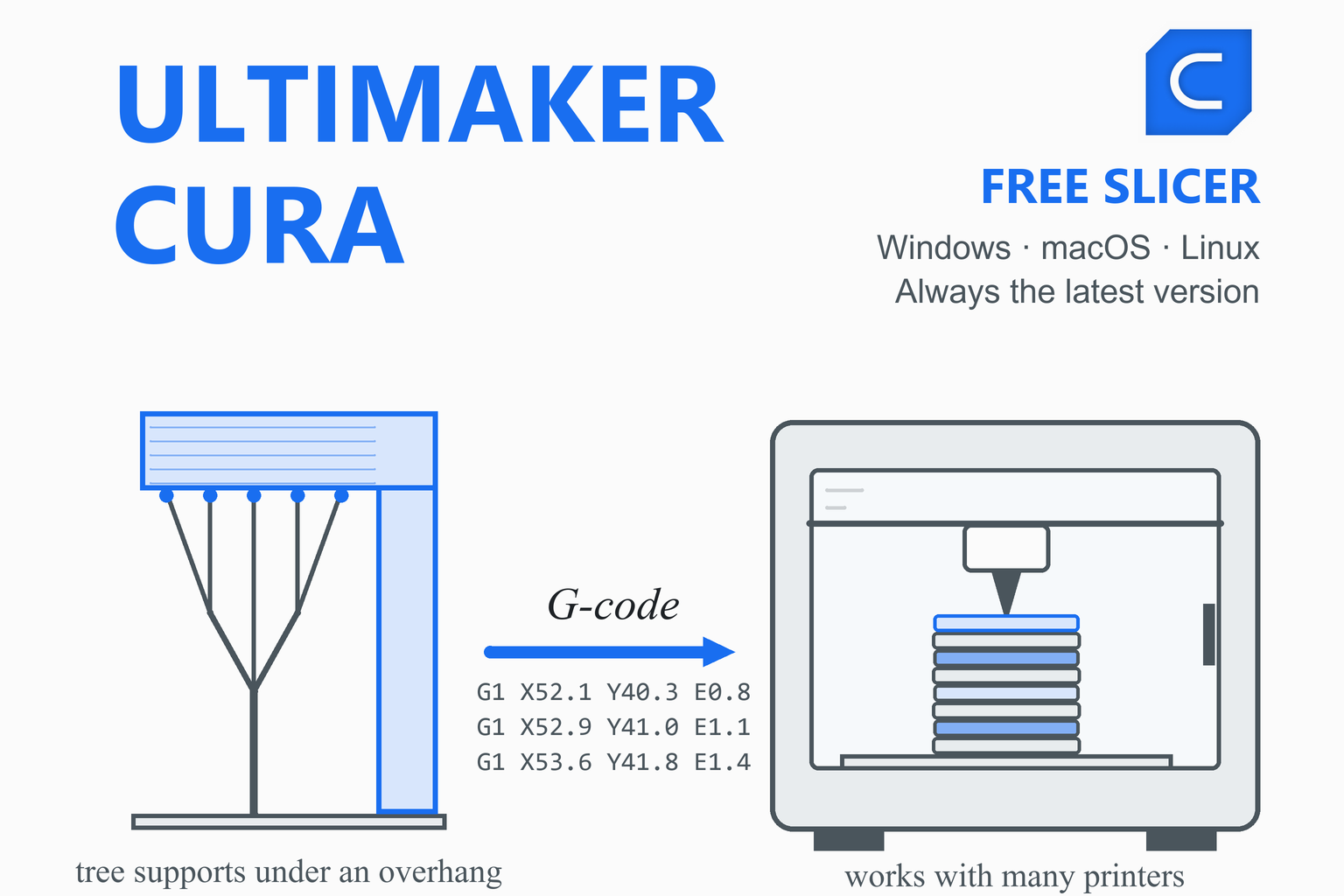
A slicer is the program between a 3D model and a printer. It cuts the model into thin layers, works out the path the nozzle should follow for each one and writes those instructions as G-code. UltiMaker Cura is UltiMaker’s slicer (older material still calls it Ultimaker Cura). UltiMaker’s page calls it free and open-source software with a powerful open-source slicing engine and more than 400 customisable settings, and the project’s README describes a slicer with “hundreds of settings and community-managed print profiles”.
The parts and the licences
Cura is the application layer, built on a framework called Uranium; the actual slicing is done by a separate program, CuraEngine. Cura itself and Uranium are licensed under the GNU Lesser General Public License v3 (LGPL-3.0), while CuraEngine is licensed under the GNU Affero General Public License v3 (AGPL-3.0). The README does not explain how the two licences fit together, so this page only states them. UltiMaker also sells printers, offers “UltiMaker Cura Enterprise” (a Windows MSI build with scheduled updates) and runs a separate cloud service, Digital Factory, which has paid plans. None of that is needed to use Cura.
Do I need an account?
No official page says an account is required to slice. The first-run wizard has a sign-in page with a “Skip” button. An account is needed for Cura Backups, for installing plugins through the Marketplace website, and for cloud printing with Digital Factory; plugins and materials can still be installed from the Marketplace inside Cura without one.
UltiMaker tests its own printers. UltiMaker’s documentation says it is responsible only for UltiMaker-branded printers. Profiles for other brands come from the manufacturers or community contributors, and UltiMaker’s support does not handle problems with third-party printer profiles.
What’s New in Recent Releases
The table summarises the stable releases from 5.5.0 onward, newest first, from the official release notes. UltiMaker says it intends to update Cura about every three months on average. The download box above shows the very newest release’s notes live, so it stays current even as this table ages.
| Version | Date | Main changes |
|---|---|---|
| 5.13.0 | 28 May 2026 | The UltiMaker Factor 4+ with profiles, an installer option to set file associations on Windows, new Infill Start/End Preference settings, the “Lightning” support infill with its angle settings, Temperature Delta Top Surface, Initial Layer Wall Ordering and several fixes (support blockers on a disabled extruder, tree-support interface layers, a too-slow overhang speed). |
| 5.12.1 | 13 Apr 2026 | A single fix: exporting to the .makerbot format could fail. |
| 5.12.0 | 5 Mar 2026 | Smarter bridging, settings of disabled extruders greyed out, new Honeycomb and Octagon infill types, a “Middle” Z-seam position, layer height in millimetres in the preview, a Help-menu button for the log files, and overhauled UltiMaker S6 and S8 high-speed profiles. |
| 5.11.0 | 23 Oct 2025 | Paint-on tools for the Z seam and for extruder (multi-material) assignment, UltiMaker S6 and S8 profile improvements, USB-cable printing switched off unless you use it, new Annealing/Drying and Z-hop post-processing scripts, and a fix for Cura not starting under very strict antivirus. |
| 5.10.0 | 25 Mar 2025 | UltiMaker S8 support, 3Dconnexion SpaceMouse support, overhanging wall speeds with several values, preview looping from the last layer to the first, and macOS 12 Monterey or newer required. Patch releases 5.10.1 (June) and 5.10.2 (July) added the S6 and further profiles. |
| 5.9.0 | 19 Nov 2024 | Scarf-seam settings, If/Else conditions in start and end G-code, extra build-volume fan controls, Help, “Export Package for Technical Support”, a fixed interface on Wayland and signed executables inside the Windows installers. |
| 5.8.0 | 1 Aug 2024 | New Z-seam settings (seam on vertex, seam overhang angle), a search bar for the “Add a non-networked printer” list and new printer profiles. 5.8.1 (29 August) fixed material sync to UltiMaker printers. |
| 5.7.0 | 3 Apr 2024 | Universal Cura Project files, an “Open in Cura” button on Thingiverse, an interleaved prime tower and raft settings. 5.7.1 (24 April) added the UltiMaker Factor 4; 5.7.2 (3 June) fixed modifier and support meshes. |
| 5.6.0 | 28 Nov 2023 | UltiMaker Method X and Method XL, prime-tower base settings and variables and math in start and end G-code. |
| 5.5.0 | 25 Oct 2023 | An engine-plugin system, a native macOS Apple Silicon build alongside the Intel one, one Linux build instead of two, and new top-surface wall settings. |
The 5.0.0 release (17 May 2022) introduced the slicing engine that produces variable line widths (known as Arachne), a renewed Marketplace and Apple M1 compatibility. At the time of writing (October 2026) the newest test build is 5.14.0-beta.1, published on 15 October 2026. Its notes list paint-on support, a tabbed settings panel on by default, a Windows on ARM build, an upgrade of the interface framework and many new support settings. Beta builds are experimental, so stay on the stable release unless you want to test.
Key Features
Recommended and Custom modes
Recommended mode shows a profile, resolution, infill, support and adhesion choices. “Show Custom” opens Custom mode, where setting-visibility presets (Basic, Advanced, Expert, All) and a search box tame the long list.
Variable line widths
The slicing engine introduced in 5.0.0 adapts line width in thin and intricate parts, with settings such as Wall Transitioning Threshold Angle and Minimum Thin Wall Line Width.
Tree supports
Choose Normal or Tree support structures; tree supports branch around the model, with settings for branch angle, diameter and density. Lightning support infill was added in 5.13.0.
Support blockers and per-model settings
Place a blocker mesh to keep support out of an area, or give one model its own settings (infill mesh, cutting mesh, support mesh and more).
Adaptive layers
“Use Adaptive Layers” (in the Experimental category) varies layer height with the shape of the model; its defaults are 0.1 mm maximum variation and 0.2 mm topography size.
Z seam control
Seam alignment (user-specified, shortest, random, sharpest corner), corner preference, scarf-seam settings (5.9.0), seam painting (5.11.0) and a “Middle” position (5.12.0).
Ironing and fuzzy skin
Ironing adds a low-flow pass over top surfaces to smooth them, and fuzzy skin adds random jitter to the outer wall.
16 infill patterns
Lines, grid, triangles, cubic, gyroid, lightning, concentric, zig zag, cross and more; honeycomb and octagon arrived in 5.12.0.
Preview and layer view
Prepare, Preview and Monitor stages. The layer view has a layer slider, a path slider and colour schemes for line type, feed rate, layer thickness and material colour.
Post Processing scripts
The Post Processing plugin ships with 20 scripts in version 5.13.0, such as Pause at Height, Insert at Layer Change, Filament Change, Tweak at Z and Search and Replace.
Marketplace and plugins
Install plugins and material profiles from inside Cura. UltiMaker reviews plugins, and its page counts more than 200 third-party materials (material profiles are for UltiMaker printers).
Many file formats
Open 3MF, AMF, DAE, STL, PLY, OBJ, X3D and glTF models, images turned into height maps, and G-code files. Projects are saved as 3MF.
Which Printers Does Cura Support?
UltiMaker says Cura works with all UltiMaker printers and offers a wide range of preset third-party printers. Counted from the definition files of version 5.13.0, Cura bundles about 630 printer definitions from about 150 makers. That count is ours, taken from the project’s files, not an official figure.
| Group | Examples |
|---|---|
| UltiMaker and MakerBot | UltiMaker Factor 4 and 4+, Method, Method X, Method XL, S3, S5, S6, S7, S8, the Ultimaker 2 family, Ultimaker 3 and Original; MakerBot Replicator, Sketch and Sketch Large |
| Creality, Anycubic, Elegoo | Ender-3 and Ender-3 Pro, Ender-3 S1, the CR-10 family; Anycubic Kobra, i3 Mega and Chiron; the Elegoo Neptune family and Centauri Carbon |
| Other makers | Sovol SV01 to SV08, Voron 0 and 2.4 variants, Snapmaker 2, Flashforge Adventurer 3 and 4, Artillery Genius and Sidewinder, BIQU, Two Trees, AnkerMake M5 and Flsun V400, among many more |
No Bambu Lab or Qidi printer is listed among the bundled definitions of 5.13.0 (a Bambu Lab G-code flavour exists, and an experimental Bambu build appeared as an alpha in 2025). For those printers use the maker’s own slicer, or Orca Slicer.
Printers that are not in the list
In the “Add a non-networked printer” list, a Custom printer comes first after the UltiMaker models. It starts with an empty profile and opens the Machine Settings panel, where you enter the build-plate size and shape, whether the bed is heated, the start and end G-code, the print-head size and the number of extruders. UltiMaker states that custom configurations are not tested and that it does not support third-party printers. A printer maker can add its machines to Cura by sending a pull request with a printer and extruder definition to the project.
Connecting Cura to Your Printer
| Method | What the documentation says |
|---|---|
| UltiMaker printers on your local network | Discovered automatically (the printer and computer must be on the same network), or add one by IP address. Cura syncs the print core and material setup, sends jobs and has a Monitor tab. The data is not encrypted on a local network. |
| Digital Factory (cloud) | Sign in with an UltiMaker account and use “Print via cloud”. It works only with selected UltiMaker (and MakerBot) printers, not with third-party brands, and has a free plan. |
| USB cable | The USB printing plugin is bundled. Since 5.11.0 it is switched off for users who do not use it; turn it on in Preferences, General (restart needed). |
| Removable drive | Save to disk, or save straight to a removable drive and carry it to the printer. |
| OctoPrint | Not bundled. UltiMaker’s wiki lists an OctoPrint plugin by FieldOfView among the examples of third-party plugins. |
Who Should Use Cura?
- UltiMaker printer owners, who get tested profiles, network discovery and Digital Factory.
- Beginners, who can stay in Recommended mode and never open the long settings list.
- Tinkerers, who like Custom mode, Post Processing scripts, per-model settings and plugins.
- Schools and workshops, who can deploy the Windows
.msipackage to many computers. - Owners of popular budget printers such as Creality, Anycubic, Elegoo and Sovol machines, which have bundled definitions.
If your printer is from Bambu Lab, Bambu Studio is the maker’s own program; for Prusa printers see PrusaSlicer. The comparison below explains the differences.
System Requirements
| Item | What UltiMaker says |
|---|---|
| Windows | Windows 10 or higher (64-bit). Windows 7 is no longer supported. |
| macOS | macOS 12 Monterey or higher, on Intel (64-bit) or an M-series chip. macOS 11 is no longer supported; UltiMaker’s support article points older systems to earlier Cura versions. |
| Linux | 64-bit Linux. UltiMaker publishes one x86-64 AppImage; it does not state a minimum distribution or version. |
| Minimum hardware | An OpenGL 2 compatible graphics card (OpenGL 4.1 is needed for the 3D layer view), a 720p display, an Intel Core 2, AMD Athlon 64 or Apple M1 processor, 1.3 GB of free disk space and 4 GB of memory. |
| Recommended hardware | An OpenGL 4.1 graphics card, a 1080p display, an Intel Core i3, AMD Athlon 64 or Apple M1 processor, 2 GB of free disk space and 8 GB of memory. UltiMaker notes that not all Intel integrated graphics support OpenGL 4.1. |
| Not supported | Chrome OS (including the Linux environment on Chromebooks). UltiMaker does not recommend running Cura in virtual machines or remote-desktop sessions (RDP, Hyper-V, VMware, VirtualBox, Docker and similar). |
| Download size | Roughly 158 MB for the Windows installer, 164 MB for the Apple Silicon DMG, 183 MB for the Intel DMG and 319 MB for the Linux AppImage (version 5.13.0). |
UltiMaker describes Cura as a lightweight application that runs on low-end systems, with memory and processor needs that depend mostly on the size of the models you load.
How to Install Cura
UltiMaker has no step-by-step install article, so the steps below combine the file types it publishes with standard behaviour for each system.
Windows
- Download the Windows installer (
.exe) from the box above and, if you like, check its SHA-256 checksum. - Run it and follow the prompts. Since 5.13.0 the installer has an option to set file associations, so Cura can open model files by double-click.
- The
.msiis UltiMaker’s “Enterprise” package for managed deployments, such as installing on many computers at once.
macOS
- Choose the file for your processor:
ARM64for Apple Silicon (M-series),X64for Intel Macs. The box shows both. - Open the
.dmgand drag Cura into the Applications folder (the usual way to install a Mac app; UltiMaker’s pages do not describe this step). - If macOS blocks the first launch, open System Settings, Privacy & Security and click Open Anyway. This is Apple’s standard route for an app it has not verified; UltiMaker’s pages do not mention it.
Linux
- Download the AppImage, make it executable and run it. Some distributions need FUSE support installed for AppImages to start (general AppImage behaviour; UltiMaker does not document it).
chmod +x UltiMaker-Cura-*-linux-X64.AppImage ./UltiMaker-Cura-*-linux-X64.AppImage - UltiMaker publishes no Flatpak, deb or rpm package, only the AppImage. The release also holds a
.ascsignature file for the AppImage.
Plugins and the configuration folder
Plugins can be installed from the in-app Marketplace, by dragging a .curapackage file onto Cura, or by placing them in the plugins folder inside the configuration folder (Help, Show Configuration Folder). Each Cura version has its own configuration folder named after the version number: %APPDATA%\cura\<version> on Windows, ~/Library/Application Support/Cura/<version> on macOS and ~/.config/cura/<version> (preferences) plus ~/.local/share/cura/<version> (settings) on Linux.
First-Time Setup and Your First Print
The first-run wizard
- Welcome and user agreement. You accept or decline the agreement (declining closes the program).
- Data collection. A page asks about sending anonymous usage information: the machine types, material usage, number of slices and print settings, with no personal information. The matching “Slice info” plugin can be switched off in Preferences, and in 5.13.0’s code it is on by default.
- Sign in (optional). Click “Skip” to continue without an account.
- Add a printer. Choose “UltiMaker printer” or “Non UltiMaker printer”. For other brands, use the search box in the “Add a non-networked printer” list to find the manufacturer and model. If your model is missing, use Custom.
Slice and print a model
- Open a model. Use the File menu or drag the file into the window.
- Pick a profile in Recommended mode. Thin-layer profiles print slowly and precisely, thick-layer profiles print quickly and more roughly. UltiMaker recommends an infill of at least 15% for standard applications, and says it is almost always worth enabling extra adhesion (a brim or raft), because it costs little time and improves reliability.
- Add support if needed. Support is for sharp overhangs and floating parts. Choose a normal or tree structure in Custom mode.
- Slice and check the preview. Use the layer view to look at line types and feed rates before you print. The X-ray view marks model errors in red, though UltiMaker says it is not a guarantee.
- Send it. Print over the network or Digital Factory, or save to a removable drive or file and carry it to the printer.
- Save the project. File, Save Project writes a 3MF holding the printer, extruders, profile and models. UltiMaker advises saving it after you send the print, and sending the complete project (not the Universal one) when you ask support for help.
Settings Worth Knowing
Start with the profile for your printer and change one setting at a time. The entries below are statements from UltiMaker’s documentation and the project’s files unless marked as general advice.
| Topic | Guideline |
|---|---|
| Infill | At least 15% is recommended for standard applications; raise it to strengthen the part. The base default in 5.13.0 is 20% with the grid pattern. |
| Adhesion | Enable a brim or raft almost always. With adhesion off, Cura prints a skirt instead. The base default is a brim. |
| Support | The base defaults in 5.13.0 are a 50 degree overhang angle, 15% density and a 0.1 mm Z distance. On a multi-extruder machine, choose the right support extruder. |
| Single extrusion on a dual-extruder printer | Disable the unused extruder. Otherwise the bed temperature and first-layer height take the higher value of the two extruders, and only layer heights both can print are offered. |
| Where settings live | Z Seam Alignment and Optimize Wall Printing Order are under Walls; Jerk and Acceleration control under Speed; Adaptive Layers, Fuzzy Skin and Draft Shield under Experimental. |
| Backups | Use Extensions, Cura Backups (needs an UltiMaker account) or copy the configuration folder of your version. |
| Layer height (general advice) | 0.2 mm on a 0.4 mm nozzle is a common balance of quality and speed. The base default is 0.1 mm. |
| Abrasive filaments (general advice) | Check that your nozzle is hardened before printing carbon-fibre filaments. |
Cura vs PrusaSlicer, Orca Slicer and Bambu Studio
Cura comes from a different family than the other three, which all descend from Slic3r. The right choice depends on your printer more than on any single feature.
| Cura | PrusaSlicer | Orca Slicer | Bambu Studio | |
|---|---|---|---|---|
| Made by | UltiMaker | Prusa Research | SoftFever and the community | Bambu Lab |
| Lineage | Built on Uranium; CuraEngine does the slicing; not described as a fork | Originally based on Slic3r | Began by drawing on Bambu Studio, PrusaSlicer and ideas from Cura | Based on PrusaSlicer |
| Licence | LGPL-3.0 (engine AGPL-3.0) | AGPL-3.0 | AGPL-3.0 | AGPL-3.0 |
| Best for | UltiMaker printers and a large list of budget printers | Prusa printers and many others, FDM and mSLA | Many brands, deep calibration | Bambu Lab printers |
| Network printing | UltiMaker network and Digital Factory, USB; OctoPrint by plugin | Prusa Connect and other upload methods | OctoPrint, Moonraker, PrusaLink, Duet and more | Bambu cloud and LAN |
| Extending it | Marketplace plugins, Post Processing scripts, engine plugins | Custom G-code with placeholders | Built-in calibration suite | Built-in AMS and Device features |
Orca Slicer’s own README lists Cura among the ideas it drew on, and Orca is not a Cura fork. If your printer is from UltiMaker, or a popular budget brand with a bundled profile and you like Cura’s Marketplace, Cura is a solid choice. If you want calibration tests built in, try Orca Slicer. For another PrusaSlicer relative, see SuperSlicer.
Pros and Cons
Strengths
- Free and open source, with no account needed to slice.
- Recommended mode for beginners and hundreds of settings in Custom mode.
- About 630 bundled printer definitions, including UltiMaker, Creality, Anycubic, Elegoo and Sovol machines.
- Marketplace plugins, 20 Post Processing scripts and engine plugins.
- Native builds for Apple Silicon and Intel Macs, a Windows installer and MSI, and a Linux AppImage.
- Regular releases with public notes and published SHA-256 checksums.
Limits
- Third-party printer profiles are not tested or supported by UltiMaker.
- Cloud printing works only with selected UltiMaker and MakerBot printers; OctoPrint needs a third-party plugin.
- No Bambu Lab or Qidi profiles among the bundled printers.
- The layer view needs OpenGL 4.1, which some Intel integrated graphics lack.
- No portable Windows build, Flatpak or Arm64 Linux file in the stable release.
- The long Custom settings list can overwhelm new users.
Troubleshooting
| Problem | What to try |
|---|---|
| The layer view is blank or the preview is broken | The 3D layer view needs OpenGL 4.1 and not all Intel integrated graphics support it. Update the graphics driver. Preferences has a “Force layer view compatibility mode” option (restart needed), but painting and face alignment are unavailable in that mode. |
| Cura will not start with strict antivirus software | Version 5.11.0 fixed Cura not starting under very strict antivirus. Update to the newest version. |
| “Configuration not supported” or a missing profile | UltiMaker tests profiles only for its own printers and materials. Check the material and print core combination, use a Marketplace material profile, or a properly unlinked custom material. |
| Sign-in does not work | Cura starts a local web server on http://localhost:32118 for sign-in; do not block it. Behind a proxy such as Zscaler, add an SSL-inspection exception for account.ultimaker.com. Version 5.13.0 fixed a failure when “Sign in to Digital Factory” was clicked twice. |
| Materials will not sync to an UltiMaker printer | Version 5.8.0 had this bug; 5.8.1 fixed it. |
| Cura crashes when slicing odd geometry | The 5.14 alpha and beta notes say the most common slicing crashes, including those with non-manifold geometry, were fixed. Until that is stable, UltiMaker’s notes say moving the model can work around some of them. |
Exporting a .makerbot file fails | A 5.12.0 bug with support material, fixed in 5.12.1. |
| Need to report a problem | The Help menu has Export Package for Technical Support (project plus logs, since 5.9.0) and, since 5.12.0, a button to open the log files. The wiki asks bug reports to include the Cura version, operating system, graphics information, steps to reproduce, the project file and the log file. |
Frequently Asked Questions
Is Cura free?
Yes. UltiMaker’s page calls Cura free and open-source software. The application is licensed under the GNU Lesser General Public License v3, and its slicing engine, CuraEngine, under the GNU Affero General Public License v3. You do not need an account to slice. UltiMaker also sells printers and offers separate products, such as Digital Factory plans and Cura Enterprise, that you do not need to use Cura.
Is Cura safe to download?
UltiMaker’s Cura page links straight to the files on the official GitHub release page, which is also what the download box on this page reads. UltiMaker says the Cura installer is signed, the Linux AppImage comes with a detached GPG signature file, and GitHub shows a SHA-256 checksum for each file. Avoid mirror and “free download” sites, some of which show out-of-date versions or repackaged installers.
Is Cura only for UltiMaker printers?
No. UltiMaker says Cura works with all its own printers and offers a wide range of preset third-party printers; version 5.13.0 bundles about 630 printer definitions from about 150 makers (our count from the project’s files). UltiMaker is responsible only for its own printers, though: profiles for other brands come from the manufacturers or community contributors, and UltiMaker’s support does not handle third-party profiles.
Which Cura file should I download?
On Windows use the .exe installer; the .msi is an “Enterprise” package for managed deployments. On a Mac choose ARM64 for Apple Silicon (M-series) or X64 for Intel. On Linux there is one x86-64 AppImage. The download box shows the right files and offers the best match for your system first.
What are Cura’s system requirements?
UltiMaker lists Windows 10 or higher (64-bit), macOS 12 Monterey or higher (Intel or M-series) and 64-bit Linux. The minimum hardware is an OpenGL 2 graphics card (OpenGL 4.1 for the 3D layer view), a 720p display, an Intel Core 2, AMD Athlon 64 or Apple M1 processor, 1.3 GB of disk space and 4 GB of memory; recommended is 8 GB of memory, a Core i3-class processor and 2 GB of disk space. Windows 7 and macOS 11 are no longer supported.
Does Cura need an account or send my data?
No official page says an account is required to slice, and the first-run wizard lets you skip signing in. An account is needed for Cura Backups, for installing plugins through the Marketplace website and for Digital Factory cloud printing. The wizard also has a page about sending anonymous usage information (machine types, material usage, number of slices and print settings, with no personal information); in version 5.13.0’s code the “Slice info” plugin is on by default and can be switched off in Preferences.
Can I use Cura with a Bambu Lab or Klipper printer?
Version 5.13.0 bundles no Bambu Lab or Qidi printer definitions, so for a Bambu Lab printer use Bambu Studio or Orca Slicer. Cura’s list of G-code flavours (Marlin, Marlin volumetric, RepRap, UltiGCode, Griffin, Griffin plus Cheetah, Makerbot, Bits from Bytes, Mach3, Repetier and BambuLab) has no Klipper entry, so for a Klipper machine use the profile your printer’s maker provides, or a Custom printer.
How do I send prints from Cura to OctoPrint?
OctoPrint support is not bundled. UltiMaker’s wiki lists an OctoPrint plugin by FieldOfView among the examples of third-party plugins, which you can install from the Marketplace or by placing it in the plugins folder inside Cura’s configuration folder. Cura’s own network printing is for UltiMaker printers on your local network and Digital Factory.
What is the Cura 5.14 beta?
It is a test build. 5.14.0-beta.1 was published on 15 October 2026, and its notes list paint-on support, a tabbed settings panel on by default, a Windows on ARM build and many new support settings. Beta builds are experimental and may be unstable, so stay on the stable release unless you want to test. The download box mentions the beta while it is the newest test release.
Where does Cura store my settings, and how do I back them up?
Each version has its own configuration folder named after the version number: %APPDATA%\cura\<version> on Windows, ~/Library/Application Support/Cura/<version> on macOS and ~/.config/cura/<version> plus ~/.local/share/cura/<version> on Linux; Help, Show Configuration Folder opens it. For backups, use Extensions, Cura Backups (it needs an UltiMaker account) or copy the folder. Profiles can also be exported and imported in Preferences, Profiles.
Can Cura open STEP files?
UltiMaker’s product page mentions STEP and IGES compatibility, but its list of natively supported model formats (3MF, AMF, DAE, ZAE, CTM, STL, PLY, OBJ, X3D, GLB and glTF) does not include them, and CAD integrations are offered as Marketplace plugins. If you have a STEP file, check the Marketplace, or export an STL or 3MF from your CAD program.
More slicer guides: Orca Slicer · Bambu Studio · PrusaSlicer · SuperSlicer · Creality Print · Engineering calculators