
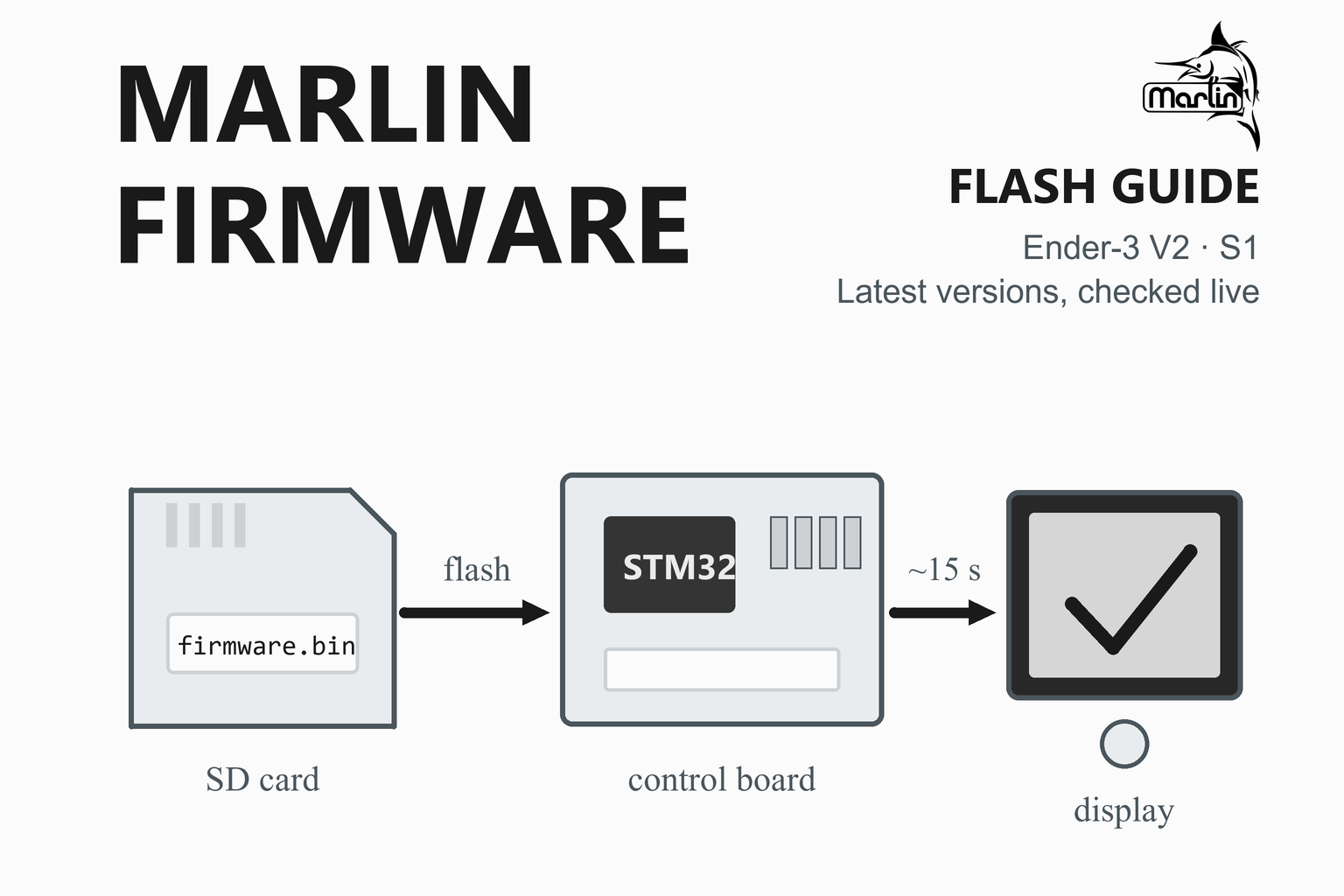
Marlin Firmware Download and Ender-3 V2/S1 Flash Guide
The newest Marlin release and ready-made Ender-3 firmware files, checked live, with a safe step-by-step way to flash them
Marlin is the open-source firmware that runs on the control board of most desktop 3D printers. It reads G-code, plans the motion, controls the heaters and drives the display. Updating it can add features and fixes, and a wrong or interrupted flash can leave a printer that will not start, so it pays to do it carefully. This guide shows the current Marlin version and the ready-made files of the Marlin-based Professional Firmware for the Creality Ender-3 V2 and S1, explains the difference between using a ready-made file and building your own, and walks through the flashing steps and what to check afterwards.
Latest Versions and Files
| Part | Latest version | Published | How you get it |
|---|---|---|---|
| MarlinThe firmware itself, as source code that you build or that comes ready-made for some printers | Check on GitHub | — | — |
| Professional FirmwareReady-made Marlin-based firmware for the Creality Ender-3 V2 and S1 | Check on GitHub | — | — |
Ready-made Ender-3 V2 and S1 files
How this box works
- It is live. Each visit asks GitHub for the highest stable Marlin release and for the newest Professional Firmware release. Your browser keeps the answer for ten minutes; the Refresh button asks again straight away.
- Marlin itself is source code. The Marlin releases on GitHub contain no ready-made firmware files, only the source and the notes. For most printers you either flash a ready-made file made for your printer, or build Marlin with a configuration for your board.
- The Ender-3 files are a different project. The Professional Firmware is a separate project, maintained by one developer, that builds on Marlin. Use a file made for your exact board and printer; the next sections explain how to find out which.
- Check the download. Every file shows its SHA-256 checksum from GitHub so you can confirm that it is the one that was published.
- Only addresses on each project’s own GitHub path are linked. If GitHub cannot be reached, the box falls back to plain links.
Firmware is not interchangeable. A file built for a different board, chip or display can leave the printer unable to start, and wrong settings can affect heater and motor safety. Read the next two sections before you flash anything, and never flash a file you did not choose deliberately.
What Is Marlin?
The Marlin site describes the project as “open source motion control and UI for RepRap 3D printers”. It runs on the printer’s own microcontroller, reads G-code from a computer or an SD card, and turns it into motion, temperature control and a user interface. It has been developed since 2011, it is free software released under the GNU General Public License v3, and the site lists support for 417 controller boards on more than 15 microcontroller platforms, from classic 8-bit boards to modern 32-bit ARM, ESP32 and RP2040 controllers.
Motion
A look-ahead planner with acceleration and junction control, Linear Advance, Input Shaping and Fixed-Time Motion, for Cartesian, CoreXY, delta, SCARA and other kinematics.
Heating and safety
PID and model predictive temperature control, thermal runaway protection, power-loss recovery and filament runout detection.
User interface
Character and graphical displays, colour TFT touch screens, DWIN displays, SD card printing and menus in dozens of languages.
Hardware
Trinamic stepper drivers, common bed probes, several extruders and tool changers, and laser and spindle support.
The current stable release is the one in the box above. The Marlin site also lists a beta of the next minor version (2.1.3-b3 at the time of writing) and a nightly branch with the latest, lightly tested fixes; both are for people who want to test.
Ready-Made File or Build Your Own?
| Route | What it is | Good for | Watch out for |
|---|---|---|---|
| The maker’s own firmware | The firmware the printer ships with, or the one on the manufacturer’s website. | Staying close to what the maker tested. | Often an older Marlin with few features. |
| A pre-built file from Marlin | The Marlin install guide says that for most printers you can download a firmware file, copy it to the SD card and restart the printer. A MarlinBuilds repository lists the printers that have files. | A printer that is listed there. | Not every printer is covered. |
| Professional Firmware | A Marlin-based firmware for the Ender-3 V2 and S1, with ready-made .bin files for the common boards. | An Ender-3 V2 or S1 that you want to improve without compiling. | A separate project: its files are built for specific boards, chips and displays. |
| Build Marlin yourself | Download Marlin and the matching example configurations, edit the settings, build and flash. | Custom hardware, or exactly the features you want. | It takes tools, patience and care; a bad configuration can be unsafe. |
Building Marlin yourself, in outline
- Get the source for the stable version, and the example configurations for the same version. The Marlin install guide says to match the version exactly; the box above links the configurations for the release it shows.
- Choose a build tool. The install guide recommends Auto Build Marlin, an extension for Visual Studio Code that builds and uploads Marlin with one button, and also covers PlatformIO and the command line. The Arduino IDE is described as barely supported.
- Copy in the configuration for your printer, check the settings in
Configuration.handConfiguration_adv.hagainst your hardware, and select the correct board. - Build, then flash the firmware file the way your board expects. Two tips from the guide: if the first build fails, try again, and clean the build after changing options.
Before You Flash: A Safety Checklist
- Identify the board. Creality printers have used several boards (for example 4.2.2 and 4.2.7 in the Ender-3 V2, and boards with an STM32F1 or STM32F4 chip in the Ender-3 S1). The Professional Firmware lists compatible boards as the Creality 4.2.2, 4.2.3, 4.2.7, V24S1_301 and the BigTreeTech SKR Mini E3 V3. Read the version printed on the board, which you can see by opening the case, and check the chip on S1 boards. The file names contain the board: 422, 427, F1, F4 or SKRME3V3.
- Check the display. The firmware needs a supported colour display with an encoder knob (DWIN, DACAI, TJC or SYNWIT types are listed). Touch screens and the old monochrome display are not supported.
- Note your settings. Write down or photograph the current firmware version and the settings you rely on, such as steps per millimetre, PID values and the bed mesh, so that you can compare or restore them. On Marlin, the
M503command prints the stored settings to a connected terminal. - Keep the original firmware. Keep the vendor’s file for your printer so you can go back.
- Prepare the SD card. Use a blank card formatted as MBR, FAT32 with a 4096-byte allocation unit. If the printer shows nothing, the project suggests trying another card with a partition of 16 GB or less.
- Use a stable power source, and do not switch the printer off or touch the card during the update. Disconnect any USB cable first.
- Choose the exact file, check its SHA-256 against the box above, and never rename it to something that was used before (see the next section).
Flash an Ender-3 V2 or S1, Step by Step
These steps are from the Professional Firmware wiki, and apply to the Creality boards with an STM32F1 chip (the V2 and most S1 files):
- Copy the .bin file to the root of the SD card, with nothing else on it that you do not need.
- Make sure the file name is new. The printer ignores a firmware file whose name it has used before, so give it a name it has not seen, for example one with today’s date (the wiki’s example is
fw20221226.bin). If it does not start, try a shorter name such asF123.bin. - Switch the printer off and disconnect any USB cable.
- Insert the card and switch the printer on. The update starts by itself.
- Wait for the screen to go blank. The wiki says the update takes about 15 seconds. Do not interrupt it. Then let the printer start normally.
| Case | What to do |
|---|---|
| Ender-3 S1 with an STM32F4 chip (F4 files) | If the printer ignores the .bin file at the root of the card, put it in a folder named STM32F4_UPDATE at the root. |
| BigTreeTech SKR Mini E3 V3 (SKRME3V3 files) | Rename the file to firmware.bin. This board also needs a screen adapter. |
After flashing
- Restore the defaults and store them. If you upgrade from the original firmware or from another fork, the wiki says to restore defaults in the control menu, then choose “store settings”, because old settings can be incompatible.
- Calibrate the heaters. Run the MPC or PID adjustment for the nozzle and the bed, then set the other calibration values.
- Check the heaters and sensors with a cold printer first: temperatures should read room temperature, and heating should move them upward. Stay with the printer for the first heat-up and a first small print.
- Check motion and endstops with small moves before you home the printer or start a print.
Marlin or Klipper?
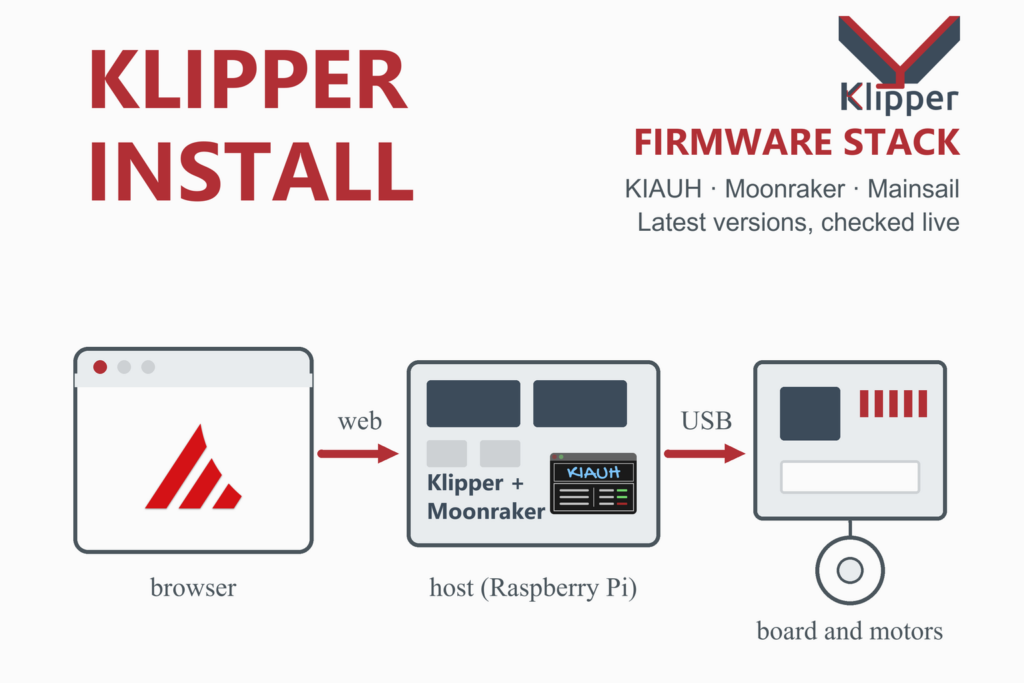
Both are free. Marlin runs entirely on the printer’s control board, so you need nothing else; Klipper splits the work with a Raspberry Pi or similar computer, adds a browser interface and a text-file configuration, and needs more setup. Marlin’s recent versions include features that used to be reasons to switch, such as Linear Advance, Input Shaping and model predictive temperature control. If your printer already prints well, a Marlin update may be all you need.
Troubleshooting
| Problem | What to try |
|---|---|
| Nothing happens and the old firmware starts | The file name was used before, or the card is a problem. Rename the file to a new name, try a shorter name, or use a different, smaller card formatted as MBR FAT32 with a 4096-byte allocation unit. |
| An S1 with an F4 chip ignores the file | Put the file in a folder called STM32F4_UPDATE at the root of the card. |
| The screen stays blank after flashing | Check that the file matches your board and display. If it does not, flash the correct file or the vendor’s original file the same way. |
| Wrong or missing icons on the display | The wiki says Creality’s display firmware is not compatible with Marlin or the Professional Firmware and that the icon sets are not interchangeable. Display firmware updates are not mandatory for the release. |
| Strange behaviour after upgrading from another firmware | Restore the defaults in the control menu, store the settings, and then run the heater calibration again. |
| CRTouch problems on some F4 boards | The wiki mentions problems on some F4 boards. Its suggested workaround is to create a mesh with the CRTouch and edit it by hand. |
| You are not sure the update ran | Connect to the printer over USB serial at 250,000 baud and check that it answers, and check the screen actually showed the update. |
| An SKR Mini E3 V3 does not update | Rename the file to firmware.bin, as the wiki requires for that board. |
Frequently Asked Questions
What is Marlin firmware?
Marlin is free, open-source firmware for 3D printer control boards. The Marlin site describes it as open source motion control and UI for RepRap 3D printers: it runs on the printer’s microcontroller, reads G-code from a computer or an SD card and turns it into motion, temperature control and a user interface. It has been developed since 2011 and supports hundreds of controller boards.
Is Marlin free?
Yes. Marlin is released under the GNU General Public License v3. The Professional Firmware for the Ender-3 V2 and S1, which is based on Marlin, is also free and comes with no warranty.
Where do I download Marlin?
The source code and release notes are on the Marlin GitHub project, and the box on this page links the newest stable release. Note that the GitHub releases contain no ready-made firmware files: for most printers you either use a firmware file made for your printer (the Marlin site points to a MarlinBuilds repository, and the printer maker or a project such as the Professional Firmware may provide one) or build Marlin yourself with a configuration for your board.
What is the latest version of Marlin?
The box on this page shows the highest stable release, read from GitHub when you open the page. The Marlin site also lists a beta of the next minor version (2.1.3-b3 at the time of writing) and a nightly branch, which are meant for testing.
How do I flash new firmware on an Ender-3 V2 or S1?
Copy the right .bin file for your board to the root of a blank SD card (MBR, FAT32, 4096-byte allocation unit) with a file name the printer has not used before, switch the printer off and disconnect USB, insert the card and switch it on. The update starts by itself and takes about 15 seconds; wait until the screen goes blank. After flashing from the original firmware or another fork, restore the defaults and store the settings, then run the heater calibration.
Which file do I need for my Ender-3 V2 or S1?
The one built for your board and chip. The file names contain the board: 422 for the Creality 4.2.2 board, 427 for 4.2.7, F1 or F4 for the STM32 chip of an Ender-3 S1 and SKRME3V3 for the BigTreeTech SKR Mini E3 V3. Other parts of the name describe features such as the type of bed levelling and heater control, so check the release notes. Look at the board itself to find its version.
Why does my printer ignore the firmware file?
The most common reason is that the file name was used for an earlier update, which the printer remembers and skips. Give the file a new name, for example with the date, or a shorter one. Also try a smaller SD card formatted as MBR FAT32 with a 4096-byte allocation unit, and for an S1 with an F4 chip put the file in a folder called STM32F4_UPDATE.
What is the Professional Firmware?
It is a Marlin-based firmware for the Creality Ender-3 V2 and S1 printers, maintained by a single developer (mriscoc) and distributed free with no warranty. Its project page says the precompiled files work with STM32F-series chips, and it needs a supported colour display with an encoder knob.
Can flashing the wrong firmware damage my printer?
A file for a different board or display can leave the printer unable to start, and wrong settings can affect heater and motor behaviour, which is why the checklist matters. Often flashing the correct file the same way fixes a printer that will not start, but that is not guaranteed. Keep the vendor’s original firmware, choose the file deliberately, check its checksum and stay with the printer on its first heat-up.
Should I use Marlin or Klipper?
Marlin runs entirely on the printer’s control board and needs no extra hardware, and recent versions offer features such as Linear Advance, Input Shaping and model predictive temperature control. Klipper needs a Raspberry Pi or similar computer and more setup, and gives a browser interface and text-file configuration. If your printer already prints well, a Marlin update may be all you need.
More guides: Klipper install guide · OctoPrint and OctoPi · Orca Slicer · Creality Print · PrusaSlicer · Cura · MeshLab · FreeCAD · Engineering calculators