
Bambu Studio Download: The Free Slicer for Bambu Lab 3D Printers
Always the newest version, checked live against the official GitHub releases every time you visit
Bambu Studio is Bambu Lab’s free, open-source slicer. It prepares a model for printing with project-based workflows, multiple plates, multi-colour painting and AMS support, and it can send jobs to a printer and watch them over the network. This page checks GitHub when you open it and offers the newest stable build for Windows, macOS and Linux, with file sizes and SHA-256 checksums. Below you will find what changed in each recent release, the printers it ships profiles for, the system requirements, install steps, how to connect a printer, a first-print walkthrough, troubleshooting and a fair comparison with Orca Slicer and PrusaSlicer.
Download Bambu Studio
Or use the official page: Bambu Lab download page
Previous versions
Loading the release list…
How this download box works
- It is live. Each visit asks GitHub for the newest stable release of Bambu Lab’s official BambuStudio project, so you are never sent to an outdated file. Your browser keeps the answer for ten minutes; the Refresh button asks again straight away.
- It shows the current version only. If one system has no file in the newest release, the box says so instead of quietly offering an older build.
- Public betas are flagged, not offered. Bambu publishes “Public Beta” builds between stable releases. They are marked as pre-releases and may be unstable, so they are left out of the download list; if a newer one exists, the box mentions it. Bambu’s own download page also offers separate beta buttons for Windows and macOS.
- Version numbers look different in different places. Bambu writes the version as
02.08.02.61in tags and file names and as 2.8.2.61 in release titles and its wiki. They are the same build. Some versions also have two stable tags (2.8.2 was published as .60 and then as .61, a “minor optimization update”); the box follows the one GitHub marks as latest. - Linux files are AppImages. Current releases include one for Ubuntu 22.04 and one for Ubuntu 24.04, and the box lists both. Bambu’s README also points to a Flathub version for all Linux distributions.
- Every link goes to GitHub. The script only accepts download addresses on the official project’s release path. If GitHub cannot be reached, the box falls back to links that always point to the newest release.
Download Safety and How to Verify the File
Slicers run with full access to your files, so where the installer comes from matters. Bambu Studio is distributed through the project’s GitHub releases page, which is what the download box above reads, and Bambu Lab’s own download page links to the same release files. Be wary of mirror and “free download” sites: some show out-of-date version numbers or repackaged installers. Recent GitHub releases publish a SHA-256 checksum for every file, shown beside each file in the box.
Check the SHA-256 checksum
A checksum is a fingerprint of the file. If the fingerprint of your download matches the one shown in the box above, the file is exactly what was published. Replace the file name with yours.
Windows (PowerShell)
Get-FileHash .\Bambu_Studio_win-*.exe -Algorithm SHA256macOS (Terminal)
shasum -a 256 ~/Downloads/Bambu_Studio_mac-*.dmgLinux (terminal)
sha256sum BambuStudio_ubuntu*.AppImageCompare the printed value, character by character, with the SHA-256 shown for that file. If they differ, delete the file and download it again from the official link.
What Is Bambu Studio?
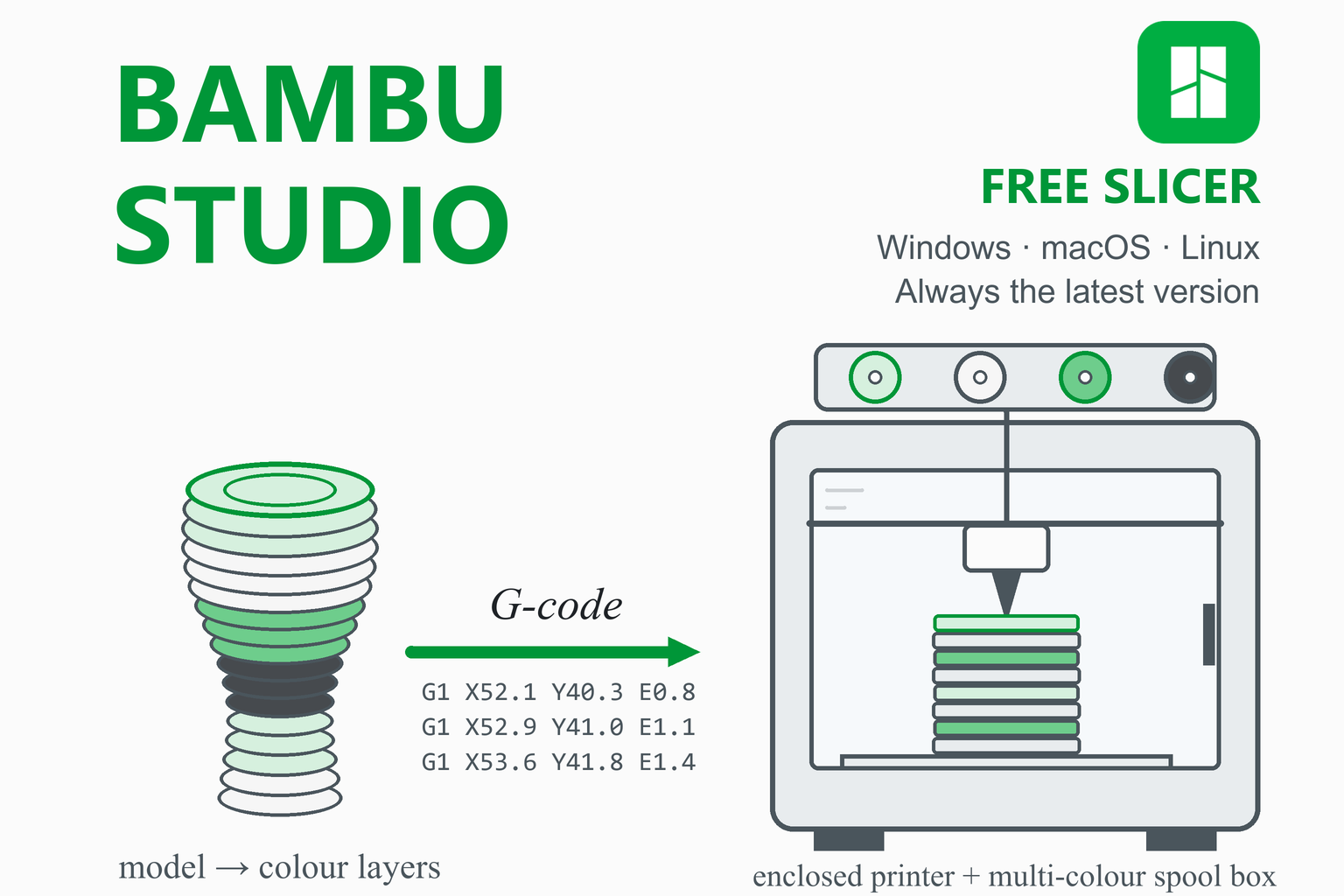
A slicer is the program between a 3D model and a printer. It cuts the model into thin layers, works out the path the nozzle should follow for each one and writes those instructions as G-code. Bambu Studio is Bambu Lab’s slicer. Its README calls it feature-rich slicing software with project-based workflows, systematically optimised slicing algorithms and an easy-to-use interface, and the repository describes it as PC software for Bambu Lab “and other 3D printers”.
Where it comes from, and what is not open
The README says Bambu Studio is based on PrusaSlicer by Prusa Research, which in turn comes from Slic3r, and that the program is released under the GNU Affero General Public License v3. One part is not open: the Bambu network plug-in, which the README says is based on non-free libraries and is optional. Without it you can still slice and print through an SD card; with it you get printing over the network, remote control and cloud features (more on this below). You do not need an account to slice. The wiki calls logging in “optional, but strongly recommended”, and the login itself needs the network plug-in.
Orca Slicer is the best-known relative. Orca’s own README says it began by drawing on Bambu Studio and PrusaSlicer (with ideas from Cura and SuperSlicer), and Bambu’s release notes credit Orca for a few features, such as Precise Wall in 2.1.0 and the scarf seam in 1.9.1. Bambu’s own pages do not describe the two programs as related beyond those credits.
Bambu Lab first, others second. The bundled profiles cover 14 Bambu Lab models and 78 models from other makers (details below), but the AMS, Device page and firmware features only work with Bambu Lab hardware. If you print on several brands, a multi-brand slicer such as Orca Slicer is often the more convenient choice.
What’s New in Recent Releases
The table summarises selected stable releases from the official release notes, newest first. The download box above shows the very newest release’s notes live, so it stays current even as this table ages. Some features need a minimum firmware version on the printer, so read the notes for your machine before you update. At the time of writing (October 2026) the newest public beta is 2.8.4, published on 22 September 2026.
| Version | Date | Main changes |
|---|---|---|
| 2.8.2.61 | 21 Aug 2026 | A small fix release: MakerLab generators accessible again, the MakerWorld login window appearing when you are signed out, the extruder count after “Sync Printer Information” in old 3MF files, an occasional crash in LAN mode, and corrected X2D and H-series presets. |
| 2.8.2 | 14 Aug 2026 | Pause-point information on the print progress bar (needs printer firmware), a model assembly-guide tool, upgraded colour prediction and Decompose Color, a Filament Manager on the Device page, the E3D High Flow nozzle type, part-level clone and print-time display for the A2L. |
| 2.7.1 | 1 Jun 2026 | Bambu Lab A2L support, Texture-to-Color painting, the Filament Manager, gradient colour curve control, Alternate Extra Wall, LAN mode that saves connection details, and full-screen Liveview. A hotfix on 16 June (2.7.1.62) fixed a macOS startup slowdown and a network plug-in install failure. |
| 2.6.0 | 17 Apr 2026 | A hotfix release: the P2S nozzle not cooling after a print, A1 sliced files not starting and the H2C left-nozzle assignment. Its notes also carry a statement about the origin of the colour-mixing code. |
| 2.5.3 | 14 Apr 2026 | Bambu Lab X2D support, experimental Color Mixing, Filament Track Switch for the H2C and X2D, a linear fan-speed transition, more Fuzzy Skin noise types and an Assembly Overview preview. |
| 2.5.0 | 27 Jan 2026 | Remote AMS drying for the AMS 2 Pro and AMS HT on the H2D, a better prime-tower strategy for PLA and PETG mixes, ironing on the support interface, coloured standard-3MF import, part subdivision, 2D lattice infill and tungsten-carbide nozzle support. A hotfix followed on 28 January. |
| 2.4.0 | 18 Nov 2025 | Bambu Lab H2C support, different filaments for walls and infill (Developer Mode), a sparse-infill line multiplier, align and distribute tools, outer-wall and infill interlocking, and a new G-code viewer on OpenGL 3.2 or newer. |
| 2.3.0 | 14 Oct 2025 | Bambu Lab P2S support, AMS use on the A1 and A1 mini through the AMS Hub (printer firmware 01.06.10.33 or later), a Boolean tool at object level, a Tutorials tab and a signature check on the network library. |
| 2.2.1 | 26 Aug 2025 | Bambu Lab H2S support, custom palette colours and Fiberon presets for the H2D. A hotfix followed on 28 August. |
| 2.2.0 | 12 Aug 2025 | Helio simulation (beta, a third-party service), remote object skipping, a Fuzzy Skin painting tool, an official filament colour palette and batch preset management. |
| 2.1.0 | 3 Jun 2025 | Locked Zag infill, faster Arachne wall generation, copying settings between objects, Precise Wall (Developer Mode) and G-code path export as OBJ. |
| 2.0.0 | 25 Mar 2025 | A major version: Bambu Lab H2D support, a dual-nozzle workflow with filament grouping, per-nozzle parameters and support for the AMS HT and AMS 2 Pro. A 3MF saved in 2.0 opens with geometry only in older versions. |
| 1.10.0 | 12 Nov 2024 | A brim ears tool, binding by IP address and access code across subnets, filament shrinkage compensation, purge optimisation and a MakerWorld search box on the Home page. |
| 1.9.1 | 13 May 2024 | The first stable release of the 1.9 line: MakerWorld integration, Multi-device Management, coloured OBJ import, an experimental scarf seam, a Measure tool and CrossHatch infill. |
The first digit of the version changed from 1 to 2 with 2.0.0 in March 2025; the tag format itself (v01.10.02.76, then v02.00.00.95) did not change.
Key Features
Project-based workflow
A project (3MF) holds geometry, settings, plates, colours and supports. Multi-plate projects, auto-arrange, auto-orient, and global, object and part-level settings.
Multi-colour painting
Paint colours per face with circle, sphere, triangle, height-range, fill and gap-fill tools, then map them to your AMS slots. Flushing volumes and a prime tower manage colour changes.
AMS support
Load, map and sync filaments from the AMS. The AMS 2 Pro and AMS HT arrived in 2.0.0, and the A1 and A1 mini can use an AMS through the AMS Hub since 2.3.0.
Remote control
The Device page sends jobs, pauses and stops prints, and shows live view, temperatures, speed and the AMS. It works over Bambu’s cloud or your local network (needs the network plug-in).
Supports
Normal and tree supports, with grid, snug, slim, strong, organic and hybrid styles, support painting to enforce or block, and notes on dedicated support filaments.
Calibration
Flow Dynamics (K) and Flow Rate calibration for Bambu printers. Developer Mode adds temperature, pressure advance, retraction, max flow rate and VFA tests for third-party printers.
Time-lapse and camera
Traditional and Smooth time-lapse (Smooth needs a prime tower and an SD card in the printer), plus live view and a virtual camera for streaming.
Multi-device management
Send one job to several printers (up to six) from one window, with the same AMS mapping. Added in 1.9.1; not available for LAN-only printers.
Filament Manager
Keep an inventory of spools (brand, type, colour, remaining weight) that syncs with the Bambu Handy app through Bambu Cloud.
Texture-to-Color
Turn the texture of an OBJ, glTF, GLB or FBX model into up to 32 painted colours (introduced in the 2.7 releases).
Model tools
Cut tool, mesh Boolean (union, intersection, subtraction), 3D text, brim ears, variable layer height and STEP import with an assembly view.
Many file formats
Import 3MF, STL, STEP, STP, AMF and OBJ files, plus textured models for Texture-to-Color, and export sliced files to the printer, an SD card or the command line.
Which Printers Does Bambu Studio Support?
Bambu Studio ships built-in profiles. In the profile files of version 02.08.02.61 there are 14 Bambu Lab models and 78 models from 11 other makers. When you pick a printer and nozzle, the matching process, filament and printer presets are loaded for you.
| Maker | Models |
|---|---|
| Bambu Lab (14) | X1 Carbon, X1, X1E, P1P, P1S, A1 mini, A1, H2D, H2D Pro, H2S, P2S, H2C, X2D and A2L |
| Creality (18) | CR-10 V2, CR-10 Max, Ender-3 V2, Ender-3 V3 and its variants, Ender-3 S1 and S1 Pro, Ender-5 models, Ender-6, CR-6 SE and Max, K1, K1 Max and K1C |
| Geeetech (16) | Thunder, Mizar and A-series models |
| Elegoo (13) | Neptune series models |
| Anycubic (8) and Qidi (8) | Anycubic: i3 Mega S, Chiron, Vyper, Kobra models. Qidi: X-Plus 4, Q1 Pro, X-Max 3, X-Plus 3, X-Smart 3, X-Plus, X-Max and X-CF Pro |
| Voron (7) | 2.4, Trident and 0.1 (several sizes) |
| Others (8) | Anker M5 and M5C, Prusa MK3S and MINI, Tronxy X5SA 400, Vivedino Troodon 2.0 and Voxelab Aquila X2 |
When each Bambu Lab model arrived
From the release notes: the H2D in 2.0.0, the H2S in 2.2.1, the P2S in 2.3.0, the H2C in 2.4.0, the X2D in 2.5.3 and the A2L in 2.7.1. The X1 series, P1 series and A1 series pre-date version 2.0. The AMS family works as follows: the AMS and AMS Lite on the older printers, the AMS 2 Pro and AMS HT from 2.0.0, and an AMS Hub that lets the A1 and A1 mini use them from 2.3.0.
Other brands and custom printers
Third-party printers use ordinary presets. Bambu’s wiki documents a “Create Printer” dialog where you enter a vendor and model, the nozzle diameter, the bed size, origin and maximum height, and then choose filament and process presets as templates. Remote printing to an OctoPrint-style host is possible through the printer preset’s connection settings (host name or address and port, plus an API key). Calibration tests for third-party printers need Developer Mode. The AMS, Device page and Bambu firmware features are specific to Bambu Lab printers.
Who Should Use Bambu Studio?
- Bambu Lab owners. It is the slicer the printers are designed around, with profiles, AMS handling and the Device page ready from the first launch.
- Multi-colour printers. Painting, the prime tower and AMS mapping live in one project file.
- People who run several Bambu printers. Multi-device management sends one job to several machines.
- Makers who want a polished interface and are happy to use Bambu’s ecosystem (MakerWorld, Handy, Bambu Cloud).
If you print on many brands, or want the widest choice of calibration tests and network hosts, the comparison below explains where Orca Slicer or PrusaSlicer fits better.
System Requirements
| System | What Bambu says |
|---|---|
| Windows | Windows 10 or higher. An installer (.exe) and a non-install archive (.zip) are offered. If the program will not start, the wiki points to the Microsoft Visual C++ runtime and the Microsoft Edge WebView2 runtime; their installers sit in the plugin folder inside the install folder. |
| macOS | Mac OS X 10.15 or higher (the wiki), macOS 10.15 or above (the download page). Release notes also discuss recent macOS versions, so the newest releases are used in practice on current systems. |
| Linux | The wiki says “Ubuntu 20.02 or higher / Fedora 36 or higher” (there is no Ubuntu 20.02; it is presumably a typo) and that the Linux version has to be downloaded from GitHub. Ubuntu 20.04 AppImages were dropped in 2.0.2, and current releases offer AppImages for Ubuntu 22.04 and 24.04. A Flathub version exists for all distributions. |
| Hardware | An Intel Core 2 or AMD Athlon 64 class processor at 2 GHz or faster, an OpenGL 2.0-capable graphics system, 8 GB of memory recommended (4 GB minimum) and 2 GB or more of free disk space. The new G-code viewer of 2.4.0 turns on automatically only with OpenGL 3.2 or newer. |
| Install path | On Windows the install path must not contain non-English characters; otherwise the program can fail with a “Command line argument 0 couldn’t be converted to Unicode” error. |
| Download size | Roughly 219 MB for each Linux AppImage, 275 MB for the macOS DMG, 409 MB for the Windows installer and 452 MB for the Windows zip (version 02.08.02.61). |
How to Install Bambu Studio
Bambu’s wiki only refers to a screenshot guide for installing, so the steps below combine what its troubleshooting pages say with standard behaviour for each system.
Windows
- Download the Windows installer from the box above and, if you like, check its SHA-256 checksum.
- Run the installer and follow the prompts. Install to a folder whose path uses only English characters. If it says Bambu Studio is already running, restart the PC and try again; if it fails to overwrite a file, Bambu’s wiki says
BambuSource.dllmay be in use by another program and recommends closing that program or rebooting. - Prefer not to install? Download the
.zip, extract it and run the program from the extracted folder. Since 2.8.1 a local configuration folder next to the program takes priority, which suits portable use. - If the Home page or setup wizard shows a blank window, the wiki points to the Microsoft Edge WebView2 runtime; repair or reinstall it.
macOS
- Download the macOS DMG. There is a single file for each release.
- Open the
.dmgand drag Bambu Studio into the Applications folder (the usual way to install a Mac app; Bambu’s pages do not describe this step). - If macOS blocks the first launch, open System Settings, Privacy & Security and click Open Anyway. This is Apple’s standard route for an app it has not verified; Bambu’s pages do not mention it.
Linux
- AppImage: download the file that matches your Ubuntu version (22.04 or 24.04), make it executable and run it. Some distributions need FUSE support installed for AppImages to start.
chmod +x BambuStudio_ubuntu*.AppImage ./BambuStudio_ubuntu*.AppImage - Flathub: the README links to a Flathub version for every Linux platform, maintained by a community member rather than Bambu Lab itself. The standard Flatpak command is:
flatpak install flathub com.bambulab.BambuStudio - If the AppImage fails with an “invalid (NULL) pointer instance” message, the project’s FAQ says to delete the contents of
$HOME/.config/BambuStudioand start again.
Connect Your Printer and Make Your First Print
The setup wizard
On first launch the wizard asks for four things, in this order: your login region (an account registered in North America cannot log in if the region is set to Chinese Mainland; users in Hong Kong, Macao and Taiwan should pick Asia-Pacific), the printers and nozzles to show, the filaments to list, and whether to install the Bambu network plug-in (it needs internet access). You can change all of them later.
The network plug-in, in one paragraph
The plug-in provides printing over the internet or local network, remote control and syncing of your data. Without it the Device tab is unavailable and you cannot log in or send jobs over the network, but you can still slice and print from an SD card. The program downloads it from Bambu’s servers and checks its digital signature on loading (since 2.3.0). If the download fails, Bambu’s wiki suggests closing every Studio window, deleting the plugins folder inside the BambuStudio configuration folder, allowing the program through your antivirus and clearing leftover proxy or VPN settings.
Add your printer
- With the Bambu Handy app: bind the printer in the app (Devices, then “+ Bind Printer”), then log in to the same account in Studio. The device list syncs.
- With a PIN code: choose the region on the printer; it shows a PIN that stays valid for 230 seconds. In Studio open the Device tab, choose “Bind with Pin Code” and confirm on the printer. This works for the H, P and A series; the X1 series does not support it.
- In LAN Only mode: enable “LAN Only” on the printer, find it (marked with a lock icon) in the Device list and enter its access code. For a different subnet, use “Bind with Access Code” and enter the IP address and code. Studio does not store the IP address, so you re-enter it after a restart. The X1 series needs a micro SD card in LAN mode.
- Network mode: “Auto” uses both cloud and LAN. The print file goes to Bambu’s cloud so Handy can reprint it from history, and the cloud copy is deleted automatically after 90 days (Handy has an Incognito Printing option). “LAN” sends nothing to the cloud but gives up remote start from outside the LAN, Handy and print history.
Slice and print a model
- Add a model. Drag a file in or use the Add button. Supported formats are 3MF, STL, STEP, STP, AMF and OBJ. Bambu’s docs recommend STEP when you have it.
- Check the presets. Choose the printer and nozzle, the filament and a process (quality) preset. For most prints, Bambu’s Quick Start says 0.20 mm layers are the norm.
- Orient and arrange. Use auto-orient and auto-arrange, then add supports or paint colours if the model needs them.
- Slice, then read the preview. The preview shows each layer, speeds, material use and the estimated print time.
- Print. Send the job to the printer from Studio over the network, or export it and put it on an SD card. With an AMS, check the filament mapping before you start; the sync icon and “Resync” refresh it from the printer.
Settings Worth Knowing
Start with the profile Bambu supplies and change one thing at a time. The entries below come from Bambu’s wiki; your printer and filament maker’s advice comes first.
| Topic | What the wiki says |
|---|---|
| Layer height | A reasonable range is 20% to 70% of the nozzle diameter (0.08 to 0.28 mm for a 0.4 mm nozzle). The system first layer is 50% of the nozzle diameter. Smaller layers take longer. |
| Walls | Choose Classic (constant width) or Arachne (variable width, better thin details but sometimes discontinuous paths) under Process, Quality, Wall generator. |
| Seams | Nearest, Aligned, Back and Random positions. The default seam gap is 15% of the nozzle diameter. |
| Supports | The default threshold angle is 30 degrees. Tree Hybrid is the default style when support material or adaptive layer height is on, otherwise Tree Organic. With a body-filament interface, a top Z distance of about 0.2 mm is suggested. |
| Flow Dynamics | Run the calibration when you change the brand or model of a filament, replace or wear the nozzle, or change the maximum volumetric speed or temperature. Results can vary about 10% between runs, and damp or transparent filament can make them unreliable. |
| Multi-colour prints | Make sure the flushing volume is enough to purge the old colour. Purge optimisation works only with Bambu’s official filaments. With multi-device management on, automatic AMS mapping is unavailable. |
| Time-lapse | Needs an SD card in the printer. Smooth mode needs the prime tower; the video length depends on the layer count, not the print time. |
| Developer Mode | Unlocks extra options and calibration tests for third-party printers. Press Ctrl+P on the seam page, or use the Developer Mode switch in Preferences. |
Bambu Studio vs Orca Slicer and PrusaSlicer
These three belong to one family tree, so the right choice depends on your printers more than on any single feature.
| Bambu Studio | Orca Slicer | PrusaSlicer | |
|---|---|---|---|
| Made by | Bambu Lab | Open-source community project | Prusa Research |
| Lineage | Based on PrusaSlicer | Began by drawing on Bambu Studio and PrusaSlicer | Originally based on Slic3r |
| Licence | AGPL-3.0 (the network plug-in is not open) | AGPL-3.0 (the Bambu plug-in is optional and not open) | AGPL-3.0 |
| Best for | Bambu Lab printers and the AMS | Many brands and deep calibration tools | Prusa printers and many others, FDM and mSLA |
| Network printing | Bambu cloud and LAN through the plug-in; OctoPrint-style hosts for other printers | Bambu through the optional plug-in, plus Klipper, PrusaLink and OctoPrint | Prusa Connect and several other upload methods |
If you own a Bambu Lab printer and want the features built for it, start with Bambu Studio. If you also print on other brands, Orca Slicer can drive Bambu printers too (through the same optional plug-in) while covering other makers. PrusaSlicer is the parent of both. Our guide to Cura covers a separate slicer family.
Pros and Cons
Strengths
- Free, with open-source code under AGPL-3.0, and no account needed to slice.
- Profiles for 14 Bambu Lab models, with the AMS, remote control and multi-device features built for them.
- Project-based workflow with plates, multi-colour painting and a prime tower in one file.
- Detailed official wiki, including calibration, supports and troubleshooting pages.
- Windows, macOS and Linux builds (AppImage and Flathub), plus a Windows portable zip.
- SHA-256 checksums published with recent releases.
Limits
- Network features depend on a closed, optional plug-in.
- Built around Bambu Lab hardware; other brands get presets but not the AMS or Device features.
- Large downloads (over 400 MB for the Windows files).
- Frequent betas and hotfixes, and some versions have two stable tags.
- Fewer network hosts and calibration tests than Orca Slicer, according to the official lists.
- Some wiki details lag behind (the Linux requirements, for example).
Troubleshooting
| Problem | What to try |
|---|---|
| “Failed to get network plug-in” | Close all Studio windows, delete the plugins folder in the BambuStudio configuration folder (on Windows, inside AppData\Roaming\BambuStudio), allow the program through your antivirus, and remove leftover proxy or VPN settings. Programs known to lock the plug-in include Microsoft Teams and Skype. On macOS, Cisco AnyConnect, iCloud Private Relay and AVG Security can block it. |
| Blank Home page or setup wizard on Windows | Repair or reinstall the Microsoft Edge WebView2 runtime. If that does not help, Bambu’s wiki suggests setting the WEBVIEW2_ADDITIONAL_BROWSER_ARGUMENTS environment variable to --disable-gpu-driver-bug-workarounds --ignore-gpu-blocklist and restarting. |
| Missing VCRUNTIME140.dll or MSVCP140.dll | Reinstall the Visual C++ runtime from the plugin folder inside the Bambu Studio install folder. |
| Crash while slicing on Windows | Bambu’s wiki suggests turning off Threaded Optimization for Bambu Studio in the NVIDIA Control Panel. If you have overclocked the processor, set the program to use fewer cores. |
| Cannot find or bind the printer | Use the same account on the printer and in Studio, set the right region in Preferences, check the firewall, and for “Other Device” make sure the printer is logged out and on the same LAN. Error codes between -1010 and -1090 point to socket, ticket or cloud problems; try binding through the Handy app. |
| Sending a print fails | Check the printer’s storage, then test the FTP connection (user bblp, password = access code, port 990). SSL certificate errors on Windows can be fixed with the two certutil commands on Bambu’s wiki, run as administrator. |
| Live view will not start | On Windows, errors 100 to 103 point to Windows Media Player or the BambuSource component. With two graphics cards, choose the other GPU for Studio. |
| AMS colours wrong after opening someone else’s project | In the Prepare screen click the sync icon and then Resync. Turn off multi-device management if you only use one printer, as automatic mapping is unavailable while it is on. |
| Slow or laggy on a new macOS release | Update to the newest release; 2.7.1.62 fixed a startup slowdown on macOS 26.5 and added a Preferences switch for Filament Management. Release notes list further macOS fixes in the 2.8 versions. |
| AppImage will not start (Linux) | Make it executable, and if it reports an “invalid (NULL) pointer instance”, delete the contents of $HOME/.config/BambuStudio. |
The 2.2.0 release notes say an antivirus program flagged a connection component as a false positive. For crash reports, Bambu’s wiki says where to find them: .dmp files in the log folder on Windows, and ~/Library/Logs/DiagnosticReports on macOS. The log folder opens from Help, Show Configuration Folder.
Frequently Asked Questions
Is Bambu Studio free?
Yes. Bambu Studio is free to download, and its source code is public under the GNU Affero General Public License v3. The one closed part is the optional Bambu network plug-in, which the README says is based on non-free libraries. You do not need an account to slice.
Is Bambu Studio safe to download?
The download box on this page links only to files on the official bambulab project on GitHub. Bambu Lab’s own download page links to the same release files, and recent releases publish a SHA-256 checksum for every file. To confirm your copy is unaltered, compare its checksum with the one shown beside the file. Avoid mirror and “free download” sites, some of which show out-of-date versions or repackaged installers.
Is Bambu Studio based on Orca Slicer?
No, it is the other way round. Bambu Studio’s README says it is based on PrusaSlicer, which comes from Slic3r. Orca Slicer’s README says Orca began by drawing on Bambu Studio and PrusaSlicer, with ideas from Cura and SuperSlicer. Bambu’s release notes credit Orca for a few features, such as Precise Wall in 2.1.0, but Bambu’s own pages do not describe the two programs as related beyond that.
Which printers does Bambu Studio support?
The bundled profiles of version 02.08.02.61 cover 14 Bambu Lab models (X1 Carbon, X1, X1E, P1P, P1S, A1 mini, A1, H2D, H2D Pro, H2S, P2S, H2C, X2D and A2L) and 78 models from 11 other makers, such as Creality, Elegoo, Anycubic, Qidi, Voron and Prusa. The AMS, Device page and firmware features work only with Bambu Lab printers. For other makers, Bambu’s wiki explains how to create a custom printer.
Do I need an account or the network plug-in?
You can slice without an account. Bambu’s wiki calls logging in optional but strongly recommended, and logging in needs the network plug-in. Without the plug-in you cannot use the Device tab or send jobs over the network, but you can still print from an SD card. The plug-in is downloaded from Bambu’s servers during setup if you allow it.
What is the difference between Auto and LAN network mode?
In Auto mode the print file goes to Bambu’s cloud as well as the printer, so the Handy app can reprint it from history; cloud copies are deleted automatically after 90 days, and Handy has an Incognito Printing option. In LAN mode nothing is sent to the cloud, but you lose remote start from outside your network, the Handy app and print history.
Why do I see both 02.08.02.61 and 2.8.2.61?
They are the same version written two ways. Bambu’s tags and file names use the zero-padded form (02.08.02.61), while release titles and the wiki drop the zeros (2.8.2.61). Some releases also have two stable tags: 2.8.2 was published as .60 on 14 August 2026 and then as .61 on 21 August, described as a minor optimization update.
Which file should I download?
On Windows use the installer, or the zip if you want a non-install copy. On a Mac there is a single DMG per release. On Linux choose the AppImage that matches your Ubuntu version (22.04 or 24.04), or use the Flathub version that the README links to for all distributions. The download box lists every current file with its size and checksum.
Should I install the public beta?
Only if you want to test. Bambu publishes “Public Beta” builds between stable releases (2.8.4 was published on 22 September 2026), and they may be unstable. Its notes also warn that 3MF files saved in a beta cannot yet be uploaded to MakerWorld. The download box mentions a newer beta when one exists, and Bambu’s own download page offers separate beta buttons for Windows and macOS.
Can I use Bambu Studio offline?
Yes for slicing and for printing from an SD card. LAN mode needs no internet connection either, because nothing is sent to the cloud. The wiki says that Bambu Studio does not store the printer’s IP address when you bind with an IP address and access code, so you re-enter it after a restart, and that binding by access code alone avoids that.
Where does Bambu Studio keep my settings?
On Windows in C:\Users\<user>\AppData\Roaming\BambuStudio, on macOS in ~/Library/Application Support/BambuStudio and on Linux in $HOME/.config/BambuStudio. Help, Show Configuration Folder opens it. You can export presets with Export, Export Preset Bundle, and if cloud sync of presets is on, your user presets sync to your Bambu account within the documented limits of 20 printer, 100 process and 200 filament presets.
More slicer guides: Orca Slicer · PrusaSlicer · Cura · SuperSlicer · Creality Print · Engineering calculators