
Anycubic Slicer Next: Download, Install and First Print
The free slicer for Anycubic Kobra printers, based on OrcaSlicer, for Windows, macOS and Linux
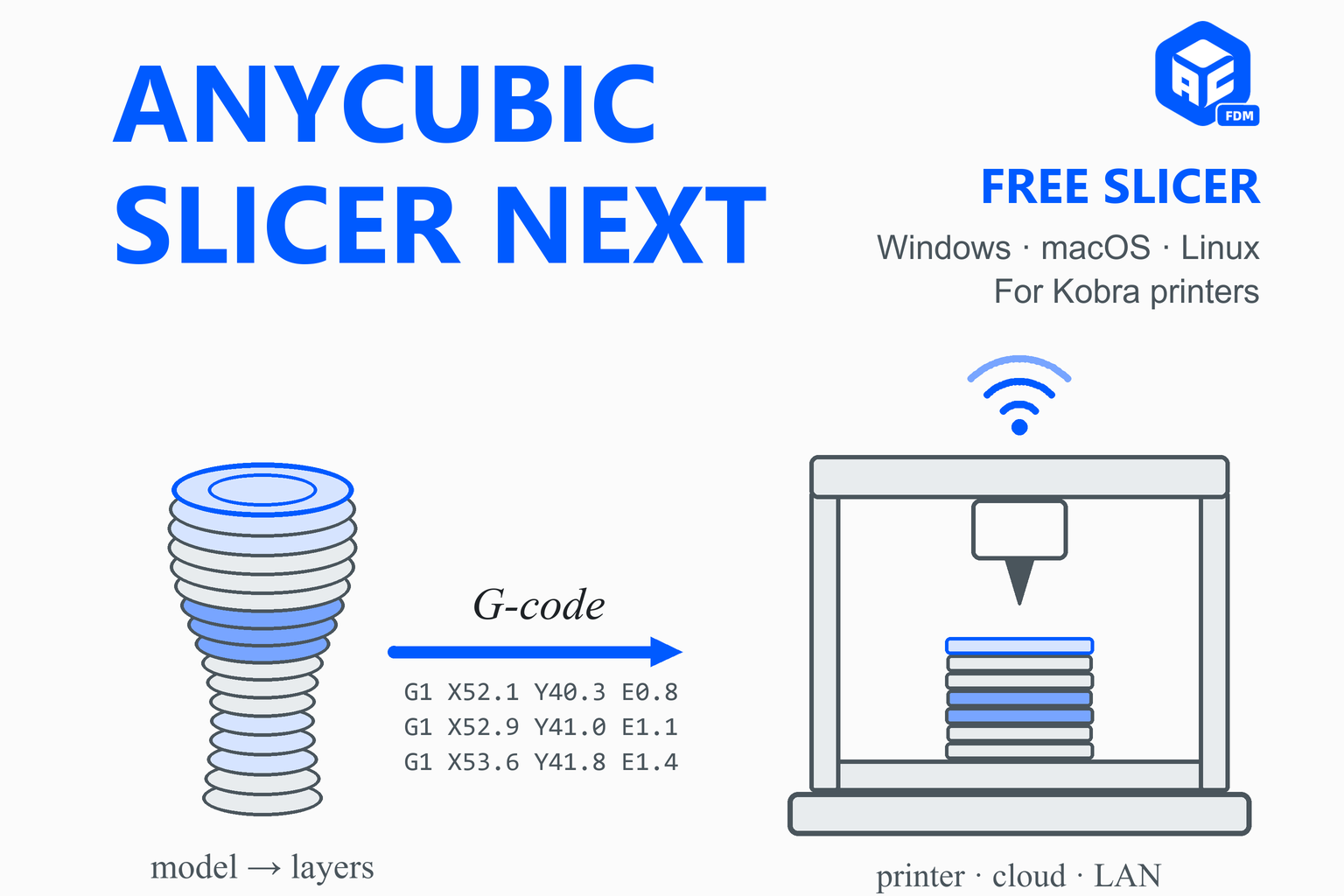
Anycubic Slicer Next is the slicing software that Anycubic builds for its FDM printers. A slicer turns a 3D model into the layer-by-layer instructions (G-code) that the printer follows, and Slicer Next does that with the engine of the open-source OrcaSlicer plus Anycubic’s own printer profiles, account and cloud features, remote printing and a multi-colour workflow for its ACE units. This guide points you to the official download, lists the version Anycubic currently shows for each system, gives the requirements, and walks through installing it and slicing your first model. Because Anycubic does not publish a feed that a web page can read, the versions here are dated by hand, so the page always sends you to Anycubic’s own page for the newest build.
Download Anycubic Slicer Next
Every earlier version: Anycubic Slicer Next update log
| System | Version listed | Requirement (Anycubic’s download page) | File |
|---|---|---|---|
| Windows | V2.0.0.3uploaded 4 September 2026 | Windows 10 version 1607 or later | .exe installer |
| macOS, Apple silicon | V2.0.0.3uploaded 4 September 2026 | macOS 11.3 or later | .dmg (arm64) |
| macOS, Intel | V2.0.0.3uploaded 4 September 2026 | macOS 11.3 or later | .dmg (x86_64) |
| Linux | V2.0.0.5listed under the Linux release | Ubuntu 24.04 only | installer script or apt package (see below) |
The upload dates are taken from the addresses of the files on Anycubic’s server. The Windows and Mac builds and the Linux build carry different version numbers in the update log.
How to download it safely
- Start from Anycubic. Use the button above, which leads to the download page on anycubic.com, or the update log on Anycubic’s wiki. Avoid sites that offer “download portals” or re-packaged installers: they can be out of date or bundle other software.
- Let your system check the file. On Windows, open the installer’s Properties, then the Digital Signatures tab, and check that the file is signed before you run it; SmartScreen will warn about files it does not recognise. On macOS, only open files that the system accepts, and read any warning before you override it. Anycubic does not publish checksums on the pages used for this guide.
- Keep it up to date from inside the program. The quick start guide recommends choosing “check for updates” after installing, to be sure you have the latest version.
What Is Anycubic Slicer Next?
Anycubic describes it as an open-source slicing software developed on the basis of OrcaSlicer, with strong slicing capabilities and a user experience optimised for Anycubic printers. OrcaSlicer is itself a community fork of Bambu Studio, which comes from PrusaSlicer, so you get the familiar Orca interface, the calibration tools and the per-object settings. The update log shows how it grew: version 1.0 was the first official release based on Orca, with Anycubic’s printer parameters, account login and a workbench for remote printing, machine control and video monitoring. It then added LAN printing, AI “spaghetti” detection, part skipping, dynamic flow calibration and eight-colour printing, and the 1.3.0 release updated the OrcaSlicer baseline to version 2.2.0.
The Orca engine
The slicing engine, interface, calibration tools and 3MF project workflow come from OrcaSlicer, with profiles for Anycubic’s printers.
Account and cloud
One Anycubic account shared with the website, Makeronline, the app and the resin slicer, with cloud files, print history and remote printing.
Remote control
Video monitoring, machine control, LAN and cloud printing, AI detection and calibration controls from the workbench.
Multi-colour
Support for the ACE units: material assignment, flushing control on supported printers and printing in several colours.
Which printers does it support?
Slicer Next is the slicer for Anycubic’s FDM printers. The update log and wiki name profiles and fixes for the Kobra 2 series (including the Neo, Pro, Plus and Max), the Kobra 3 and Kobra 3 Max, the Kobra S1 and S1 Max and the Kobra X, together with the ACE Pro. New printers appear in new versions, and the setup wizard lists the printers your version knows, so the printer list in the program is the final word. Anycubic’s resin printers use a different program, Photon Workshop, which Anycubic lists beside it on its software page.
System Requirements
| System | Requirement |
|---|---|
| Windows | Windows 10 version 1607 or later (download page). The quick start guide describes a PC with an Intel Core i5-6600K or AMD Ryzen 5 1600 or better, 8 GB of memory (16 GB recommended), at least 2 GB of disk space and a graphics card of the class of an NVIDIA GTX 1050 or AMD RX 480 with at least 1 GB of video memory. |
| macOS | macOS 11.3 or later (download page), as an Apple silicon (arm64) or Intel (x86_64) build. The quick start guide also recommends 8 GB of memory (16 GB recommended). |
| Linux | Ubuntu 24.04 only. |
Anycubic’s own pages do not all agree about the oldest systems. For Windows, the download page says Windows 10 version 1607, the Linux install guide says version 1803, and the quick start guide says only “Windows 10 or higher”. For macOS, the download page and the install guide say 11.3, while the quick start and Farm Mode guides say 10.15. This guide shows the numbers from the download page, because that is the page you download from; if your computer is near the limit, check the page again before you install.
Install, Step by Step
Windows
- Download the installer (an .exe file) from the official page above.
- Run it and follow the prompts. If Windows asks whether to allow the program to make changes, check that the publisher shown is Anycubic before you accept.
- Start Anycubic Slicer Next and go through the first-run wizard described below.
macOS
- Download the right .dmg: the arm64 file for a Mac with Apple silicon (M1 or later) or the x86_64 file for an Intel Mac. If you are not sure, the Apple menu, “About This Mac” shows the chip.
- Open the .dmg and drag the application to your Applications folder.
- Open it from Applications. If macOS says it cannot verify the developer, open the application with a right-click (Control-click) and “Open”, or allow it in System Settings, Privacy & Security, once you are sure the file came from Anycubic.
Linux (Ubuntu 24.04)
Anycubic’s Linux guide gives a one-line installer. A script that you run from the internet has the same rights as you do, so you can read it before you run it; both commands below are from the guide.
curl -fsSL https://cdn-universe-slicer.anycubic.com/install/AnycubicSlicerNextInstaller.sh | less     # read the script first
/bin/bash -c "$(curl -fsSL https://cdn-universe-slicer.anycubic.com/install/AnycubicSlicerNextInstaller.sh)"
To update later, use “Check for updates” in the program, or the terminal:
sudo apt update && sudo apt install --only-upgrade anycubicslicernext
The guide says the Linux version has the same functions as the Windows and macOS ones. When it first appeared (version 1.3.6) it did not support video monitoring over the internet (WAN mode); check the update log to see whether that has changed.
Your First Print
These steps follow Anycubic’s quick start guide.
- Start the wizard. The first time you run the slicer, the configuration assistant opens. Click “Get Started”, choose your login region (for most people, “Global”), choose “Skip” or “Join the Program” for the performance programme, and then pick your printer and click “Next”.
- Choose your materials. The wizard selects all material types by default; click “Finish” to enter the program.
- Log in (optional). You need to install the network plug-in before login works. A login gives you remote printing and remote control. The account is the same one you use on Anycubic’s website, Makeronline, the app and the resin slicer; if you have none, “Sign up now” creates it.
- Add your model on the preparation page with “Add”. The guide lists .3mf, .stl, .stp, .step, .amf and .obj files.
- Choose the presets. Select your printer and nozzle, the filament (PLA, ABS, TPU, PETG and so on) and the layer height. For most printers with the standard 0.4 mm nozzle, 0.2 mm is the usual layer height, which is what the guide uses in its Kobra X example.
- Slice. Click “Slice plate” and check the preview before you print.
- Send the print. Either print remotely (you must be logged in to the cloud, or have set up a LAN connection to your printer), or save the file to a USB drive and print offline from the printer.
Update the printer firmware when the release notes ask for it. The notes for version 2.0 say to update Kobra X-series printers to firmware V2.0.0 before using it. Slicer Next and the firmware are developed together, so a mismatch is a common cause of odd behaviour.
What’s New in Version 2
The update log describes Anycubic Slicer Next 2.0 (first listed as 2.0.0.2) as a major update to device management, file management and print control:
- A redesigned Workspace with clearer device status and easier device management.
- Improved cloud, local file and print history management, with search, filtering, batch operations and one-click reprinting (from the Linux release notes of the same version).
- New device controls: AI detection, calibration, print assistance, extruder control and nozzle and heated bed settings.
- More device information, such as the firmware version and printing statistics.
- Better firmware updates for printers and the ACE units, with progress shown in real time.
- Custom filament management, synchronised between devices: create filaments in the slicer and use them in the Anycubic app and on the printer.
- Fixes for multilingual display and other known issues.
Version 2.0.0.3 then improved the print settings to reduce stringing, relaxed the limits on mixing filaments for multi-material printing and fixed display problems on several pages.
Farm Mode
For people who run many printers, Slicer Next has a Farm Mode (from version 1.4.1.0). It adds a switch between a personal mode and a farm-owner mode, device groups, batch print tasks with a queue and pause or stop for several printers at once, clearer device status with one-click bed clearing, and a message center that merges similar errors from many printers. Switch to it from the menu at the top left, under “Mode Selection”.
Slicer Next or OrcaSlicer?
Both slice with the same engine family and look much alike. One comparison site lists what Slicer Next adds over OrcaSlicer as the Kobra profiles, Anycubic Cloud and part skipping, rates it optional for most prints, and notes that cloud printing through the vendor’s service works only from the matching fork, while most people can import the printer profile into OrcaSlicer. Anycubic’s wiki has a guide for importing the Kobra 3 parameters into Orca.
| You want… | Choose |
|---|---|
| Anycubic cloud printing, remote control, video and AI detection, ACE multi-colour with the vendor’s workflow | Anycubic Slicer Next |
| The newest OrcaSlicer features first (a vendor fork trails the upstream project) | OrcaSlicer: see the Orca Slicer download guide |
| One slicer for printers of several brands | OrcaSlicer, with Anycubic’s profiles imported |
| To slice for an Anycubic resin printer | Anycubic Photon Workshop, not Slicer Next |
Orca-based slicers from other makers are covered in the guides to ElegooSlicer, Snapmaker Orca and QIDI Studio.
Troubleshooting
Anycubic’s wiki has dedicated guides for opening the camera, for crashes and freezes, and for login and printer binding problems. These are the usual first steps.
| Problem | What to try |
|---|---|
| You cannot log in, or the printer will not bind | Make sure the network plug-in is installed (login needs it), that you chose the right login region and that the printer is online. Then follow the wiki’s login and printer binding guide. |
| The camera does not open | Update the slicer and the printer firmware, then see the wiki’s camera guide. The first Linux release did not support video monitoring over the internet. |
| The slicer crashes or freezes | Update to the newest version, update your graphics driver, and check the requirements above. See the wiki’s crash and freeze guide. |
| A Kobra X behaves oddly with version 2 | Update the printer to firmware V2.0.0 first, as the release notes ask. |
| Your own presets seem to have disappeared after an update | The notes for version 1.3.5 say that user presets are now synchronised in the cloud, so your parameters can look empty on first start, and that the presets of the old version stay in the default directory, where you can find and import them. |
| macOS refuses to open the application | Right-click it and choose Open, or allow it in System Settings, Privacy & Security, if you are sure it came from Anycubic. |
| Your printer is not in the list | Check that you have the newest version; new printers arrive with new versions. Otherwise Anycubic’s wiki explains how to import printer parameters into Orca-based slicers. |
Frequently Asked Questions
What is Anycubic Slicer Next?
It is the slicing software Anycubic provides for its FDM 3D printers. Anycubic describes it as open-source slicing software developed on the basis of OrcaSlicer, with Anycubic’s printer profiles and an account, cloud, remote printing and device management system for its printers. A slicer turns a 3D model into the G-code that the printer follows.
Is Anycubic Slicer Next free?
Yes. Anycubic describes it as open source and offers it as a download from its own website without a price. You only need an Anycubic account if you want to use the cloud and remote printing features.
Where do I download Anycubic Slicer Next?
From Anycubic: the download page on anycubic.com offers it for Windows, macOS and Linux, and Anycubic’s wiki keeps an update log with every version. Avoid third-party download sites, which may offer old or re-packaged installers.
What is the latest version?
When this guide was checked, on 18 October 2026, Anycubic’s update log listed version 2.0.0.3 for Windows and macOS (uploaded on 4 September 2026) and 2.0.0.5 for Linux. Anycubic publishes no feed that a web page can read, so check the download page for the current version, or use “check for updates” in the program.
Is Anycubic Slicer Next based on OrcaSlicer?
Yes. Anycubic says so on its wiki, and the update log states that version 1.3.0 updated the OrcaSlicer baseline to 2.2.0. Because it is a vendor fork, new OrcaSlicer features may reach it later than they reach OrcaSlicer itself.
Which Anycubic printers does it support?
It is the slicer for Anycubic’s FDM printers. The update log and wiki name profiles and fixes for the Kobra 2 series, Kobra 3 and 3 Max, Kobra S1 and S1 Max and Kobra X, and the ACE Pro. The setup wizard lists the printers your version supports, so use that list. Resin printers use Anycubic Photon Workshop instead.
What are the system requirements?
Anycubic’s download page says Windows 10 version 1607 or later, macOS 11.3 or later, or Ubuntu 24.04 only for Linux. The quick start guide describes a PC with an Intel Core i5-6600K or AMD Ryzen 5 1600 or better, 8 GB of memory (16 GB recommended), 2 GB of disk space and a graphics card equal to a GTX 1050 or RX 480. Anycubic’s pages differ on the oldest versions, so check the download page.
Do I need an Anycubic account to use it?
No. You can slice and save G-code to a USB drive without logging in. A login, which needs the network plug-in, gives you cloud files, print history, remote printing and remote control. The same account works on Anycubic’s website, Makeronline, the Anycubic app and the resin slicer.
Can I use OrcaSlicer instead of Anycubic Slicer Next?
Often yes. The slicing engines are related, and Anycubic’s wiki explains how to import Kobra parameters into Orca. What you would lose are the vendor features that depend on the Anycubic fork, such as printing through the Anycubic cloud. If you want those, or the ACE workflow as Anycubic designed it, use Slicer Next.
How do I update Anycubic Slicer Next?
The quick start guide recommends choosing “check for updates” in the program after installing, to be sure you have the latest version. You can also download the new installer from Anycubic’s page. On Linux you can run sudo apt update && sudo apt install --only-upgrade anycubicslicernext. After a major update, check the release notes: version 2.0 asked Kobra X owners to update the printer to firmware V2.0.0 first.
More guides: Orca Slicer · ElegooSlicer · QIDI Studio · Snapmaker Orca · Creality Print · Bambu Studio · PrusaSlicer · Cura · MeshLab · Klipper · Marlin firmware · Engineering calculators