
OpenSCAD Download: Free Script-Based CAD for 3D Printing
Stable release or development snapshot? The files, sizes and checksums, and a first model that you can print
OpenSCAD is free software for creating solid 3D models, with one big difference from most CAD programs: you do not draw the model, you write a script that describes it, and OpenSCAD builds it. Change a number and the whole part updates, which makes it a natural fit for parametric parts such as brackets, boxes, gears and holders that you want to print in different sizes. There is a catch when you download it: the stable release is from January 2021, while the project builds development snapshots almost every day, and newer features, including a much faster geometry engine, are only in those. This guide sets out the choices with the official files, sizes and checksums, then takes you through installing it and building and exporting a first part. Because the OpenSCAD site cannot be read by a web page, the versions are dated here and the page always sends you to the official download page.
Download OpenSCAD
Every file with its checksum and signature: files.openscad.org
| Version | Windows | macOS | Linux |
|---|---|---|---|
| Stable release 2021.01released 31 January 2021 | 64-bit installer, 21 MB 64-bit zip, 21 MB 32-bit installer and zipWindows 7 or newer |
.dmg, 27 MB, 64-bit IntelOS X 10.9 or newer | AppImage x86-64, 39 MB AppImage Arm 64-bit, 43 MB |
| Development snapshot 2026.10.18built almost every day | 64-bit installer, 46 MB 64-bit zip, 67 MBWindows 11 (64-bit), Intel or AMD; Arm is not supported |
.dmg, 70 MB, universal (Intel and Apple Silicon)macOS 11 “Big Sur” or newer | AppImage x86-64, 81 MBthe Arm AppImage on the page is much older (September 2023) |
| Release candidate 2026.10-TEST416 October 2026 | 64-bit installer and zip | .dmg | AppImage x86-64 |
Sizes are in MiB, as the download page shows them. The snapshot and the release candidate change; the stable release never does.
SHA-256 checksums of the stable release 2021.01
These are the values from the checksum files that sit next to each download on files.openscad.org. If your download’s fingerprint matches, the file is the one that was published. Snapshot files change every day, so take their checksums from the file server on the day you download.
| File | SHA-256 |
|---|---|
| OpenSCAD-2021.01-x86-64-Installer.exe | fbe1e590e1af2af863f5d92bd263eb4644d0ee29352e3ab566366e87a8f6ed12 |
| OpenSCAD-2021.01-x86-64.zip | fb0caabf5bbc89f8f2f80c10b79ae64d697aaff6efd58b2756f5d6270edb7ba7 |
| OpenSCAD-2021.01.dmg | 4e4568e19992636ba497c04bc2238399c92314fcb7bf75dc3632aa623ca3635e |
| OpenSCAD-2021.01-x86_64.AppImage | f758528f2cd213f773c7a105fb63bf3b45bf754b0f586fbb7c9cd653ffcd0882 |
| OpenSCAD-2021.01-aarch64.AppImage | 518b7e1671b3ecb7e9da81a4df47ecf9dc9c7def97bce6dc0dcd553795b89da9 |
Windows (PowerShell)
Get-FileHash .\OpenSCAD-2021.01-x86-64-Installer.exe -Algorithm SHA256macOS (Terminal)
shasum -a 256 OpenSCAD-2021.01.dmgLinux (terminal)
sha256sum OpenSCAD-2021.01-x86_64.AppImageThe OpenSCAD site says its releases are signed with GnuPG: each file on the server has a .asc signature next to its checksum files (the 2021.01 macOS disk image has checksums but no signature), and the public key is published on files.openscad.org. Download the key from the OpenSCAD site itself and check the fingerprint it shows before you use it.
Other ways to install, as the download page lists them
- Windows:
winget install --id=OpenSCAD.OpenSCAD -e - Linux, Debian and Ubuntu:
sudo apt-get install openscad. The page says OpenSCAD is available in the repositories of most recent distributions; check which version your package manager installs, because it may be the 2021 release. - Linux, Flatpak and Snap: OpenSCAD is on Flathub (
org.openscad.OpenSCAD) and in the Snap Store; the nightly builds are available assnap install openscad-nightly, and as a Flatpak from Flathub’s beta repository, which the page says is updated by hand, not automatically. - macOS: the page also mentions MacPorts and Homebrew packages.
- In the browser: the snapshot files include WebAssembly builds, which the page says are still slow and lack the preview, fonts and the built-in GUI.
Stable Release or Development Snapshot?
The stable release, 2021.01, was published in January 2021. The project has not made a newer stable release since, and GitHub still shows 2021.01 as the latest. In the meantime it has built development snapshots almost daily, and on 16 October 2026 it listed a release candidate, 2026.10-TEST4, described as containing all the features that will be in the next release. The download page says of the snapshots: “Try the nightly builds with all the new features and improvements. Enable the new Manifold geometry engine in Preferences for a huge performance boost.”
| Stable 2021.01 | Development snapshot or release candidate | |
|---|---|---|
| Age | January 2021; will not change | Built almost daily; the release candidate was built on 16 October 2026 |
| Rendering engine | CGAL only | Includes the Manifold engine, which is much faster |
| Systems | Windows 7 and newer, OS X 10.9 and newer, Linux x86-64 and Arm | Windows 11 (Intel or AMD), macOS 11 and newer (universal), Linux x86-64 |
| Best for | An old computer, or a version you can name and reproduce exactly | Faster renders and the newest features; accept that a nightly build may have new bugs |
| Checksums and signatures | Fixed, listed above | New files every day; check them on the file server |
What the Manifold engine is
Rendering (F6) turns your script into an exact mesh. The old engine, CGAL, can take minutes or hours for a large design, which the manual says in its introduction. The Manifold engine, in the snapshots, is the fix for that. In October 2024 the project’s maintainer wrote on the OpenSCAD mailing list that Manifold was no longer experimental and could be chosen under Preferences, Advanced, 3D Rendering, Backend, and in August 2025 he announced that it had become the default for users of the development snapshot, with CGAL still available in the preferences or with --backend=cgal on the command line. The download page still words it as a setting to enable, and the manual’s introduction and command-line pages still describe CGAL as the default, so check Preferences in your own build. These statements are from the project’s mailing list, not from a benchmark; there is no official speed-up figure.
What OpenSCAD Is
The OpenSCAD site describes it as software for creating solid 3D CAD models, free and available for Linux, Windows and macOS. It says OpenSCAD is not an interactive modeller: it is “something like a 3D-compiler” that reads a script describing the object and renders the 3D model from it. It uses two techniques, constructive solid geometry (building shapes by adding, subtracting and intersecting simple solids) and the extrusion of 2D outlines, and it reads and writes STL and OFF files and uses DXF for 2D outlines. It is released under the GNU General Public License version 2 (the project’s source has an extra exception for linking the CGAL library), and the site says it is maintained by Marius Kintel.
Script, not mouse
Every dimension is a number or a variable in a text file, so changing the size of a part is a one-line edit.
Solid geometry
Combine cubes, spheres and cylinders, or extrude 2D shapes, with union, difference and intersection.
Customizer
A panel turns the variables in your script into sliders and boxes, so someone else can adjust the part without reading the code.
Export
The manual lists STL, OFF, AMF, 3MF, DXF, SVG, PNG and PDF export, so the model goes straight to a slicer.
OpenSCAD is not meant for sculpting organic shapes (for that see the Blender guide); if you prefer a graphical, sketch-based way of working, see FreeCAD.
System Requirements
| System | Stable 2021.01 | Snapshots and release candidates |
|---|---|---|
| Windows | Windows 7 or newer, on x86 32-bit or 64-bit | Windows 11 (64-bit) or newer on an Intel or AMD system; Arm systems are not supported |
| macOS | OS X 10.9 or newer (64-bit Intel build) | macOS 11 “Big Sur” or newer; a universal build for Intel and Apple Silicon |
| Linux | AppImage for x86-64 or Arm 64-bit | AppImage for x86-64 (the Arm snapshot is old) |
The site gives no minimum for the processor, memory, disk or graphics card. The manual’s FAQ notes that some systems, Intel graphics on Windows in particular, tend to have old or faulty OpenGL drivers, which can stop the preview from working.
Your First Model
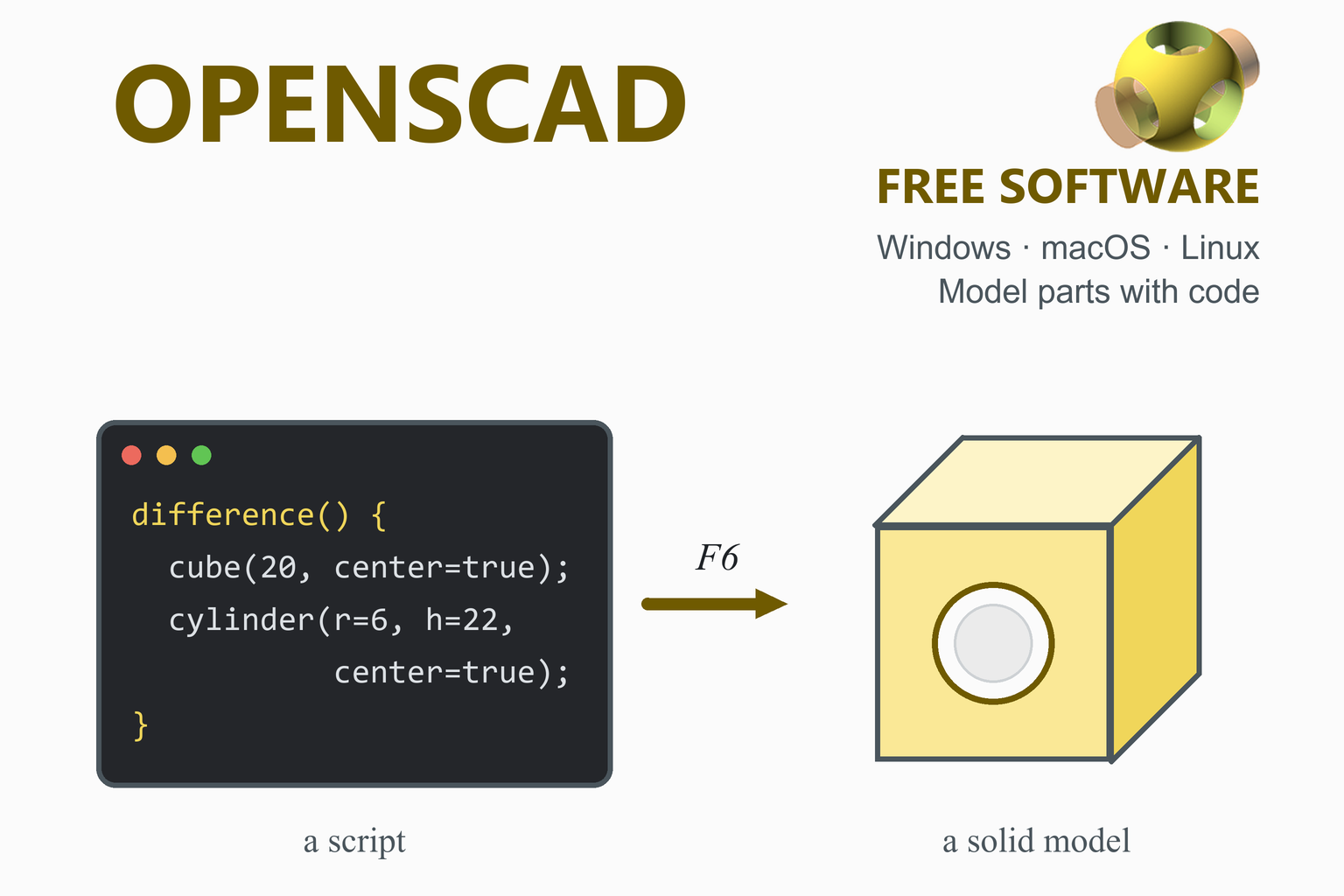
Start OpenSCAD: the editor is on the left and the 3D view on the right. The manual calls the two ways of looking at the result preview and render: preview uses the graphics card and is fast but an approximation, and render builds the exact mesh you will print.
- Type a first solid. The manual’s first example is a box:
Press F5 (Design, Preview) to see it.cube([2,3,4]); - Subtract a hole. Combine solids with
union()(the default),difference()(subtracts the second and later solids from the first) andintersection()(keeps the overlap). This example, from the manual’s FAQ, drills a cylinder through a cube. The cylinder is made a little longer than the cube, because the manual says to give surfaces that are to be removed a clear overlap, an “epsilon”:cube_size = 20; difference() { cube(cube_size, center = true); cylinder(r = 10, h = cube_size + 0.01, center = true); } - Move and turn things. The transformations are
translate,rotate,scale,mirrorand others; a transformation has no semicolon after it and applies to the solid that follows, for exampletranslate([5, 0, 0]) cube(10);. The 3D primitives arecube,sphere,cylinderandpolyhedron. - Use variables. Put the sizes at the top (
cube_size = 20;) and use them below, so that one edit changes the whole part. - Make circles smooth. The special variables
$fa(minimum angle, default 12 degrees),$fs(minimum segment size, default 2) and$fn(number of segments, 0 by default) set how finely circles and spheres are built; when$fnis above zero it overrides the other two. A common habit is a modest value while you work and a larger one for the final render, for example$fn = $preview ? 32 : 64;(the manual advises against values above 128). - Render, then export. Press F6 (Design, Render), then use the File, Export menu and choose the STL option; the manual reminds you to add the
.stlextension to the file name. Open the file in your slicer, such as Orca Slicer, PrusaSlicer or Cura.
The Customizer
The Customizer, available since 2019.05, shows the variables of your script as a panel with sliders and boxes. If it is not visible, use Window, Hide customizer to toggle it. The manual says variables must be assigned in the main file with simple values (a string, number or boolean, or a short list of numbers); a comment above a variable becomes its description, and a comment after it sets the choices, such as width = 34; // [10:100] for a slider from 10 to 100. A comment /* [Hidden] */ hides the variables below it.
Menu names change between versions. In the newest snapshots the export menu offers separate binary and ASCII STL entries, and there are extra shortcuts. If a menu item here is not where you expect it, look in the File, Export menu and the Design menu of your own build.
Troubleshooting
| Problem | What to try |
|---|---|
| Flickering surfaces in the preview where a hole meets a face | The two faces coincide. Make the subtracted solid slightly larger so it extends past the part, as in the example above. The manual’s rule: pieces you subtract must extend past the original part. |
| Rendering takes minutes | The CGAL engine is slow on large models. Try a development snapshot or the release candidate and check Preferences, Advanced, 3D Rendering for the Manifold backend. |
| The preview does not work or looks broken | Often an old or faulty OpenGL driver, particularly Intel graphics on Windows, according to the manual’s FAQ. Update the graphics driver. |
| A drilled hole prints slightly too small | Circles are built from straight segments that sit inside the true circle, so holes come out undersized. Raise $fn, or make the hole a little larger. |
| Your package manager installs a very old OpenSCAD | Download the AppImage, the Flatpak or a snapshot from the official page instead. |
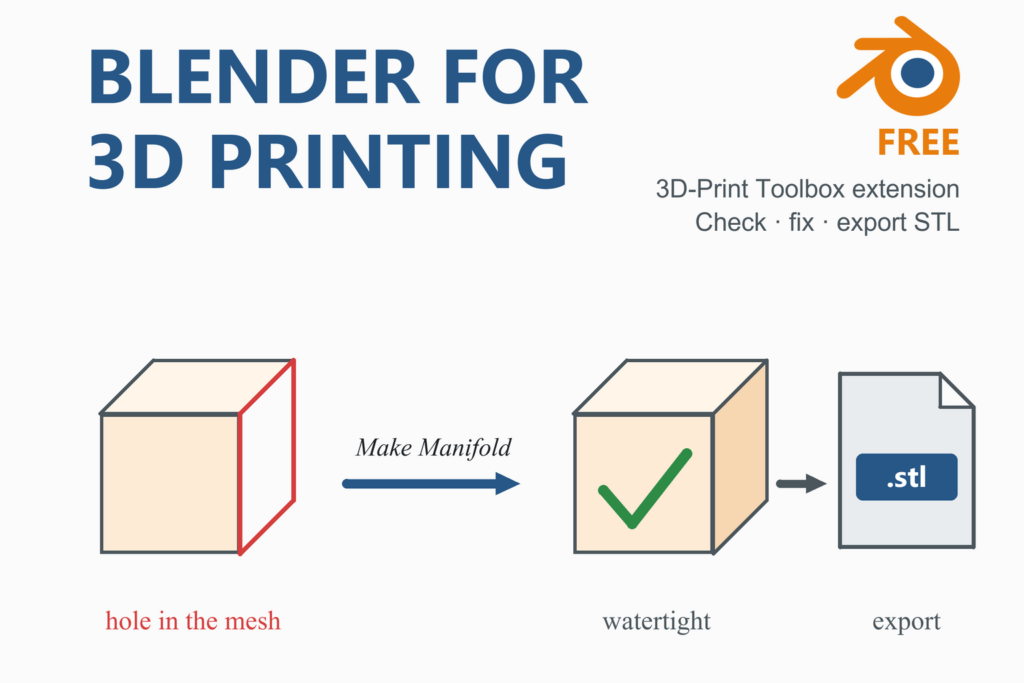
| The slicer reports a problem with the exported STL | Check that subtracted solids overlap properly and that the model renders to a single closed solid. A mesh repair tool such as MeshLab can help with what is left. |
Frequently Asked Questions
What is OpenSCAD?
OpenSCAD is free software for creating solid 3D CAD models. Instead of drawing the model, you write a script that describes it, and OpenSCAD renders the 3D model from the script. It builds shapes by constructive solid geometry (adding, subtracting and intersecting simple solids) and by extruding 2D outlines, and it exports STL files that a slicer can use.
Is OpenSCAD free?
Yes. OpenSCAD is free software released under the GNU General Public License version 2, and it is available for Windows, macOS and Linux.
Where do I download OpenSCAD?
From openscad.org: the download page lists the stable release, development snapshots and release candidates for each system, and the files and their checksum and signature files are on files.openscad.org. Packages are also available through winget, Flathub, the Snap Store and the repositories of most Linux distributions.
What is the latest version of OpenSCAD?
On 18 October 2026 the stable release was still OpenSCAD 2021.01, published in January 2021. The newest development snapshot was 2026.10.18, and a release candidate, 2026.10-TEST4, was dated 16 October 2026. The download page shows the current files.
Should I use the stable release or a development snapshot?
The stable 2021.01 release is an old but fixed version that runs on older systems (Windows 7, OS X 10.9). The snapshots have the newest features and include the Manifold geometry engine, which is much faster, but they are built every day and may contain new bugs; they need Windows 11 or macOS 11 and newer. If rendering is slow or you want recent features, use a snapshot or the release candidate; if you need a version you can name and reproduce, use the stable release.
What is the Manifold backend in OpenSCAD?
It is a newer geometry engine that renders models much faster than the older CGAL engine. The OpenSCAD download page tells snapshot users to enable it in Preferences for a large speed-up, and the project maintainer announced on the mailing list in August 2025 that it had become the default in development snapshots. The stable 2021.01 release does not have it.
How do I export an STL file from OpenSCAD?
Render the model with Design, Render (F6), then use the File, Export menu and choose the STL option, and give the file a name ending in .stl. Then open the file in your slicer. The manual lists STL, OFF, AMF, 3MF, DXF, SVG, PNG and PDF as export formats, depending on the version.
What is the difference between preview and render in OpenSCAD?
Preview (F5) uses the graphics card to show the model quickly and is an approximation. Render (F6) builds the exact geometry and a complete mesh, which takes longer, and is what you export. Use the preview while you design and render before you export.
What is the OpenSCAD Customizer?
A panel, available since version 2019.05, that shows the variables of a script as sliders, boxes and drop-downs so that you can change a model without editing the code. If it is hidden, toggle it from the Window menu. Comments in the script set the description and the choices, for example a comment of [10:100] after a variable makes a slider from 10 to 100.
Why are my holes the wrong size, or flickering in the preview?
Flickering usually means that a subtracted solid has a face exactly on a face of the part: make it slightly longer so it extends past the part. Holes that print too small happen because a circle is built from straight segments inside the true circle; increase $fn for a finer circle, or enlarge the hole a little.
More guides: FreeCAD · Blender for 3D printing · MeshLab · Orca Slicer · PrusaSlicer · Cura · Creality Print · Anycubic Slicer Next · Engineering calculators