
Snapmaker Orca Download: The Free Slicer for Snapmaker 3D Printers
Always the newest version, checked live against the official GitHub releases every time you visit
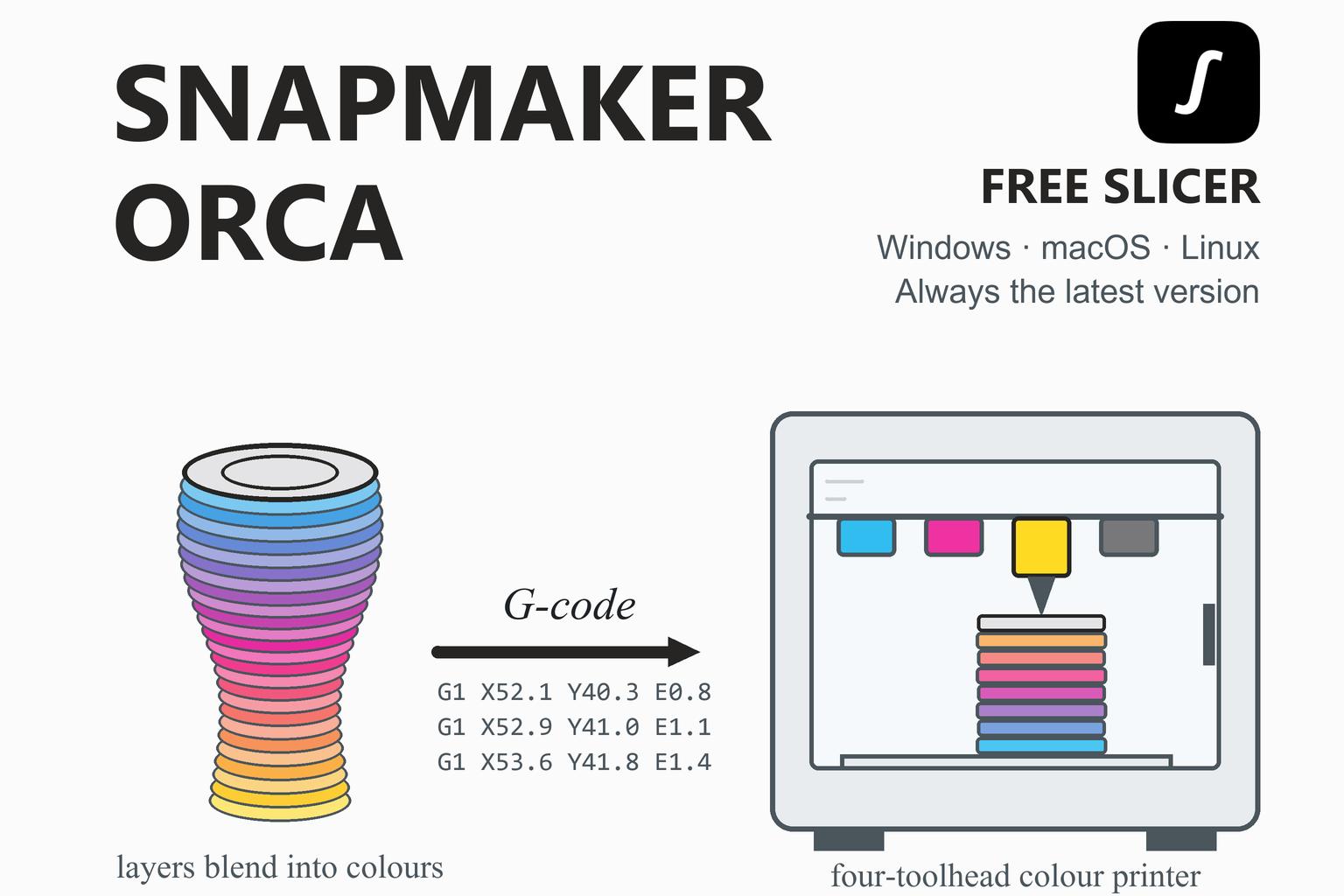
Snapmaker Orca is Snapmaker’s free, open-source slicer for FDM (filament) printers. It is based on OrcaSlicer and customised for Snapmaker machines: it adds Snapmaker’s printer profiles and, for the Snapmaker U1, remote monitoring, device management and the Full Spectrum colour-mixing workflow. This page checks GitHub when you open it and offers the newest stable build for Windows, macOS and Linux, with file sizes and SHA-256 checksums. Below you will find what changed in each recent release, which printers it covers, the system requirements, install steps, a first-print walkthrough, an explanation of Full Spectrum, troubleshooting and an honest comparison with other slicers.
Download Snapmaker Orca
Or use the official page: Snapmaker Orca download page
Previous versions
Loading the release list…
How this download box works
- It is live. Each visit asks GitHub for the newest stable release of Snapmaker’s official Snapmaker Orca project, so you are never sent to an outdated file. Your browser keeps the answer for ten minutes; the Refresh button asks again straight away.
- It shows the current version only. If one system has no file in the newest release, the box says so instead of quietly offering an older build.
- Test builds are flagged, not offered. Snapmaker publishes alpha and beta builds before each stable release. They are marked as pre-releases, may be unstable and are left out of the download list; if a newer one exists, the box mentions it so you can try it if you want.
- The notes are in English. Snapmaker writes its release notes in Chinese and English; the box shows the English text.
- Every link goes to GitHub. The script only accepts download addresses on the official project’s release path. If GitHub cannot be reached, the box falls back to links that always point to the newest release.
- Linux has two kinds of file. Current releases include an AppImage for Ubuntu 24.04 and Flatpak bundles for x86-64 and Arm64. Snapmaker’s wiki says the Linux versions have to be downloaded from GitHub.
Download Safety and How to Verify the File
Slicers run with full access to your files, so where the installer comes from matters. Download Snapmaker Orca from the official GitHub release page (the box above reads from it) or from Snapmaker’s own download page, which Snapmaker’s wiki points to. Be wary of mirror and “free download” sites: some show out-of-date version numbers or repackaged installers.
Check the SHA-256 checksum
A checksum is a fingerprint of the file. If the fingerprint of your download matches the one shown in the box above, the file is exactly what was published. Replace the file name with yours.
Windows (PowerShell)
Get-FileHash .\Snapmaker_Orca_Windows_Installer.exe -Algorithm SHA256macOS (Terminal)
shasum -a 256 ~/Downloads/Snapmaker_Orca_Mac_universal.dmgLinux (terminal)
sha256sum Snapmaker_Orca_Linux_AppImage*.AppImageCompare the printed value, character by character, with the SHA-256 shown for that file. If they differ, delete the file and download it again from the official link.
What Is Snapmaker Orca?
A slicer is the program between a 3D model and a printer. It cuts the model into thin layers, works out the path the nozzle should follow for each one and writes those instructions as G-code. Snapmaker Orca is Snapmaker’s slicer. Its README calls it an open-source slicer for FDM printers based on OrcaSlicer, and Snapmaker’s wiki describes it as slicing software based on Orca and specifically customised for Snapmaker 3D printers.
On GitHub the project is a fork of the main OrcaSlicer repository, released under the GNU Affero General Public License v3. It keeps Orca’s model handling and slicing and adds Snapmaker’s own work on top: machine, filament and process profiles, and, for the Snapmaker U1, remote monitoring, device management and device control. Snapmaker follows Orca’s releases. Version 1.0.0 Beta was based on OrcaSlicer 2.2.0 Beta, and version 2.2.1 was aligned with OrcaSlicer 2.3.1, so the layout will feel familiar if you have used Orca Slicer.
Built for Snapmaker printers, and for filament printing. The documentation covers Snapmaker machines only. If you print on other brands, Orca Slicer or the maker’s own slicer is the better choice.
What’s New in Recent Releases
The table summarises selected stable releases from the official release notes, newest first. The download box above shows the very newest release’s notes live, so it stays current even as this table ages. Some features need a minimum firmware version on the printer, so read the notes for your machine before you update.
| Version | Date | Main changes |
|---|---|---|
| 2.4.0 | 21 Sep 2026 | Selected models are highlighted (white edges, yellow in assembly mode). A level-of-detail system for faster rendering of complex scenes. Manual colour selection in the automatic mode of colour-mix matching. High-flow hot-end parameters for selected filaments and profiles. Six new U1 filaments (TPU, PEBA 90A, PLA Glow, PLA Rainbow, Support for PLA, PETG-CF) and bigger colour libraries. U1 process presets merged into “Standard” presets. Many crash and display fixes. Snapmaker recommends upgrading the device firmware to 2.0.0 or higher before installing it. |
| 2.3.6 | 31 Aug 2026 | Time-lapse video export (firmware 1.6.0 or later). Print Preferences with spaghetti detection and foreign-object detection. One-click auto-zoom. Colour Mixing Match Mapping for models with many colours, a new 0.10 mm colour-mixing process preset and support for Snapmaker PLA Full Spectrum. A crash during full-bed slicing was fixed, and a memory warning added. |
| 2.3.5 | 15 Jul 2026 | Top-cover controls. Filament sync from the printer by “Match Mapping” or “Direct Override”. An official filament colour library panel with dual-colour filaments. Slicing is blocked, with an error, for incompatible filament combinations in Color Mixing mode. Snapmaker PVA support. |
| 2.3.4 | 11 Jun 2026 | Fixes for filament mapping with Generic Support for PLA, for maze-like patterns when slicing painted domes, and for the Fuzzy Skin painting tool. |
| 2.3.3 | 1 Jun 2026 | Full Spectrum printing introduced, with Color Mixing and Subdivide Mixing Layers. New filament types for the U1. A better prime-tower rib structure. A fix for Upload being unavailable when another program was using port 13619. |
| 2.3.1 | 15 Apr 2026 | 0.2, 0.6 and 0.8 mm nozzles added. A “Graphic Effect Plate” added and the “Smooth High Temp Plate” renamed “Smooth PEI Plate”. Silk dual-colour PLA filaments. A plate selection step when printing from the Model Library. |
| 2.3.0 | 24 Mar 2026 | A Model Library for downloading 3MF files and starting print jobs online. New official materials and colour options for third-party materials. A fix for the U1 disconnecting in LAN mode. |
| 2.2.4 | 9 Feb 2026 | Separate updates for Mainland China and other regions. Hot updates for process presets and web resources. New PETG HF and TPU 95A HF materials. A fix for a launch failure in some Windows 11 environments. |
| 2.2.1 | 31 Dec 2025 | Aligned with OrcaSlicer 2.3.1. Error reporting, a User Experience Improvement Program, adaptation to the device’s AI detection, and a network test tool. |
| 2.1.1 | 6 Nov 2025 | Fixes for U1 device management and clearer error handling. New factory-validated default profiles, including new filaments and processes. Bed temperatures by plate type, and regional-mismatch alerts when binding with a PIN. |
| 1.0.0 Beta | 7 Nov 2024 | Based on OrcaSlicer 2.2.0 Beta. Updated machine parameters for IDEX and dual-extruder printers. G-code sent by Wi-Fi through Luban, and sign-in to the Snapmaker user centre. |
The Snapmaker U1’s print presets, machine control and machine management first arrived in the 2.1 series (a beta in September 2025), so the table starts the U1 story at 2.1.1, the first stable release after it.
Key Features
Orca-based engine
Orca’s model handling, calibration and slicing, with Snapmaker following Orca’s releases and adding its own profiles and fixes.
U1 device management
Bind a Snapmaker U1 in cloud mode (PIN, nearby search or the Snapmaker App’s QR code) or in LAN mode (IP address or nearby search), then manage it from a Devices page.
Remote monitoring and control
Watch print progress and control the U1 from the slicer, with time-lapse video export since 2.3.6 and spaghetti and foreign-object detection preferences.
Full Spectrum colour mixing
Blend filaments by alternating thin layers, with ratio, cycle, match and gradient modes and a Subdivide Mix Layer option (see the section below).
Filament sync
Since 2.3.5 you can sync filament information from the printer to the slicer by Match Mapping or Direct Override, with an official filament colour library.
Model Library
Browse models inside the slicer, download 3MF files and start a print job online (added in 2.3.0).
Snapmaker profiles
Printer, filament and process profiles for Snapmaker machines. Since 2.2.4, process presets and web resources can be updated by a “hot update” without waiting for a new program version.
Many file formats
Import 3MF, STL, STP, STEP, AMF and OBJ files from the File menu, the toolbar, or by dragging them in.
Full Spectrum Colour Mixing Explained
Traditional multi-colour printing changes colour by switching between filaments, say red, then blue, then yellow. Each region of the model uses a single colour, the boundaries between colours are sharp and the palette is limited to the filaments you loaded. Colour mixing works differently: it creates new colours by combining and alternating filaments of different colours. Snapmaker’s wiki gives the examples red plus blue for purple, and yellow plus blue for green.
The principle
Full Spectrum is Snapmaker’s name for multi-colour printing built on colour mixing, designed for the Snapmaker U1. It stacks thin layers of different colours alternately along the Z axis (red layer, blue layer, red layer, blue layer and so on). To the human eye the stack looks like one blended colour, here purple. The thinner the layers, the more often the colours alternate and the smoother the blend, as long as the hardware allows it.
| Mode | What it does |
|---|---|
| Ratio | You set the proportions of two or three filament colours to create different in-between colours |
| Cycle | The printing order of filaments of different colours is switched cyclically, so you can explore mixing effects |
| Match | The slicer calculates the best colour ratio for a target colour from the filament colours you have |
| Gradient | The slicer generates a gradient between the filament colours you select |
| Subdivide Mix Layer | Splits layers further for colour mixing, raising the alternation frequency for smoother transitions and more vivid colours |
Practical guidance from Snapmaker
- Hardware and software: the guide recommends the Snapmaker U1, the latest firmware and Snapmaker Orca 2.3.6 or later.
- Filament: use filaments with a higher TD value and good translucency, such as Snapmaker’s PLA Full Spectrum bundle. The built-in “Snapmaker PLA Full Spectrum” parameter package suits colour mixing.
- Nozzle and layer height: the 2.3.6 release notes recommend a hot end of 0.4 mm or smaller with a layer height of 0.1 mm or less; a larger nozzle or taller layers can leave visible layer lines. A 0.10 mm colour-mixing process preset for the U1 with a 0.4 mm nozzle was added in that release.
- Safeguards: since 2.3.5 slicing is blocked when you pick an incompatible filament combination in Color Mixing mode, and the slicer warns if Variable Layer Height and Subdivide Mix Layer are on together.
Expect some surprises. Snapmaker says filament properties, model shape, print settings and lighting can all make the result differ from what you expected, and advises caution for jobs that need high repeatability, accurate colour or high precision. Full Spectrum suits people who like to experiment and who care most about colour, gradients and texture.
Which Snapmaker Printers Does It Support?
Snapmaker’s wiki has one quick-start guide for the U1 and another for the Artisan, 2.0 series and J1/J1s. The profile package that ships with the program lists these machines:
| Printer | What the documentation says |
|---|---|
| Snapmaker U1 | The default printer in the setup wizard and the machine the tailored features are built for: device management, remote monitoring and control, camera, filament sync and Full Spectrum colour mixing |
| Snapmaker Artisan | Profile included; start G-code and tool-change fixes in 1.0.1, 1.0.2 and 1.1.0. Latest firmware (V2.8.0) talks to the slicer directly over the network |
| Snapmaker J1 and J1s | Profile included; start G-code improvements in 1.1.0 and a print-head collision fix in 1.0.0 Beta. Latest firmware (V2.8.0) talks to the slicer directly |
| Snapmaker 2.0 (A250 and A350) | Profiles included for the single and dual-extruder machines and the QS, B and QS+B kit variants; start G-code tuning in the 1.2 series. Latest firmware (V1.21.0) talks to the slicer directly |
The U1 gets the newest features first; the 2.0, Artisan and J1 machines are covered mainly by profile and G-code improvements. If your printer is not in the list, use Orca Slicer or the maker’s own slicer.
Who Should Use Snapmaker Orca?
- Snapmaker U1 owners, who get device management, remote monitoring and the Full Spectrum workflow built in.
- Owners of the Artisan, J1/J1s and 2.0 machines, who want maker-supplied profiles and direct Wi-Fi sending from the slicer.
- Colour-mixing experimenters, who enjoy gradients and blended colours and are happy to test settings.
- Orca Slicer users who want Snapmaker’s printers and profiles in one program.
If you print on several brands, you will usually be better served by a multi-brand slicer; the comparison below explains the differences.
System Requirements
| System | What Snapmaker says |
|---|---|
| Windows | Windows 10 or later. An installer and a portable ZIP are offered. The README says that if the program won’t run you may need the Microsoft Edge WebView2 runtime and the Visual C++ 2019 x64 redistributable. |
| macOS | macOS 12.0 or later. Current releases include one DMG marked “universal” (the README still describes separate arm64 and x86_64 files). |
| Linux | The wiki lists Fedora 36 or later and Ubuntu (its Ubuntu version reads “20.02”, which is not a real Ubuntu release, so go by the file names instead). Current releases offer an AppImage named for Ubuntu 24.04 and Flatpak bundles for x86-64 and Arm64. |
| Hardware | An Intel Core 2 or AMD Athlon 64 class processor at 2 GHz or faster, a graphics system that supports OpenGL 2.0, 8 GB of memory recommended (4 GB minimum) and 2 GB or more of free disk space. |
| Network (U1) | The U1 supports only 2.4 GHz Wi-Fi, not 5 GHz. The wiki lists the ports used: HTTP and HTTPS (80, 443, 8080) and MQTTS (8883) in cloud and LAN modes, MQTT (1884) in LAN mode, and Bonjour (5353, UDP). |
| Download size | Roughly 100 to 110 MB for the Windows installer and Flatpak bundles, 125 MB for the AppImage, 141 MB for the portable ZIP and 240 MB for the macOS DMG. |
How to Install Snapmaker Orca
Windows
- Download the Windows installer from the box above and, if you like, check its SHA-256 checksum.
- Run the installer and follow the prompts. If Windows SmartScreen shows a warning, confirm that the file came from the official release and matches the checksum before continuing.
- Prefer not to install? Use the portable
.zip: extract it and run Snapmaker Orca from the extracted folder. - If the program will not start, install the two Microsoft runtimes named in the README (the Edge WebView2 runtime and the Visual C++ 2019 x64 redistributable), then try again. Version 2.2.4 also fixed a launch failure in some Windows 11 environments, so update first.
macOS
- Download the macOS DMG. It is a single universal build, so the same file serves Apple Silicon and Intel Macs.
- Open the
.dmgand drag Snapmaker_Orca.app into the Applications folder. - If macOS blocks the app from opening, the README describes three ways to open an app that macOS has quarantined: hold Command, right-click the app, choose Open and confirm; remove the quarantine flag in Terminal; or open System Settings, Privacy & Security and click Open Anyway.
xattr -dr com.apple.quarantine /Applications/Snapmaker_Orca.app
Linux
- AppImage (built for Ubuntu 24.04): make the file executable and run it, as the README suggests if it will not start. Some distributions need FUSE support installed for AppImages to start.
chmod +x Snapmaker_Orca_Linux_AppImage*.AppImage ./Snapmaker_Orca_Linux_AppImage*.AppImage - Flatpak (x86-64 or Arm64): install the downloaded bundle with Flatpak, then start Snapmaker Orca from your application menu. This is the standard way to install a local Flatpak file; Snapmaker’s documentation does not spell it out.
flatpak install --user ./Snapmaker_Orca-Linux-flatpak_*_x86_64.flatpak
First-Time Setup and Your First Print
First launch and sign-in
The setup wizard asks for three things: your login region, the printers and nozzles you want listed (the Snapmaker U1 is the default), and the filaments you want in your material list. You can change all of them later from the menu, and reopen the wizard from Help, Setup Wizard. For the U1 you sign in with an email address and a verification code, or an email and password; on first use you register and accept the user agreement and privacy policy.
Bind a Snapmaker U1
- Choose a mode. Cloud mode works even when the printer and computer are on different networks. LAN mode suits data isolation or a network without internet.
- Cloud mode, PIN method: on the printer open Settings, Account, and check that the printer’s region matches the software’s. A PIN code appears and refreshes (the countdown is 180 seconds). In the slicer click Add Device on the Home or Devices page and choose PIN code binding, or choose Search Device and authorise on the printer.
- LAN mode: bind by the printer’s IP address or by searching for nearby devices.
- Prefer the phone? You can also bind from the Snapmaker App, by scanning a QR code in cloud mode or by IP address or nearby search in LAN mode.
Slice and print a model
- Create a project and add a model. Use File, Import, the first toolbar icon, or drag the file into the window. Supported formats are 3MF, STL, STP, STEP, AMF and OBJ.
- Check the three presets. Choose the printer and nozzle size, the filament, and a process preset for quality, strength and speed.
- Orient the model. Place the flattest face on the plate where you can. Layers are weakest between each other, so avoid loading a part in the direction that pulls layers apart.
- Click Slice Plate (or Slice All for several plates), then read the preview. The preview shows material use, the colour scheme and the estimated print time.
- Send it. Click Print, then choose Upload or Upload and Print. A pre-processing window lets you pick the printer, edit the filament mapping and set preferences before you press Send. Or choose Export G-code File and carry the file to the printer on a storage device.
Older printers: Artisan, J1/J1s and 2.0
- Update the printer’s firmware first. Snapmaker’s wiki names V2.8.0 for the Artisan and J1/J1s and V1.21.0 for the 2.0, the versions that talk to the slicer directly without Luban.
- Open the connection window and choose Octo/Klipper as the host type. In the host field enter the printer’s IP address followed by
:8080and click Test. - Click Print, then Upload and Print. Or export the G-code to a USB flash drive, put it in the machine and start the job from the touchscreen.
Watch the first layer. Snapmaker’s guide advises paying close attention to first-layer adhesion however you start the job, so problems are spotted early and filament is not wasted.
Settings and Materials Worth Knowing
Start with the profile Snapmaker supplies and change one setting at a time. These are general starting points, not Snapmaker specifications; your printer and filament maker’s advice comes first.
| Topic | Guideline | Why |
|---|---|---|
| Update the firmware too | Keep the printer firmware and Snapmaker Orca up to date together. The 2.4.0 notes recommend firmware 2.0.0 or higher before installing that version | Newer slicer features need newer firmware; for example, time-lapse export needs firmware 1.6.0 or later |
| Filament density | If a U1 print fails with “Unrecognized Gcode type”, check that the filament profile’s density is not 0 and re-slice | Snapmaker’s wiki says a density of 0 is invalid, and gives 1.24 g/cm³ for Snapspeed PLA as an example |
| One slicer per U1 | Run only one Snapmaker Orca instance connected to a given U1 | The wiki says several instances connected to one U1 make the connection drop and reconnect repeatedly |
| Wi-Fi band | Put the U1 on a 2.4 GHz network; on some Wi-Fi 6 or 7 routers, try a dedicated IoT network or a more compatible wireless mode | The U1 does not support 5 GHz, and the wiki notes some routers make 2.4 GHz connections unreliable |
| Colour mixing | Use a 0.4 mm or smaller hot end with layers of 0.1 mm or less, and a translucent filament such as PLA Full Spectrum | Thin layers alternate colours more often, so the blend looks smoother |
| Abrasive filaments | Check that your nozzle is hardened before printing a carbon-fibre filament such as PETG-CF or PLA-CF | Carbon-fibre fillers are abrasive and wear soft brass nozzles quickly |
| Layer height | 0.2 mm on a 0.4 mm nozzle is a common balance of quality and speed | Thinner layers look smoother but take much longer |
Snapmaker Orca vs Orca Slicer, ElegooSlicer, Creality Print and QIDI Studio
These programs are close relatives, so the right choice depends on your printer more than on any single feature.
| Snapmaker Orca | Orca Slicer | ElegooSlicer | Creality Print | QIDI Studio | |
|---|---|---|---|---|---|
| Made by | Snapmaker | Open-source community | ELEGOO | Creality | QIDI Technology |
| Lineage | Fork of Orca Slicer | Fork of Bambu Studio | Fork of Orca Slicer | Fork of Orca Slicer | Fork of Bambu Studio |
| Licence | AGPL-3.0 | AGPL-3.0 | AGPL-3.0 | AGPL-3.0 | AGPL-3.0 |
| Best for | Snapmaker printers, especially the U1 and colour mixing | Many brands, deep tuning | ELEGOO printers and CANVAS | Creality printers | QIDI printers and the multi-colour box |
| Network printing | U1 in cloud or LAN mode; older machines by IP address | Several brands | ELEGOO devices over LAN and WAN | Creality devices, Klipper hosts | LAN by IP, QIDI Link devices, Fluidd view |
Snapmaker Orca, ElegooSlicer and Creality Print are all vendor forks of Orca Slicer: each adds its maker’s printers and device features on top of the same engine. If you only own Snapmaker printers, start with Snapmaker Orca; if you own printers from several makers, Orca Slicer is the natural all-rounder. Our guides to Bambu Studio and PrusaSlicer cover the relatives further up the family tree.
Pros and Cons
Strengths
- Free and open source (AGPL-3.0), with the code public on GitHub.
- Profiles and device features built for Snapmaker printers, especially the U1.
- Full Spectrum colour mixing with ratio, cycle, match and gradient modes.
- Cloud and LAN connection modes, remote monitoring, time-lapse export and filament sync.
- Regular releases, each with public release notes, and a wiki with troubleshooting guides.
- Windows, macOS and Linux builds (AppImage and Flatpak), plus a portable Windows build.
Limits
- Built around Snapmaker hardware; less convenient for mixed-brand workshops.
- FDM only, and the newest features are aimed at the U1 and may need recent firmware.
- Follows Orca Slicer, so it can trail the newest upstream features.
- Full Spectrum results can differ from what you expect, and Snapmaker advises caution for work that must be repeatable.
- Release notes are bilingual and long, and some wiki details (such as the Ubuntu version) are dated.
- Frequent alpha and beta builds, so check that you are installing a stable release.
Troubleshooting
| Problem | What to try |
|---|---|
| The U1 keeps disconnecting | Update the printer firmware and Snapmaker Orca, and make sure the U1 is on 2.4 GHz Wi-Fi. For cloud mode, check the router, your computer’s connection and then the cloud server with Help, Open Network Test (available since 2.2.1). Run only one Snapmaker Orca per U1. |
| Cloud mode cannot find the U1 | Check that the region set on the printer matches the region in the software, that the router offers 2.4 GHz, and that the ports in the system-requirements table are not blocked. |
| “Unrecognized Gcode type” on the U1 | Open the project, make sure the filament profile’s density is not 0 and that the filament type is compatible with the U1, then slice and send again. |
| The camera will not open | Restart the slicer and computer and reconnect. “Failed to start camera monitor” in cloud mode usually points to an unstable network (a mobile hotspot makes a useful test). An error showing a long IPv6 address is a known bug in older versions, so update. |
| Artisan, J1/J1s or 2.0: connection refused on port 5000 | This comes from the older Luban route: Luban was not running, or the Mac’s AirPlay Receiver was using port 5000. With current firmware, skip Luban and connect with the Octo/Klipper host type and the printer’s IP address plus :8080. |
| Upload and Upload and Print are unavailable | Version 2.3.3 fixed this when another program was using port 13619. Update, or close the program that holds the port. |
| The program will not start on Windows | Install the Microsoft Edge WebView2 runtime and the Visual C++ 2019 x64 redistributable (both named in the README). Version 2.2.4 fixed a launch failure in some Windows 11 environments, so update to the newest build. |
| A crash while slicing the whole plate | Version 2.3.6 fixed a crash caused by excessive memory use in full-bed slicing and added a warning before it starts. Update, and slice one plate at a time. |
| Blank Home, Device or Preview page on a weak network | Version 2.4.0 mitigated white screens under weak network conditions on all platforms (effective from 2.4.0 on) and fixed blank Home and Device pages on macOS. Update to the newest release. |
| Slicing stops at 70% | Fixed in 2.4.0 for the case where the base pattern spacing is 0 and the support style is Tree Hybrid. Update. |
If nothing helps, Snapmaker’s wiki explains how to export the slicer’s log files and points to its support ticket form, where you can send your troubleshooting results with pictures or videos.
Frequently Asked Questions
Is Snapmaker Orca free?
Yes. Snapmaker Orca is free and open source. GitHub lists its licence as the GNU Affero General Public License v3, and the code is public in Snapmaker’s fork of OrcaSlicer.
Is Snapmaker Orca safe to download?
The download box on this page links only to files on Snapmaker’s official GitHub project, and Snapmaker’s wiki points to the company’s own Snapmaker Orca download page too. To confirm your copy is unaltered, compare its SHA-256 checksum with the one shown beside the file. Avoid mirror and “free download” sites, some of which show out-of-date versions or repackaged installers.
Is Snapmaker Orca the same as Orca Slicer?
No. Snapmaker’s wiki describes it as slicing software based on Orca and customised for Snapmaker printers. It keeps Orca’s model handling and slicing and adds Snapmaker’s printer profiles and, for the Snapmaker U1, remote monitoring, device management and device control. Snapmaker follows Orca’s releases: version 2.2.1, for example, was aligned with Orca Slicer 2.3.1.
Which Snapmaker printers does Snapmaker Orca support?
The Snapmaker U1 gets the full feature set. Profiles for the Artisan, the J1 and the 2.0 series (A250 and A350, including the dual-extruder and kit variants) are also included, and Snapmaker’s wiki has a separate quick-start guide for the Artisan, 2.0 and J1/J1s. Check the printer list inside the program for your exact model.
Can I use Snapmaker Orca with a printer from another brand?
Snapmaker documents it for its own printers only. If you own other brands, Orca Slicer, which covers many makers, or the maker’s own slicer is the better fit.
How do I connect the Snapmaker U1 to Snapmaker Orca?
You bind the printer in one of two modes. In cloud mode the printer and computer do not need to share a network: bind with a PIN code, by searching for nearby devices, or from the Snapmaker App by scanning a QR code. In LAN mode, for data isolation or a network without internet, bind by IP address or by searching for nearby devices. The U1 supports only 2.4 GHz Wi-Fi.
Do I still need Luban?
Not with current firmware. Snapmaker’s wiki says the latest firmware for the Artisan, J1/J1s and 2.0 supports direct network communication with Snapmaker Orca, so Luban is no longer needed as a transfer hub. Choose the Octo/Klipper host type and enter the printer’s IP address followed by :8080. Older setups used Luban as the middle step.
What is Full Spectrum?
Full Spectrum is Snapmaker Orca’s colour-mixing workflow for the Snapmaker U1, introduced in version 2.3.3. Instead of printing each region in one filament colour, it alternates thin layers of different filaments so the eye blends them into new colours. Snapmaker’s wiki recommends the latest firmware and Snapmaker Orca 2.3.6 or later, and notes that results can differ from what you expect.
Which Linux file should I download: AppImage or Flatpak?
Current releases include an AppImage built for Ubuntu 24.04 and Flatpak bundles for x86-64 and for Arm64. Go by what suits your system: the AppImage for Ubuntu 24.04, a Flatpak bundle if you use Flatpak or an Arm computer. Snapmaker’s wiki says the Linux versions must be downloaded from GitHub.
Which version should I download, and what is a test release?
The latest stable version shown in the download box. Snapmaker publishes alpha and beta builds before each release; GitHub marks them as pre-releases, they may be unstable and the box does not offer them. If a newer test build exists, the box mentions it so you can decide for yourself.
More slicer guides: QIDI Studio · ElegooSlicer · Creality Print · Orca Slicer · Bambu Studio · Cura · PrusaSlicer · SuperSlicer · FreeCAD · Engineering calculators