
QIDI Studio Download: The Free Slicer for QIDI 3D Printers
Always the newest version, checked live against the official GitHub releases every time you visit
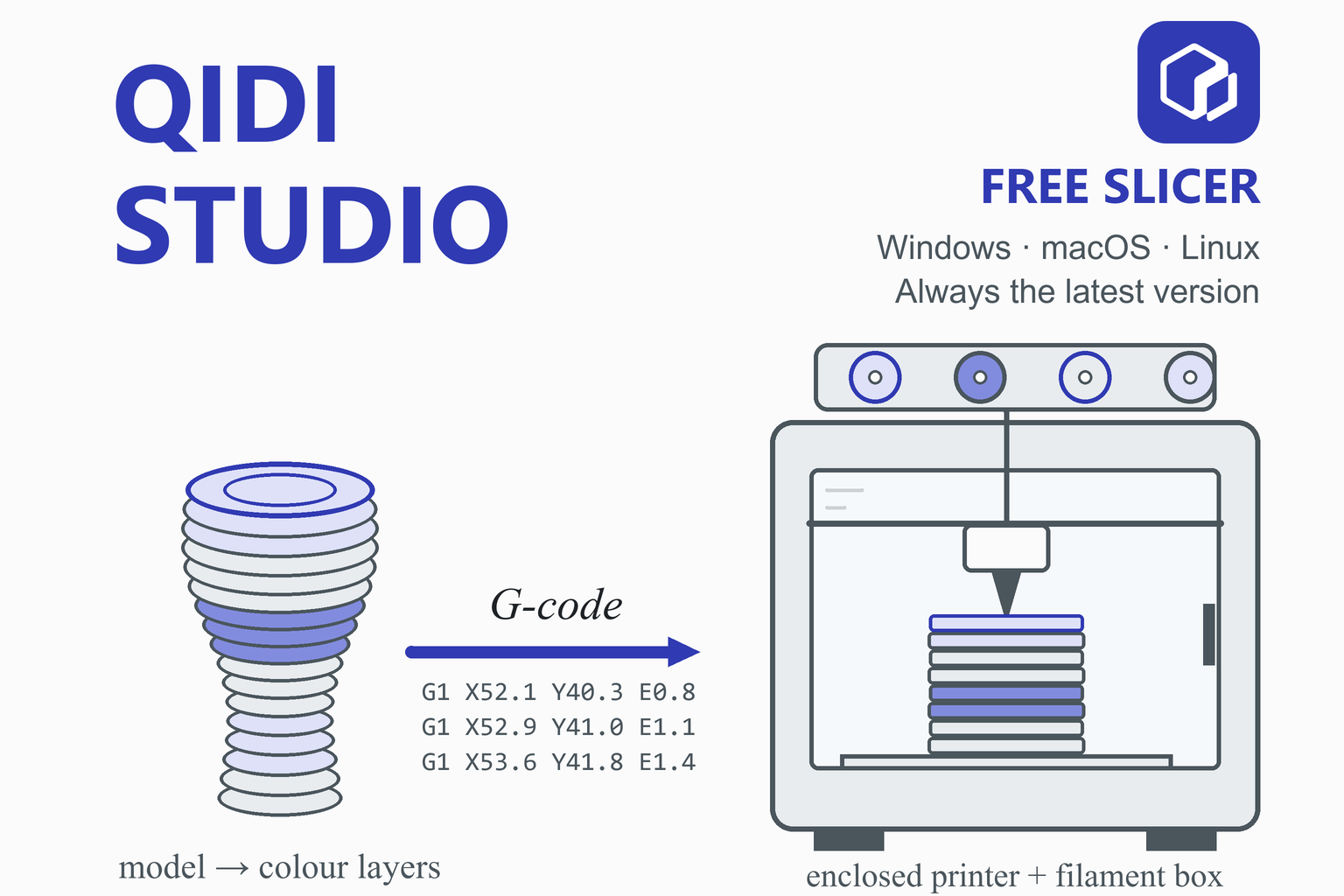
QIDI Studio is QIDI Technology’s free, open-source slicer for its FDM (filament) printers. It is built on Bambu Studio and adds QIDI’s printer and filament profiles, a Device page for connecting to your printer over the network, and support for QIDI’s multi-colour filament box. This page checks GitHub when you open it and offers the newest stable build for Windows, macOS and Linux, with file sizes and SHA-256 checksums. Below you will find what changed in each recent release, which printers it covers, the system requirements, install steps, a first-print walkthrough, troubleshooting and an honest comparison with other slicers.
Download QIDI Studio
Or use the official page: QIDI Studio wiki (download and install)
Previous versions
Loading the release list…
How this download box works
- It is live. Each visit asks GitHub for the newest stable release of QIDI’s official QIDIStudio project, so you are never sent to an outdated file. Your browser keeps the answer for ten minutes; the Refresh button asks again straight away.
- It shows the current version only. If one system has no file in the newest release, the box says so instead of quietly offering an older build.
- Read the release-notes line. Pre-releases are left out of the download list, but QIDI sometimes publishes a normal release that its notes call a test version (version 02.04.01.10 was one). The notes line under the download buttons shows QIDI’s own description of the newest release, so check it before you install.
- Every link goes to GitHub. The script only accepts download addresses on the official project’s release path. If GitHub cannot be reached, the box falls back to links that always point to the newest release.
- Two Linux files. Current releases include one AppImage for Ubuntu 22 and one for Ubuntu 24; pick the one that matches your system.
Download Safety and How to Verify the File
Slicers run with full access to your files, so where the installer comes from matters. Download QIDI Studio from the official GitHub release page (the box above reads from it); QIDI’s own wiki points to the same GitHub releases page in its “Download and Install” section. Be wary of mirror and “free download” sites: some show out-of-date version numbers or repackaged installers.
Check the SHA-256 checksum
A checksum is a fingerprint of the file. If the fingerprint of your download matches the one shown in the box above, the file is exactly what was published. Replace the file name with yours.
Windows (PowerShell)
Get-FileHash .\QIDIStudio_Setup_Win64.exe -Algorithm SHA256macOS (Terminal)
shasum -a 256 ~/Downloads/QIDIStudio.dmgLinux (terminal)
sha256sum QIDIStudio*.AppImageCompare the printed value, character by character, with the SHA-256 shown for that file. If they differ, delete the file and download it again from the official link.
What Is QIDI Studio?
A slicer is the program between a 3D model and a printer. It cuts the model into thin layers, works out the path the nozzle should follow for each one and writes those instructions as G-code. QIDI Studio is QIDI Technology’s slicer. The project’s README describes it as fast, stable and compatible with all QIDI printers and filaments, with multi-platform support, and QIDI’s wiki calls it software developed specially for QIDI printers.
Its lineage is spelled out in the documentation: QIDI Studio is based on Bambu Studio by Bambu Lab, which is based on PrusaSlicer by Prusa Research, which was originally based on Slic3r. All of them are released under the GNU Affero General Public License v3, and so is QIDI Studio. Because it follows Bambu Studio closely (many release notes say the version synchronises the features of a named Bambu Studio release), the layout will feel familiar if you have used Bambu Studio or Orca Slicer.
Built for QIDI printers, and for filament printing. The documentation covers QIDI machines only. If you print on other brands, a multi-brand slicer such as Orca Slicer or the maker’s own slicer is the better choice.
What’s New in Recent Releases
QIDI writes versions as four two-digit parts, for example 02.07.02.60; some older GitHub titles drop the leading zero, so 2.03.01.70 and 02.03.01.70 are the same version. The table summarises selected stable releases from the official release notes, newest first. The download box above shows the very newest release’s notes live, so it stays current even as this table ages.
| Version | Date | Main changes |
|---|---|---|
| 02.07.02.60 | 6 Aug 2026 | Configuration for the new X-Plus 5. One-click refresh of the model and time-lapse file lists. Refined print parameters for the Q2, Q2C, Max 4, Plus 5 and other devices. Fixes for crashes when loading 3MF and .gcode.3mf files, a macOS crash and the Filament tab display. |
| 02.07.02.10 | 14 Jul 2026 | An emergency fix release that addresses crashes during use. |
| 02.07.02.01 | 9 Jul 2026 | Synchronises features of Bambu Studio 02.07.01.57. Control page for the Q2 on the Device page, and Maker account binding for the Q2. Opening a non-QIDI 3MF project now swaps in QIDI printers and filaments automatically. Cloud synchronisation of user presets. |
| 02.06.00.51 | 22 May 2026 | Materials re-matched automatically when you switch between printers of the same type. An “Exclude Objects” function on the Device Control Page (X-Max 4 only, with the latest firmware). Expert Mode now off by default when adding a printer. |
| 02.05.01.53 | 15 Apr 2026 | An Expert Mode switch in the Add Device window chooses between the older Fluidd page and the new Control Page. A time-lapse list, device status indicators and an Unload button for the multi-colour box on the Control Page. Printer synchronisation extended to the X-Plus 4 and Q2. |
| 02.05.01.52 | 14 Mar 2026 | Synchronises features of Bambu Studio 02.05.01.52. A file list for files stored on the printer, with download, print and delete. Maker login opened for Mainland China, used to bind an X-Max 4 for remote control. Nozzle-size synchronisation (X-Max 4 only). |
| 02.04.00.70 | 23 Dec 2025 | Synchronises with Bambu Studio 02.04.00.70. More reliable update notifications. Fixes for flushing recalculation, material channels shown after Box matching, and crashes when importing non-QIDI 3MF files or using Multi-device Send. |
| 02.03.01.70 | 26 Nov 2025 | Configuration for the new Q2C and X-Max 4. The purge tower’s initial position optimised. Spaces now allowed in file names when sending a print. |
| 02.02.00.61 | 18 Aug 2025 | Configuration for the newly released Q2. Fixes for decimal commas in G-code (Germany, Italy and similar), for non-QIDI 3MF configurations, and for the pressure advance calibration model. |
| 02.02.00.60 | 7 Aug 2025 | Synchronises with Bambu Studio 2.2.0 public beta. A new fuzzy skin painting tool and a Ctrl+W shortcut to refit the sidebar. |
| 02.00.03.54 | 12 May 2025 | Synchronisation of the multi-colour box (compatible with the Plus 4). Timelapse and automatic heatbed-levelling switches on the send-print page. |
| 1.10.01.50 | 3 Dec 2024 | An Ear Brim tool, a scarf seam function, colour information kept when splitting objects, an ironing inset option and manual support drawing on vertical surfaces. |
| 1.9.5.51 | 21 Sep 2024 | The new X-Plus 4 printer added to the configuration options, with new filaments. Better quality for 100% overhangs, a function ported from Bambu Studio. |
Key Features
QIDI printer and filament profiles
The README promises compatibility with all QIDI printers and filaments, with start G-code, parameters and filament settings that QIDI updates release by release.
Device page
Connect to printers over your local network by IP address, or remotely through the QIDI Link app, and watch the printer’s Fluidd interface or the newer Control Page inside the slicer.
QIDI Link app
A companion app for iOS and Android. You scan a code to connect, then watch print progress and adjust printing parameters remotely.
Multi-colour box support
Synchronise the filaments loaded in the printer’s box, match them to your plate and choose box or external filament when you send a job.
Guided calibration
A calibration page that selects the printer, filament and process for you, generates the calibration model and slices it, so you follow the tutorial instead of changing settings by hand.
Bambu Studio tools
Fuzzy skin painting, scarf seams, ear brims, ironing and other Bambu Studio features arrive through regular synchronisation releases.
Many file formats
QIDI’s quick-start guide lists 3MF, STL, STEP, AMF and OBJ files. Non-QIDI 3MF projects have their printer and filaments swapped for QIDI ones.
Preset cloud sync
Version 02.07.02.01 added synchronisation of user presets to and from the cloud, so your settings follow you between computers.
Which QIDI Printers Does It Support?
The README says QIDI Studio is perfectly compatible with all printers and filaments of QIDI Technology. The official release notes and QIDI’s wiki name these machines:
| Printer | What the documentation says |
|---|---|
| X-Plus 4 | Added to the configuration options in 1.9.5.51; multi-colour box synchronisation from 02.00.03.54; printer synchronisation from 02.05.01.53 |
| X-Max 3 | Named in connection and Linux crash fixes (1.9.5.51 and 1.10.01.50); listed in the wiki’s connection preset list |
| Q1 and Q1 Pro | Filament parameter updates (1.10.01.51); Q1 Pro listed in the wiki’s connection preset list |
| X-Max 4 | Configuration added in 02.03.01.70; nozzle-size synchronisation, “Exclude Objects” and the Control Page arrived for this model first |
| Q2 | Configuration added in 02.02.00.61; Control Page and Maker account binding in 02.07.02.01 |
| Q2C | Configuration added in 02.03.01.70 |
| X-Plus 5 | Configuration added in 02.07.02.60 |
| X-Plus 3 and X-Smart 3 | Listed in the wiki’s connection preset list |
Newer features often reach one model first (for example, nozzle-size synchronisation and “Exclude Objects” were announced for the X-Max 4 only), so read the release notes for your printer. QIDI printers also have profiles in Orca Slicer, and QIDI’s wiki has a guide to updating them there by hand.
Who Should Use QIDI Studio?
- Owners of QIDI printers such as the X-Plus 4, X-Max 4, Q1 Pro, Q2 and X-Plus 5, who want maker-supplied profiles and a direct path from slicing to printing.
- Anyone using the multi-colour box, because filament synchronisation and matching are built in.
- Bambu Studio users moving to QIDI hardware, who will find a familiar layout.
- Remote-monitoring fans who like to check the printer from the Device page or the QIDI Link app.
If you print on several brands, you will usually be better served by a multi-brand slicer; the comparison below explains the differences.
System Requirements
| System | What QIDI says |
|---|---|
| Windows | Windows 10 or later, 64-bit. An Intel Core 2 or AMD Athlon 64 class processor at 2 GHz or faster, more than 1 GB of disk space and 4 GB of memory or more. The installer and a portable ZIP are offered. |
| macOS | Mac OS X 10.15 or later. The release files include one DMG marked “universal”. |
| Linux | The wiki lists Fedora 36 or later and Ubuntu (its Ubuntu version reads “20.02”, which is not a real Ubuntu release, so go by the file names instead). Current releases publish an AppImage for Ubuntu 22 and one for Ubuntu 24. |
| Download size | Roughly 120 MB for the Linux AppImages, 200 MB for the macOS DMG and about 290 MB for the Windows files. |
How to Install QIDI Studio
Windows
- Download the Windows installer from the box above and, if you like, check its SHA-256 checksum.
- Run the installer. Choose an install folder whose path uses English characters only: QIDI’s wiki says Chinese characters in the path can stop the program from starting.
- If the installer says QIDI Studio is still running, or fails to overwrite a file, restart the computer and run it again. The wiki traces the second problem to a media-playback file,
QIDISource.dll, that other programs can keep open. - Prefer not to install? Use the portable
.zip: extract it and runqidi-studio.exefrom the extractedQIDIStudiofolder. (The newest ZIP is named without “Win64”, but it holds the Windows program.) - If the home or Device pages come up blank, the Microsoft Edge WebView2 runtime may be missing. Installers from version 1.10.01.50 on check for it and install it automatically, and the program also ships with an installer for it in its plug-in folder.
- On a Windows “N” edition that will not load the program, QIDI says to enable the optional Windows Media Player feature (Settings, Apps, Optional features, Add a feature) and restart.
macOS
- Download the macOS DMG. It is a single universal build, so the same file serves Apple Silicon and Intel Macs.
- Open the
.dmgand drag QIDI Studio into the Applications folder. - QIDI’s documentation does not describe macOS security prompts. If macOS blocks the first launch of a downloaded app, Apple’s standard route is System Settings, Privacy & Security, then Open Anyway (this is general macOS behaviour, not a QIDI instruction).
Linux
- Download the AppImage that matches your Ubuntu version (22 or 24), make it executable and run it. Some distributions need FUSE support installed for AppImages to start.
chmod +x QIDIStudio*.AppImage ./QIDIStudio*.AppImage - QIDI’s release notes warn that a conflict with WebKit on Linux may crash the program when you connect to a printer. See the workarounds in the troubleshooting table below.
First-Time Setup and Your First Print
First launch
The startup guide has three steps: select your region (for example North America), select the printer model or models you own, and select the filament types you plan to use. The filament profiles you choose are saved in your Filament Presets list, and you can change all of these choices later from the printer menu.
Slice and print a model
- Create a project and add a model. Click Add in the top menu, or press Ctrl+I, and open a 3MF, STL, STEP, AMF or OBJ file.
- Check the three presets. Choose your printer and the correct nozzle size, the filament you have loaded and a process preset (the layer height). QIDI’s wiki stresses that these must match the real printer: a mismatch in filament type, printer preset or nozzle size can cause a failed print or a clogged nozzle.
- Orient the model. Place the flattest face on the plate where you can. Layers are weakest between each other, so avoid loading a part in the direction that pulls layers apart.
- Click Slice Plate, then read the preview. Step through the layers with the sliders, look for gaps and check the filament use and estimated print time.
- Send it. Use Print Plate or Send for a connected printer, or Export Plate Sliced File and carry the G-code on a USB drive.
Connect the printer over the network (optional)
- Put the printer and the computer on the same Wi-Fi network and find the printer’s IP address on the printer under Settings, General Settings, Network.
- Open the Device page, switch to the Local list and press Add. Enter a device name, the device preset and the IP address. The Browse button searches the network and Test checks the address.
- If you added a Fluidd account on the printer, also enter its API key, otherwise the slicer cannot read the printer or upload jobs.
- For remote access, install the QIDI Link app, register, scan the QR code on the printer’s Settings, General Settings, Network, QIDI Link page, and log in to the same QIDI account in the slicer. Your printer then appears in the Link list.
- If you use the multi-colour box, select the printer on the Device page and press Synchronize Information on the home page (then Overwrite and Synchronize Now) before choosing filament slots on the send page.
Do not change printer settings in Fluidd mid-print. QIDI’s wiki warns that once a print has started you should not use Fluidd to change the printer’s settings, because it can affect the print quality or even make it fail.
Settings and Materials Worth Knowing
Start with the profile QIDI supplies and change one setting at a time. These are general starting points, not QIDI specifications; your printer and filament maker’s advice comes first.
| Topic | Guideline | Why |
|---|---|---|
| Match the software to the hardware | Before every print, check the filament type, printer preset and nozzle size in the slicer against what is on the printer | QIDI’s wiki says a mismatch can cause print failure or nozzle clogging |
| Calibrate new filament | Use the Calibration page, which selects the presets, generates the model and slices it for you, before tuning anything else | Measuring once is quicker than adjusting by trial and error over many prints |
| Carbon-fibre filaments | Check that your nozzle is hardened before printing a filament such as QIDI PET-CF | Carbon-fibre fillers are abrasive and wear soft brass nozzles quickly |
| Enclosed printers and cooling | Keep the door closed for materials that warp, such as ABS or ASA, and allow ventilation for fumes. The send-print page has an air-conditioning (Polar Cooler) switch, but it works only on printers that support it | A stable warm chamber reduces warping, and some plastics release fumes |
| Box or external filament | On the send page, make sure the “box” option matches where the filament really is | Release notes describe several fixes where the box and external filaments were confused |
| Layer height | 0.2 mm on a 0.4 mm nozzle is a common balance of quality and speed | Thinner layers look smoother but take much longer |
QIDI Studio vs Bambu Studio, Orca Slicer, Creality Print and ElegooSlicer
These programs are close relatives, so the right choice depends on your printer more than on any single feature.
| QIDI Studio | Bambu Studio | Orca Slicer | Creality Print | ElegooSlicer | |
|---|---|---|---|---|---|
| Made by | QIDI Technology | Bambu Lab | Open-source community | Creality | ELEGOO |
| Lineage | Fork of Bambu Studio | Based on PrusaSlicer | Fork of Bambu Studio | Fork of Orca Slicer | Fork of Orca Slicer |
| Licence | AGPL-3.0 | AGPL-3.0 | AGPL-3.0 | AGPL-3.0 | AGPL-3.0 |
| Best for | QIDI printers and the multi-colour box | Bambu Lab printers | Many brands, deep tuning | Creality printers | ELEGOO printers and CANVAS |
| Network printing | LAN by IP, QIDI Link devices, Fluidd view | Bambu Lab printers | Several brands | Creality devices, Klipper hosts | ELEGOO devices over LAN and WAN |
If you only own QIDI printers, start with QIDI Studio: it carries QIDI’s own profiles, the Device page and the box synchronisation. If you own printers from several makers, Orca Slicer is the natural all-rounder, and it also has QIDI profiles. QIDI Studio and Bambu Studio share the same roots, so knowledge carries across.
Pros and Cons
Strengths
- Free and open source (AGPL-3.0), with the code public on GitHub.
- Profiles for QIDI printers and filaments, maintained by QIDI.
- Device page with local-network and remote (QIDI Link) connections, plus a newer Control Page.
- Multi-colour box synchronisation and filament matching built in.
- Regular releases that track Bambu Studio, each with public release notes.
- Windows, macOS and Linux builds, plus a portable Windows build.
Limits
- Built around QIDI hardware; less convenient for mixed-brand workshops.
- FDM only, and some newer features arrive first (or only) for certain models and firmware.
- Follows Bambu Studio, so it can trail the newest upstream features.
- The Linux build can crash because of a WebKit conflict; workarounds exist but are clumsy.
- The Device and login pages depend on a web component, and blank pages are a known problem with documented fixes.
- The README says the wiki is still a work in progress, and some wiki details are dated.
Troubleshooting
| Problem | What to try |
|---|---|
| Home, Device or login pages are blank | Reopen the page two or three times. If it stays blank, choose File, Help, Clean the WebView cache, then restart. On Windows the cache folder is called EBWebView. Also check that the Microsoft Edge WebView2 runtime is installed. |
| Login page works but the Fluidd page is blank | QIDI’s wiki points to the printer’s Moonraker service in this case and gives repair steps on the printer (replacing Fluidd, or clearing the saved print history). |
| Windows: the program will not start | Install it in a folder with an English-only path. On a Windows “N” edition, enable the Windows Media Player optional feature and restart. Make sure WebView2Loader.dll is in the install folder; if not, reinstall. |
| Installer says the program is running, or cannot overwrite a file | Restart the computer and run the installer again. If a file such as QIDISource.dll is held open by other software, stop that software first. |
| Sending a print fails | If you added a user in the printer’s Fluidd service, either remove it on the printer (Settings, Network, Fluidd account) or enter its API key in the device’s edit page. Another route is to send through a QIDI Link connection. An expired API key can also be the cause. |
| Linux: crash when connecting to a printer | Add the device with port 7125 typed in. For printers with newer firmware, leave Expert Mode unticked. On Ubuntu 24, QIDI’s notes also suggest launching with WEBKIT_DISABLE_COMPOSITING_MODE=0 WEBKIT_DISABLE_DMABUF_RENDERER=0 before the AppImage name (this may leave the home, guide and login pages blank). As a last resort, export the G-code and upload it through the printer’s Fluidd page in a browser. |
| Crashes or freezes on Windows | Update to the newest release first: 02.07.02.10 was an emergency crash fix and 02.07.02.60 fixed more crashes. Logs are written under AppData\Roaming\QIDIStudioInternal\log if you need to send them to QIDI. |
| Wrong decimal separator in G-code | Releases 02.02.00.61, 02.05.01.53 and 02.06.00.51 fixed comma-versus-point problems in some language settings. Update if you see commas in G-code. |
| Non-QIDI 3MF files fail to open or crash the program | Several releases fixed this. From 02.07.02.01 the printer and filaments in such a file are replaced with QIDI ones automatically. Update first. |
| Box filament does not match what the printer has | Select the printer on the Device page, press Synchronize Information on the home page, then re-check the box option on the send page. |
If nothing helps, QIDI’s README asks you to send your question with a video or pictures through its After-Sales Service rather than on GitHub, because GitHub does not show your order information.
Frequently Asked Questions
Is QIDI Studio free?
Yes. QIDI Studio is free and open source under the GNU Affero General Public License v3, and its source code is public on GitHub.
Is QIDI Studio safe to download?
The download box on this page links only to files on the official QIDITECH project on GitHub, which is also where QIDI’s own wiki sends you to download the program. To confirm your copy is unaltered, compare its SHA-256 checksum with the one shown beside the file. Avoid mirror and “free download” sites, some of which show out-of-date versions or repackaged installers.
Is QIDI Studio based on Bambu Studio or Orca Slicer?
Bambu Studio. QIDI’s own documentation says QIDI Studio is based on Bambu Studio by Bambu Lab, which is based on PrusaSlicer, which came from Slic3r, and many QIDI release notes say the version “synchronizes the features” of a particular Bambu Studio release. Orca Slicer is a separate fork of Bambu Studio; QIDI printers also have profiles there.
Which printers does QIDI Studio support?
QIDI’s README says it is compatible with all printers and filaments of QIDI Technology. The release notes name the X-Plus 4, X-Max 3, X-Max 4, Q1, Q2, Q2C and X-Plus 5, and QIDI’s wiki also lists the Q1 Pro, X-Plus 3 and X-Smart 3 for network connection. Check the printer list inside the program for your exact model.
Can I use QIDI Studio with a printer from another brand?
QIDI documents it for QIDI printers only. Version 02.07.02.01 even replaces the printer and filaments in a non-QIDI 3MF project with QIDI ones when you open it. If you own other brands, a multi-brand slicer such as Orca Slicer, or the maker’s own slicer, is the better fit.
How do I connect my QIDI printer to QIDI Studio?
Open the Device page, choose the Local list and press Add, then enter a name, the printer preset and the printer’s IP address (shown on the printer under Settings, General Settings, Network). The Browse button searches your network and Test checks the address. Printers added in the QIDI Link app appear in the Link list after you log in to the same QIDI account. You can also export the G-code and carry it to the printer on a USB drive.
Why are the login, Device or Fluidd pages blank?
QIDI’s wiki says this is usually an unstable network or a corrupted WebView cache. Reopen the page two or three times; if it stays blank, use File, Help, Clean the WebView cache and restart the program. On Windows a missing Microsoft Edge WebView2 runtime can also cause blank pages, and the program’s plug-in folder includes the installer for it.
What is Expert Mode when adding a device?
Since version 02.05.01.53, ticking Expert Mode in the Add Device window shows the older Fluidd page when you connect, and leaving it unticked shows the newer Control Page. Version 02.06.00.51 made it off by default. QIDI also suggests leaving it unticked on Linux for printers with newer firmware, to avoid a crash caused by a WebKit bug.
Which Linux file should I download?
Current releases offer two AppImages, one named for Ubuntu 22 and one for Ubuntu 24. Pick the one that matches your Ubuntu version. QIDI’s release notes warn that on Linux the software may crash because of a WebKit conflict, and give workarounds such as adding port 7125 when you add a device.
Which version of QIDI Studio should I download?
The latest stable version shown in the download box. QIDI sometimes marks a release as a test build in its notes (version 02.04.01.10 did), so read the release-notes line under the box before installing, and keep an older installer if you want an easy way back.
More slicer guides: ElegooSlicer · Creality Print · Orca Slicer · Bambu Studio · Cura · PrusaSlicer · SuperSlicer · FreeCAD · Engineering calculators