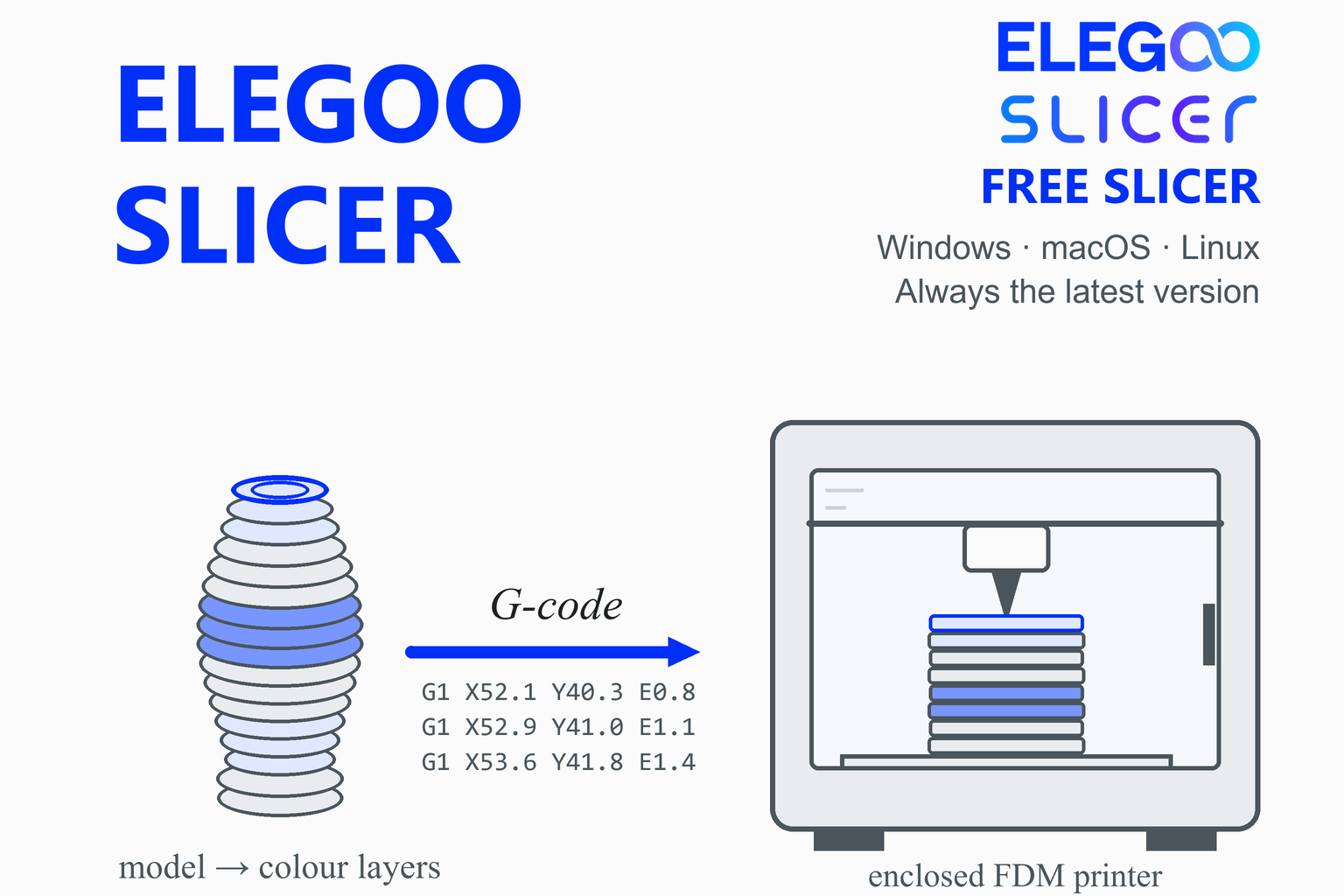
ElegooSlicer Download: The Free Slicer for Elegoo 3D Printers
Always the newest version, checked live against the official GitHub releases every time you visit
ElegooSlicer is ELEGOO’s free, open-source slicer for FDM (filament) printers. It is built on Orca Slicer and adds ELEGOO’s printer profiles, a device page for finding and controlling your printer over the network, and support for ELEGOO’s multi-colour CANVAS system. This page checks GitHub when you open it and offers the newest stable build for Windows, macOS and Linux, with file sizes and SHA-256 checksums. Below you will find what changed in each recent release, which printers it covers, install steps, a first-print walkthrough, troubleshooting and an honest comparison with other slicers.
Download ElegooSlicer
Or use the official page: ELEGOO download centre
Previous versions
Loading the release list…
How this download box works
- It is live. Each visit asks GitHub for the newest stable release of ELEGOO’s official ElegooSlicer project, so you are never sent to an outdated file. Your browser keeps the answer for ten minutes; the Refresh button asks again straight away.
- It shows the current version only. If one system has no file in the newest release, the box says so instead of quietly offering an older build.
- Test builds are flagged, not offered. Pre-releases are left out of the download list. If a newer one exists, the box mentions it so you can try it if you want. The project’s README also points to a beta channel on its Discord server.
- Every link goes to GitHub. The script only accepts download addresses on the official project’s release path. The project sits under the owner name
elegooofficial; some older guides use the earlier nameELEGOO-3D. If GitHub cannot be reached, the box falls back to links that always point to the newest release.
Download Safety and How to Verify the File
Slicers run with full access to your files, so where the installer comes from matters. Download ElegooSlicer from the official GitHub release page (the box above reads from it) or from ELEGOO’s own download centre, which lists ElegooSlicer among its slicing software for FDM printers. Be wary of mirror and “free download” sites: some show out-of-date version numbers or repackaged installers.
Check the SHA-256 checksum
A checksum is a fingerprint of the file. If the fingerprint of your download matches the one shown in the box above, the file is exactly what was published. Replace the file name with yours.
Windows (PowerShell)
Get-FileHash .\ElegooSlicer-installer.exe -Algorithm SHA256macOS (Terminal)
shasum -a 256 ~/Downloads/ElegooSlicer.dmgLinux (terminal)
sha256sum ElegooSlicer.AppImageCompare the printed value, character by character, with the SHA-256 shown for that file. If they differ, delete the file and download it again from the official link.
What Is ElegooSlicer?
A slicer is the program between a 3D model and a printer. It cuts the model into thin layers, works out the path the nozzle should follow for each one and writes those instructions as G-code. ElegooSlicer is ELEGOO’s slicer for FDM printers. The project describes it as an open-source slicer compatible with most FDM printers, and notes that it is being developed quickly, with more features to come.
Its lineage is spelled out in the project’s licence notes: ElegooSlicer is based on Orca Slicer by SoftFever, which is based on Bambu Studio by Bambu Lab, which is based on PrusaSlicer by Prusa Research, which was originally based on Slic3r. All of them are released under the GNU Affero General Public License v3, and so is ElegooSlicer. Because it follows Orca Slicer closely (the 1.5.3.4 release merged most features from Orca Slicer 2.4.2), the layout will feel familiar if you have used any of those programs.
FDM only. ElegooSlicer is for filament printers. ELEGOO’s resin (LCD) printers use different software; ELEGOO’s download centre lists programs such as ELEGOO SatelLite and CHITUBOX for that.
What’s New in Recent Releases
ElegooSlicer’s version numbers have four parts (for example 1.5.3.5). The table summarises the stable releases from the project’s official release notes, newest first. The download box above shows the very newest release’s notes live, so it stays current even as this table ages.
| Version | Date | Main changes |
|---|---|---|
| 1.5.3.5 | 3 Sep 2026 | Fix for an intermittent macOS crash. A multi-build-plate option for choosing different plates when slicing. A physical-connection option for the Neptune 3 series and earlier models. |
| 1.5.3.4 | 6 Aug 2026 | Merged most features from Orca Slicer 2.4.2. Better print-time estimates for Centauri Carbon 2 multicolour jobs. A fix for missing G-code preview images on the Neptune 3 Pro. A new default temperature for the Side B build plate on Centauri Carbon printers. |
| 1.5.2.2 | 25 Jun 2026 | Support for the Centauri 2 printer. New default flushing volumes to reduce colour bleeding. Better 3MF compatibility between versions. Fixes for opening OBJ files and for a “String too long” error when slicing for the Giga. |
| 1.5.1.6 | 27 May 2026 | Device Assistant support for Centauri Carbon 2. More accurate print-time estimates. Revised Centauri Carbon 2 limits and filament list (PLA Glow, PET-CF, PETG HF, ASA-CF and PLA Translucent added). A fix for the app failing to start on some Windows 11 systems. |
| 1.5.0.7 | 16 Apr 2026 | A Beginner Guide on first launch (also under Help). Several program windows can run on one computer, so you can reach printers over WAN and LAN at the same time. A view-reset button. Better material mapping in CANVAS. A fix for printer status syncing over WAN. |
| 1.3.0.11 | 12 Jan 2026 | Account login and Nexprint integration to browse and download models inside the slicer. Newer ELEGOO printers (N4 and later) found automatically or added manually. Slicing, control and printing for Centauri Carbon 2 and CANVAS. A better Send to Print flow with printer selection. Simpler multi-toolhead settings for the Giga. |
| 1.1.8.2 | 12 Mar 2025 | RAPID PLA+ and RAPID PETG profiles for the Giga. G-code and time-lapse downloads inside the macOS app. G-code flavour switching. |
| 1.1.7.3 | 18 Feb 2025 | Profiles for Centauri Carbon and Centauri. A new ElegooLink host type for connecting them. Start-print options such as auto-levelling and time-lapse for Centauri Carbon. Merged Orca Slicer 2.2.0 and its printer and filament profiles. |
Key Features
Orca-based engine
Follows Orca Slicer closely, with regular merges of its features and profiles. Orca’s calibration approach comes with it, and the release notes mention pressure advance calibration.
ELEGOO printer profiles
Ready-made machine, filament and plate profiles for ELEGOO printers, with start G-code, acceleration limits and temperatures tuned by ELEGOO and updated release by release.
Device Assistant
A device page that finds and monitors printers. Newer ELEGOO printers (N4 and later) are found automatically or added by hand; older Neptune models connect through a physical-printer option.
LAN and WAN printing
Send to Print lets you pick the target printer in the print dialog. Since 1.5.0.7, several copies of the program can run at once to control printers over LAN and WAN together.
Multicolour with CANVAS
Slicing, control and printing support for Centauri Carbon 2 with CANVAS, with revised flushing volumes to reduce colour bleeding and improved material mapping.
Nexprint models
Sign in and browse, download and use Nexprint projects and models without leaving the slicer (added in 1.3.0.11).
Beginner Guide
A guided introduction on first launch, reachable later from the Help menu, added in 1.5.0.7.
Several build plates
A multi-build-plate option (1.5.3.5) lets you slice for different plates. ELEGOO advises checking the first-layer temperature the first time you use it.
Which ELEGOO Printers Does It Support?
The README says ElegooSlicer is compatible with most FDM printers, but it is built around ELEGOO’s own machines. The official release notes name these:
| Printer family | What the release notes say |
|---|---|
| Centauri Carbon | Profiles since 1.1.7.3; start-print options (auto-levelling, time-lapse); updated defaults, including the Side B build plate temperature and wipe-line position |
| Centauri Carbon 2 and CANVAS | Slicing, control and printing support since 1.3.0.11; Device Assistant since 1.5.1.6; its own filament list and motion limits |
| Centauri | Profiles since 1.1.7.3; support for the Centauri 2 printer added in 1.5.2.2 |
| Neptune series | N4 and newer are found automatically or added by hand; the N3 series and earlier use a physical-connection option; fixes mention the Neptune 3 Pro |
| OrangeStorm Giga | Multi-toolhead settings, filament profiles and start G-code, and a fix for a slicing error |
If your printer is not in the list, you can still try ElegooSlicer with a generic profile, but a slicer built for your printer’s maker (or Orca Slicer, which covers many brands) may fit better.
Who Should Use ElegooSlicer?
- Owners of ELEGOO printers such as the Centauri Carbon and Carbon 2, Neptune models and OrangeStorm Giga, who want maker-supplied profiles and a direct path from slicing to printing.
- Anyone using CANVAS multicolour printing, because the filament mapping, flushing volumes and printer control are built in.
- Beginners, who get a Beginner Guide on first launch and printer profiles that are already set up.
- People who like Orca Slicer but want ELEGOO’s devices and profiles in one program.
If you print on several brands, you will usually be better served by a multi-brand slicer; the comparison below explains the differences.
System Requirements
| System | What is offered and what the project says |
|---|---|
| Windows | Installer and portable build. The README says that if the program won’t run you may need the Microsoft Edge WebView2 runtime and the Visual C++ 2019 x64 redistributable. |
| macOS | Separate DMG files: arm64 for Apple Silicon and x86_64 for Intel Macs. |
| Linux | An AppImage. |
| Hardware and minimum OS versions | The project does not publish minimum operating-system, memory or graphics figures. The downloads are roughly 140 to 200 MB. |
How to Install ElegooSlicer
Windows
- Download the Windows installer from the box above and, if you like, check its SHA-256 checksum.
- Run the installer and follow the prompts. If Windows SmartScreen shows a warning, confirm that the file came from the official release and matches the checksum before continuing.
- Prefer not to install? Use the portable
.zip: extract it and run ElegooSlicer from the extracted folder. - If the program will not start, install the two Microsoft runtimes named in the README (the Edge WebView2 runtime and the Visual C++ 2019 x64 redistributable), then try again. Version 1.5.1.6 also fixed a start-up failure on some Windows 11 systems, so update first.
macOS
- Choose the right build. Open the Apple menu and choose About This Mac: a chip named “Apple M…” needs the Apple Silicon (arm64) build; an “Intel” processor needs the Intel (x86_64) build.
- Open the
.dmgand drag ElegooSlicer into the Applications folder. - If macOS blocks the app from opening, the README describes two ways to open an app that macOS has quarantined: hold Command, right-click the app, choose Open and confirm; or remove the quarantine flag in Terminal.
xattr -dr com.apple.quarantine /Applications/ElegooSlicer.app
Linux
- Make the AppImage executable and run it. Some distributions need FUSE support installed for AppImages to start.
chmod +x ElegooSlicer*.AppImage
./ElegooSlicer*.AppImage
First-Time Setup and Your First Print
First launch
From version 1.5.0.7 the program offers a Beginner Guide on first launch, which you can reopen later from Help, Beginner Guide. Work through it, and select the printer model, nozzle and filament that match your machine. The profile you pick sets many values for you: temperatures, speeds, acceleration limits and the start G-code for your machine.
Connect the printer (optional)
- Open the Device page. ELEGOO N4 and newer printers can be found automatically on your network or added by hand.
- Centauri-series printers connect through the ElegooLink host type; Neptune 3 and earlier models use the physical-printer option.
- Not connecting? You can always export the G-code and carry it to the printer on a USB drive or card.
Slice and print a model
- Import a model. Drag in an STL, 3MF or OBJ file. (The release notes include fixes for opening OBJ and 3MF files.)
- Check the profiles. Make sure the printer, filament and process profile at the top of the settings panel match what is on your printer.
- Orient the model. Place the flattest face on the plate where you can. Layers are weakest between each other, so avoid loading a part in the direction that pulls layers apart.
- Slice, then read the preview. Step through the layers, look for gaps and check the estimated time and filament use.
- Send it. Choose the target printer in the print dialog (N4 and newer printers). For Centauri Carbon, the dialog also offers options such as auto-levelling and time-lapse.
Using the multi-build-plate option for the first time? The 1.5.3.5 release notes ask you to check that the first-layer temperature for your filament is what you expect, to avoid print failures. Centauri Carbon printers have a different default temperature for the Side B plate (changed in 1.5.3.4), so confirm which side you are printing on.
Settings and Materials Worth Knowing
Start with the profile ELEGOO supplies and change one setting at a time. These are general starting points, not ELEGOO specifications; your printer and filament maker’s advice comes first.
| Topic | Guideline | Why |
|---|---|---|
| Calibrate new filament | Run the calibration prints in the Calibration menu (pressure advance is mentioned in the release notes) before tuning anything else | Measuring once is quicker than adjusting by trial and error over many prints |
| Carbon-fibre filaments | Check that your nozzle is hardened before printing PET-CF or ASA-CF | Carbon-fibre fillers are abrasive and wear soft brass nozzles quickly |
| Enclosed printers | Keep the door and lid closed for materials such as ASA, and allow ventilation for fumes | A stable warm chamber reduces warping, and some plastics release fumes |
| Multicolour jobs | Keep the default flushing volumes at first and adjust only if colours bleed | ELEGOO changed the defaults in 1.5.2.2 specifically to reduce bleeding |
| Print-time estimate | Treat it as a guide; it can differ from the printer’s own figure | Several releases adjusted estimates for specific printers |
| Layer height | 0.2 mm on a 0.4 mm nozzle is a common balance of quality and speed | Thinner layers look smoother but take much longer |
ElegooSlicer vs Orca Slicer, Creality Print, Cura and PrusaSlicer
These programs are close relatives, so the right choice depends on your printer more than on any single feature.
| ElegooSlicer | Orca Slicer | Creality Print | Cura | PrusaSlicer | |
|---|---|---|---|---|---|
| Made by | ELEGOO | Open-source community | Creality | UltiMaker | Prusa Research |
| Lineage | Fork of Orca Slicer | Fork of Bambu Studio | Fork of Orca Slicer | Its own code base | Fork of Slic3r |
| Licence | AGPL-3.0 | AGPL-3.0 | AGPL-3.0 | LGPL-3.0 | AGPL-3.0 |
| Best for | ELEGOO printers and CANVAS | Many brands, deep tuning | Creality printers | Many brands, huge profile library | Prusa printers and many others |
| Network printing | ELEGOO devices over LAN and WAN | Several brands | Creality devices, Klipper hosts | Plugins and cloud | PrusaLink and OctoPrint |
ElegooSlicer and Creality Print are both vendor forks of Orca Slicer: each adds its maker’s printers and cloud or device features on top of the same engine. If you only own ELEGOO printers, start with ElegooSlicer; if you own printers from several makers, Orca Slicer is the natural all-rounder. Our guides to Bambu Studio and SuperSlicer cover the others.
Pros and Cons
Strengths
- Free and open source (AGPL-3.0), with the code public on GitHub.
- Profiles and device features built for ELEGOO printers.
- Regular releases, each with public release notes.
- Orca-style interface and features, with periodic merges of Orca Slicer’s updates.
- CANVAS multicolour support for Centauri Carbon 2.
- Windows, macOS (both chip types) and Linux builds, plus a portable Windows build.
Limits
- Built around ELEGOO hardware; less convenient for mixed-brand workshops.
- FDM only, so it does not replace resin software.
- The project calls itself rapidly changing, so features and behaviour shift between releases.
- Follows Orca Slicer, so it can trail the newest upstream features by a release or two.
- No published minimum system requirements.
- Older Neptune models connect through a separate physical-printer option.
Troubleshooting
| Problem | What to try |
|---|---|
| The program won’t start on Windows | Install the Microsoft Edge WebView2 runtime and the Visual C++ 2019 x64 redistributable (both named in the README). Version 1.5.1.6 fixed a launch failure on some Windows 11 systems, so update to the newest build. |
| Random crashes on macOS | Version 1.5.3.5 fixed an intermittent macOS crash. Update, and make sure you installed the build that matches your chip. |
| macOS refuses to open the app | Try the two methods in the macOS install steps: Command-right-click the app and choose Open, or run the quarantine command. |
| OBJ or 3MF files won’t open | Fixes for OBJ files and for 3MF compatibility between versions arrived in 1.5.2.2. Update first. |
| “String too long” error slicing for the Giga | Fixed in 1.5.2.2. Update to the newest release. |
| No G-code thumbnail on a Neptune 3 Pro | Fixed in 1.5.3.4. Update to the newest release. |
| The printer does not appear on the Device page | N4 and newer printers should be found automatically on the same network, or can be added by hand. For Neptune 3 and earlier, use the physical-printer connection. Centauri-series printers use the ElegooLink host type. |
| Colours bleed into each other in a multicolour print | Start from the default flushing volumes, which were changed in 1.5.2.2 to reduce bleeding, and raise them only if needed. |
| First layer fails after choosing a different build plate | Check the first-layer temperature for that plate and filament, as the 1.5.3.5 notes advise. |
Frequently Asked Questions
Is ElegooSlicer free?
Yes. ElegooSlicer is free and open source under the GNU Affero General Public License v3, and its source code is public on GitHub.
Is ElegooSlicer safe to download?
The download box on this page links only to files on the official GitHub project, and ELEGOO’s own download centre lists ElegooSlicer too. To confirm your copy is unaltered, compare its SHA-256 checksum with the one shown beside the file. Avoid mirror and “free download” sites, some of which show out-of-date versions or repackaged installers.
Is ElegooSlicer based on Orca Slicer?
Yes. The project’s licence notes say ElegooSlicer is based on Orca Slicer by SoftFever, which is based on Bambu Studio, which is based on PrusaSlicer, which came from Slic3r. The 1.5.3.4 release notes say it merged most features from Orca Slicer 2.4.2.
Which ELEGOO printers does ElegooSlicer support?
The release notes name the Centauri Carbon, Centauri Carbon 2 (with CANVAS), Centauri, the Neptune series and the OrangeStorm Giga. The README says the slicer is compatible with most FDM printers. Check the printer list inside the program for your exact model.
Can I use ElegooSlicer with a resin printer?
No. ElegooSlicer is for FDM (filament) printers. ELEGOO’s resin printers use other software; ELEGOO’s download centre lists programs such as ELEGOO SatelLite and CHITUBOX.
Do I need Orca Slicer as well?
No. ElegooSlicer is a complete slicer. Orca Slicer is a good alternative if you print on several brands, and ElegooSlicer follows it closely, so most of what you learn in one carries over to the other.
Why won’t ElegooSlicer start on Windows?
The README says you may need the Microsoft Edge WebView2 runtime and the Visual C++ 2019 x64 redistributable if the program won’t run. Version 1.5.1.6 also fixed a start-up failure on some Windows 11 systems, so update to the newest build.
Does ElegooSlicer support multicolour printing with CANVAS?
Yes. Since version 1.3.0.11 it supports slicing, control and printing for the Centauri Carbon 2 with CANVAS, and later releases improved material mapping and changed the default flushing volumes to reduce colour bleeding.
How do I connect my printer to ElegooSlicer?
Use the Device page. ELEGOO N4 and newer printers can be found automatically or added by hand, Centauri-series printers connect through the ElegooLink host type, and Neptune 3 and earlier models use the physical-printer option. You can also export the G-code and carry it to the printer on a USB drive or card.
Which version of ElegooSlicer should I download?
The latest stable version shown in the download box. The project’s README also mentions a beta channel on its Discord server for people who want to test new builds, but test builds can be less stable.
More slicer guides: Creality Print · Orca Slicer · Cura · Bambu Studio · PrusaSlicer · SuperSlicer · FreeCAD · Engineering calculators